Limited or No Connectivity
What to do if there is limited or no connectivity.
In this tutorial, you will learn how to:
• Check network status
• Check network status via web manager
• Unblock devices
Check network status
For optimal placement, place your Sonim MegaConnect on a higher shelf and near a window. Try to avoid placing the device near items that may interfere with wireless network signal, such as large appliances, microwaves, stone or concrete walls, metal cabinets, computer monitors or televisions screens.
Check network status via web manager
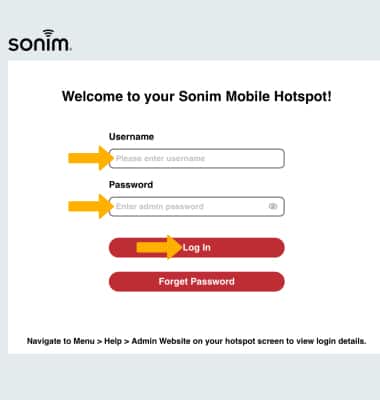
1. From your device's web browser, go to http://sonim.mobilehotspot. Enter the Username and Password, then click Log In.
Note: Ensure that your device is connected to the Sonim MegaConnect's Wi-Fi network. For more information, please visit the Connect Devices to Wi-Fi or Connect PC or Mac to Wi-Fi tutorials. If this is your first time logging into the Web admin page, the default password will be displayed on the device. From the home screen, select Menu > Help > Admin Website.
2. Click Settings.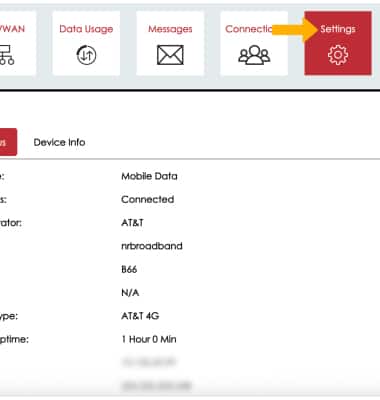
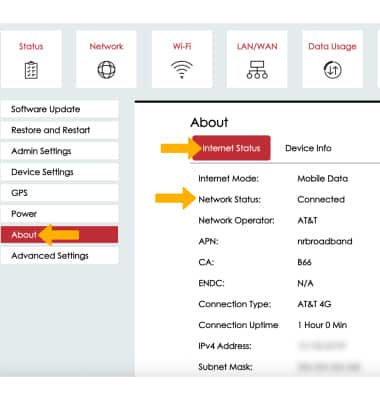
3. Click the About menu, then click the Internet Status tab. Network status will be displayed.
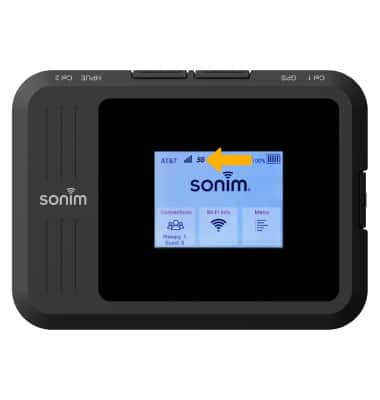
4. The signal strength is displayed on the device home screen. When connected to 5G, the 5G icon will be displayed.
Note: If on the Web Admin page there is no Cellular or poor cellular signal, try moving your Sonim MegaConnect to another area, preferably closer to a window to get better signal strength.
Unblock devices
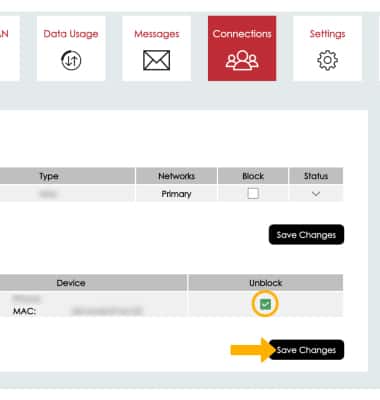
1. Click Connections. Blocked devices will be displayed under Blocked.
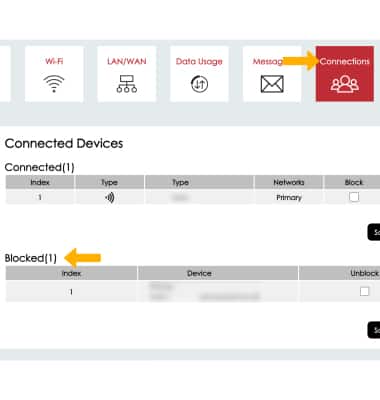
2. Click the Unblock checkbox next to the desired device, then click Save Changes.