Take a Video
Take a Video
Learn how to record a video, capture images during video recording, and more.
INSTRUCTIONS & INFO

For technical details about your camera, visit the Specifications tutorial.
In this tutorial, you will learn how to:
• Record a video
• Switch between the front and rear cameras
• Zoom in and out
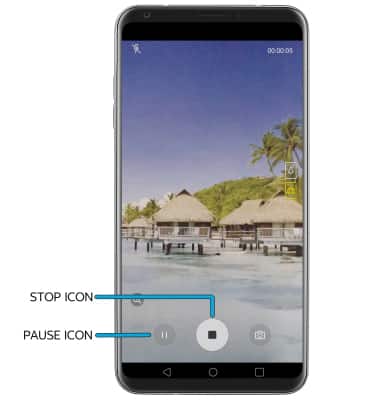
• Pause/resume/stop a recording
• Capture a still image while in video mode
This tutorial requires you to open the Camera app. From the home screen, select the  Camera app. To access the camera from the lock screen, select and drag the Camera icon up or press the volume down button twice.
Record a video
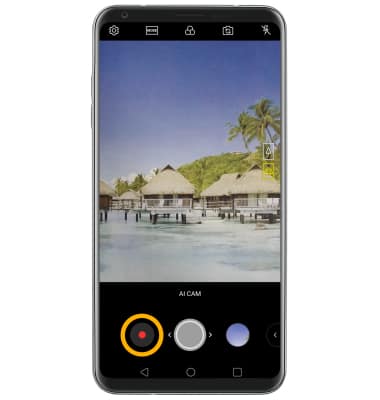
Select the Record icon.
Switch between front and rear cameras
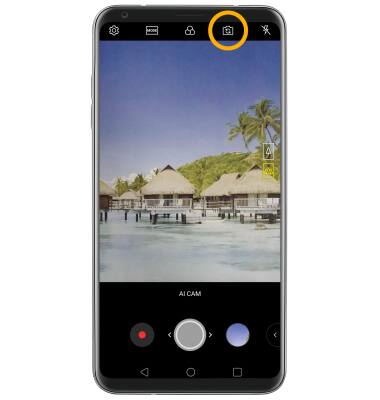
Select the Switch camera icon.
Note: You can also swipe in any direction to quickly switch between the rear and front facing cameras. You cannot switch between front and rear facing cameras while recording a video.
Note: You can also swipe in any direction to quickly switch between the rear and front facing cameras. You cannot switch between front and rear facing cameras while recording a video.
Zoom in and out
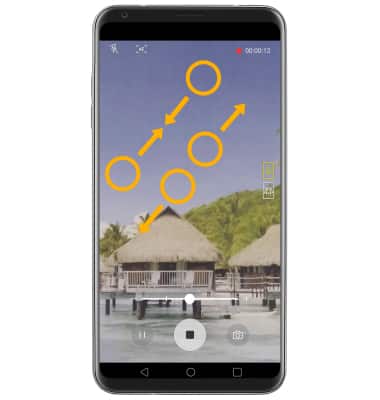
Drag two fingers from the middle of the screen toward the outer edges of the screen to zoom in. Pinch two fingers from the outer edges of the screen to the middle of the screen to zoom out.
Pause/resume/stop a recording
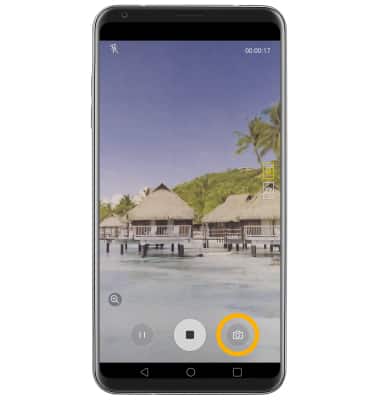
Select the Pause icon to pause the video. Select the Stop icon to finish recording.
Note: To resume a recording, select the Record icon.
Note: To resume a recording, select the Record icon.
Capture a still image while in video mode
Select the Capture icon.