Learn & customize the home screen
Learn & customize the home screen
Add shortcuts and widgets, access the notification panel, changing wallpaper, and more.
INSTRUCTIONS & INFO
- The Notifications bar will display various indicators including battery life, cellular signal strength, and any pending app notifications.
Note: PadFone home screen will appear differently when docked to the PadFone Station.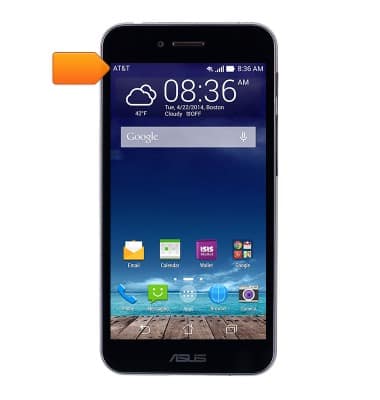
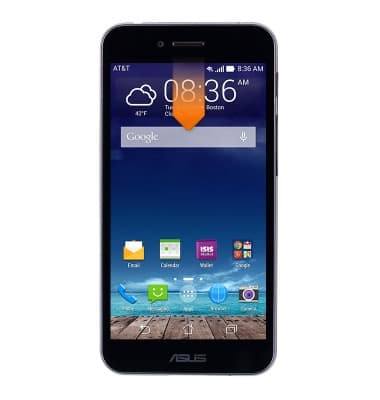
- Swipe down from the Notifications bar to access a list of pending notifications. Alternatively, swipe down with two fingers to access Quick settings.
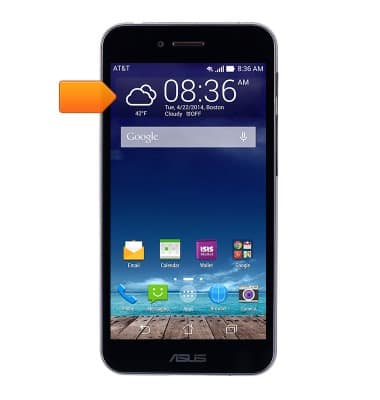
- The Clock widget will display the current time, date, and weather.
- Swipe left or right to access other home screens.
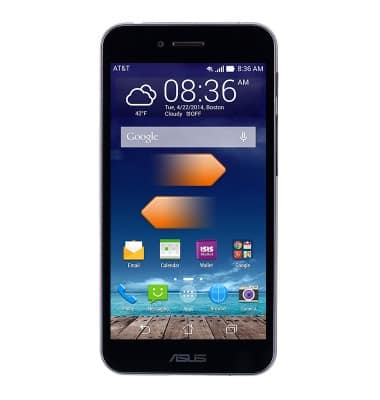
- Phone, Messaging, Apps, Browser, and Camera shortcuts will appear on every home screen.
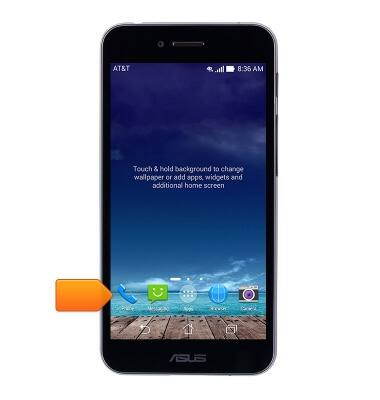
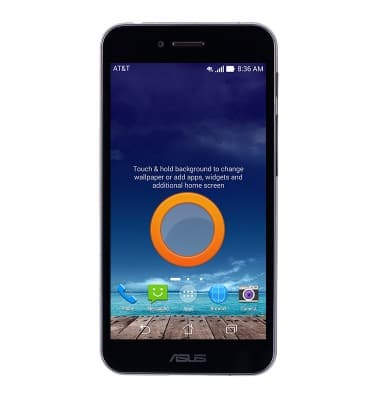
- To add a widget, swipe to the desired home screen, then touch and hold a blank area of the home screen.
- Tap Widgets.
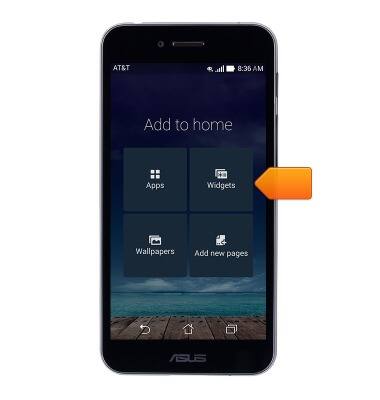
- Swipe to, then touch and hold the desired widget.
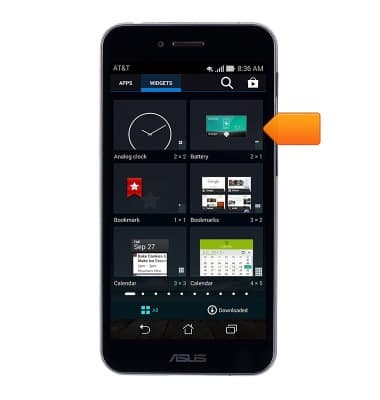
- Drag the widget to the desired location on the home screen, then release.
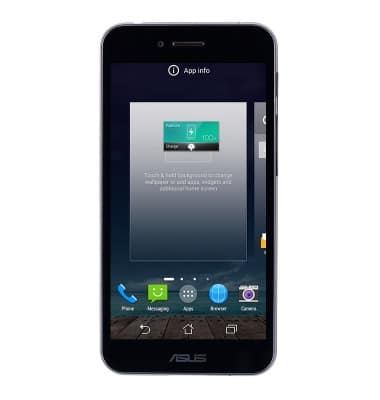
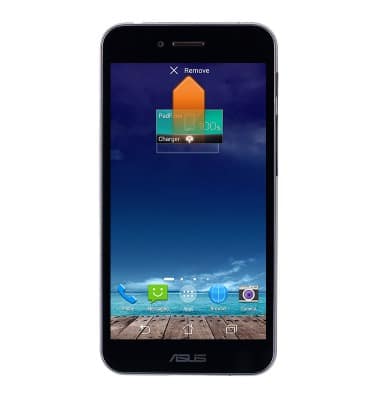
- To remove a widget, touch and hold the desired widget.
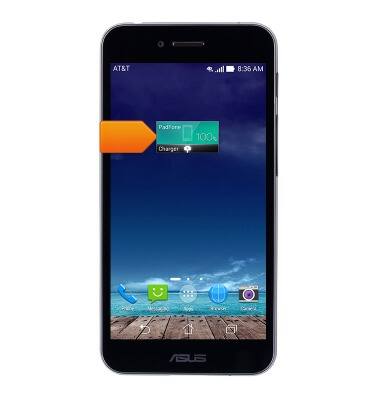
- Drag the icon to REMOVE, then release.