Set up corporate email
Set up corporate email
Add an Exchange email account so you can read and send email on your device.
INSTRUCTIONS & INFO
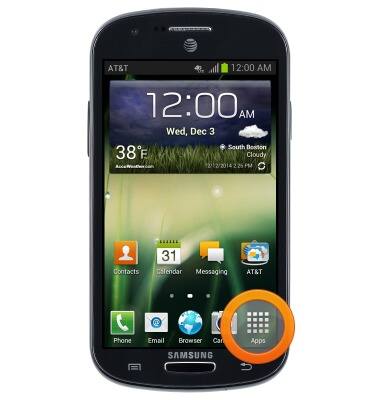
- From the home screen, tap Apps.
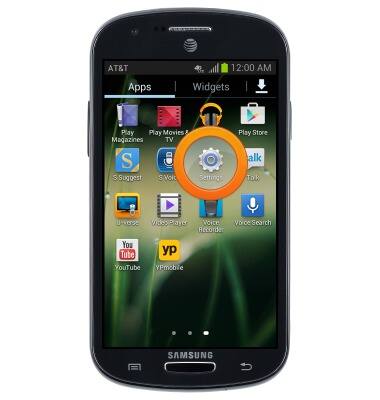
- Swipe to, then tap Settings.
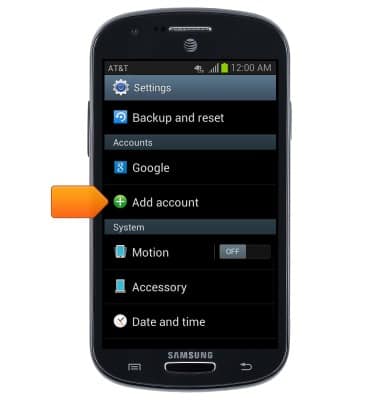
- Scroll to "Accounts", then tap Add account.
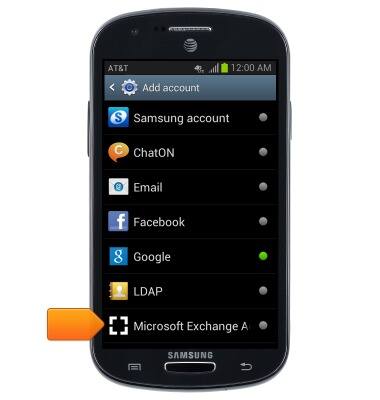
- Tap Microsoft Exchange ActiveSync.
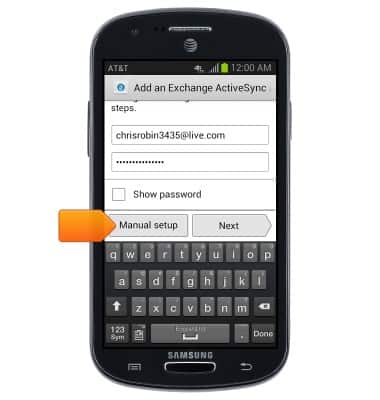
- Enter your account information, then tap Manual setup.
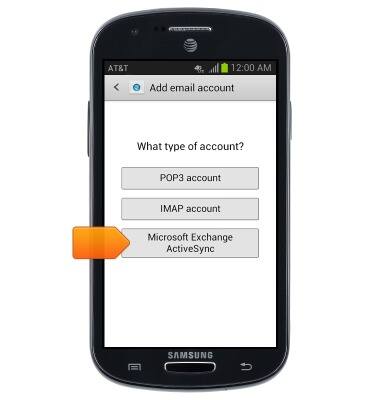
- Tap Microsoft Exchange ActiveSync.
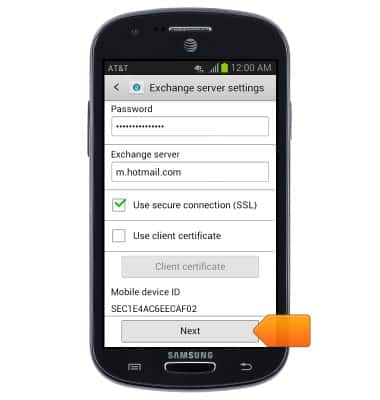
- Enter your server settings, then tap Next.
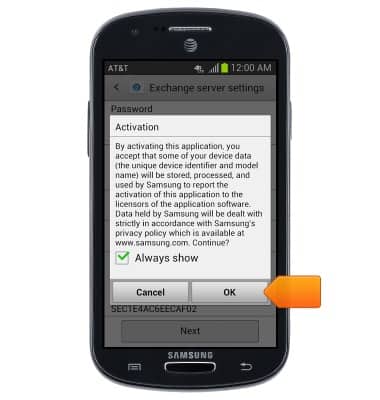
- Tap OK.
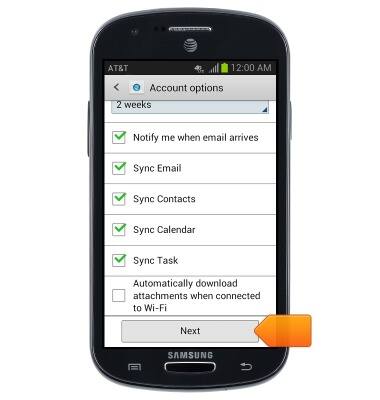
- Tap to adjust the desired account options,then tap Next.
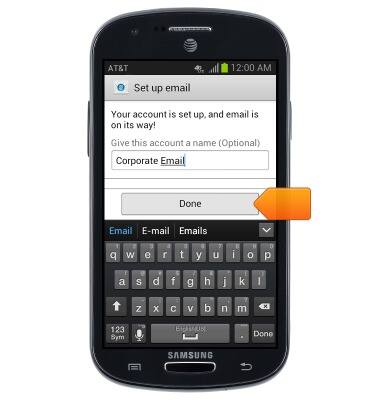
- If desired, give the email account a name, then tap Done.
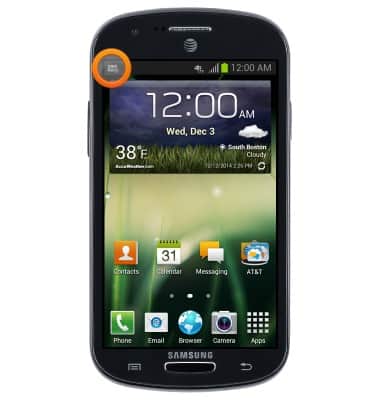
- When a new email is received, the Email icon will be displayed in the Notifications Bar.