Learn & customize the home screen
Learn & customize the home screen
Add shortcuts and widgets, access the notification panel, changing wallpaper, and more.
INSTRUCTIONS & INFO
- Swipe left or right to access additional pages of the home screen.
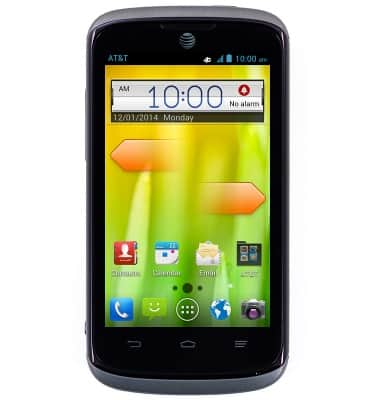
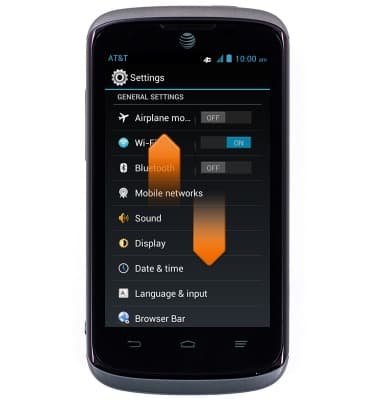
- Scroll up or down to access additional information on a screen.
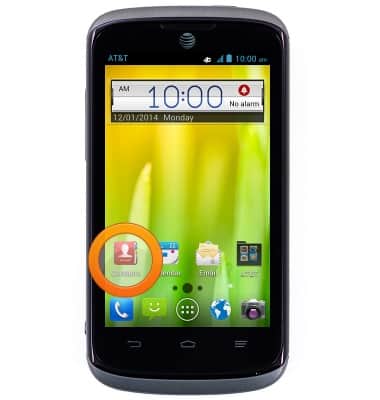
- Tap an icon to make a selection or launch an application.
- Drag down from the Notifications bar to access the Notifications panel.
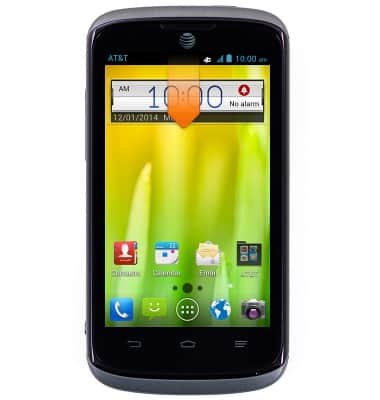
- To change the wallpaper, touch and hold an empty area of the home screen.
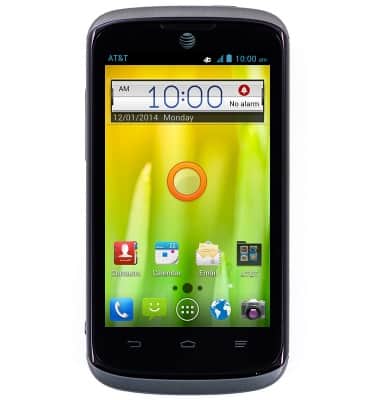
- Tap Home.
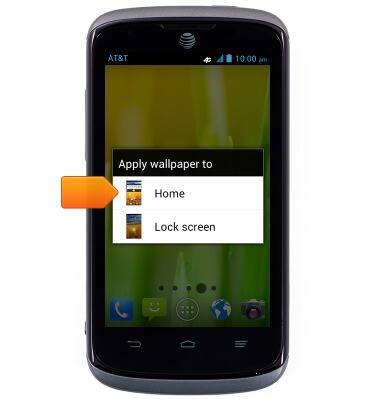
- Tap the desired option.
Note: This tutorial selects 'Wallpapers'.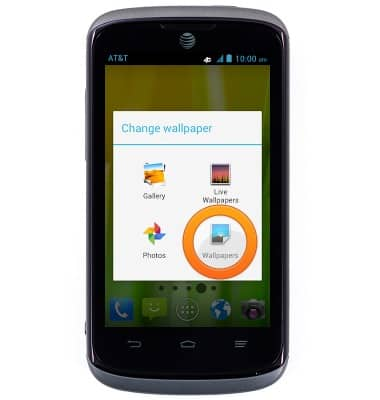
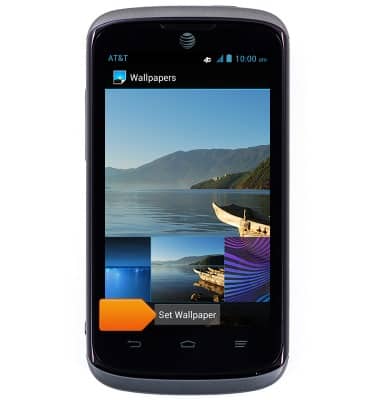
- Swipe to the desired wallpaper, then tap Set Wallpaper.
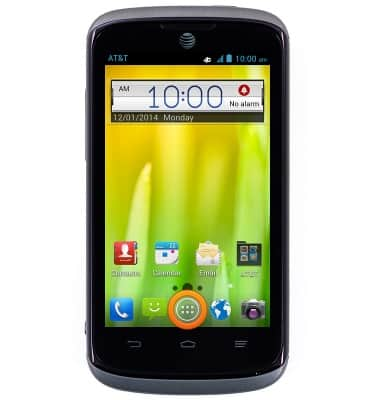
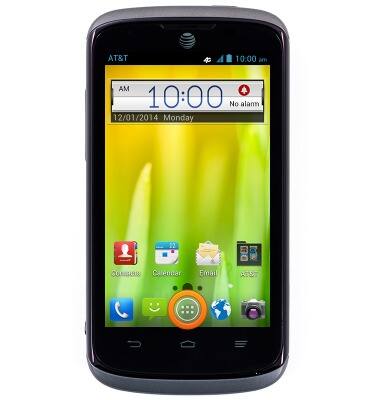
- To add a widget to the home screen, from the home screen, tap the Apps icon.
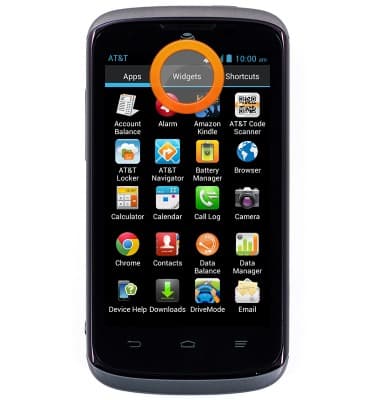
- Tap Widgets.
- Touch and hold the desired Widget.
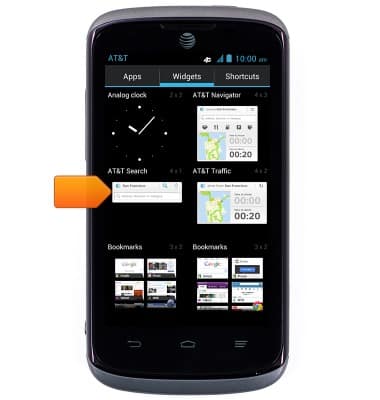
- Drag the widget to the desired home screen page, the release to place.
- To add an app to the home screen, from the home screen tap the Apps icon.
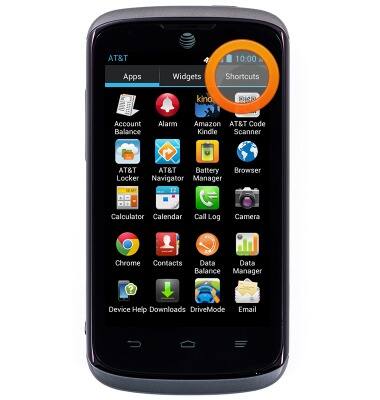
- Tap Shortcuts.
- Touch and hold the desired shortcut.
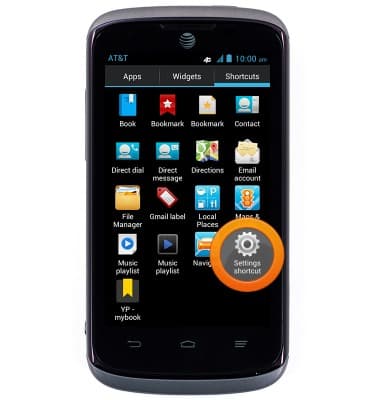
- Drag the shortcut to the desired home screen page, the release to place.
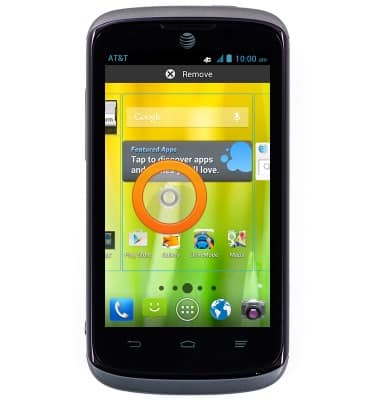
- To move an app, touch and hold the desired app.
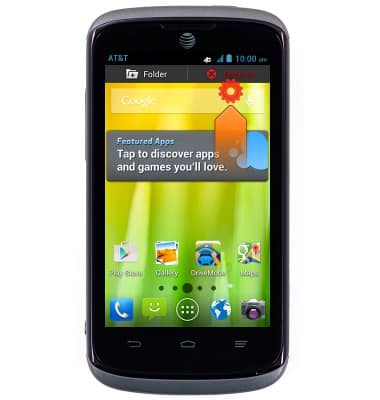
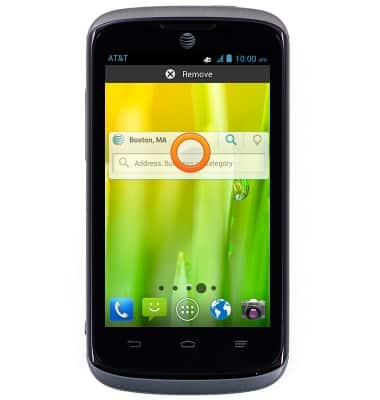
Note: To remove and app or widget from a home screen, touch and hold the desired app or widget.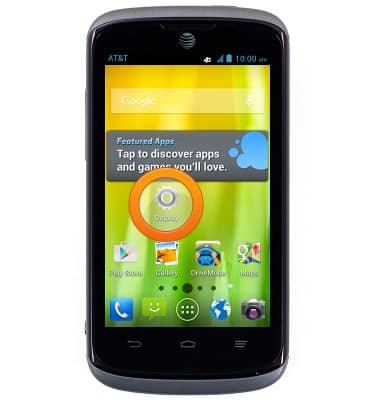
- Drag the app to the desired position, then release to place it.
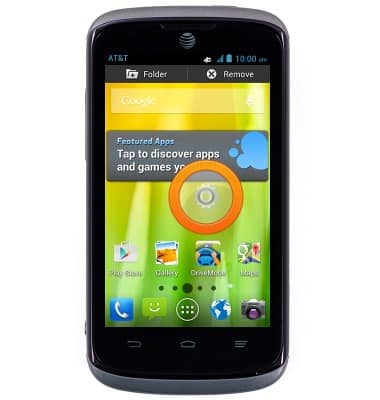
- Drag up to Remove, then release to remove.