File Management - SD card
File Management - SD card
This tutorial describes how to share files.
INSTRUCTIONS & INFO
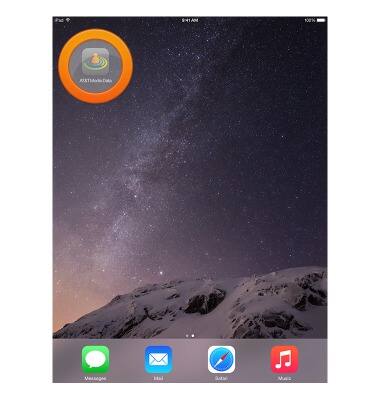
- To view files on your SD card, from the home screen, swipe to then tap AT&T Modio Data.
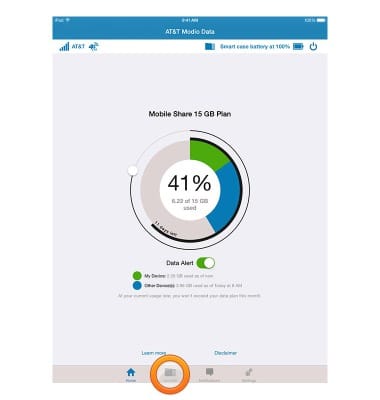
- Tap microSD.
- Tap the folders to browse your memory card.
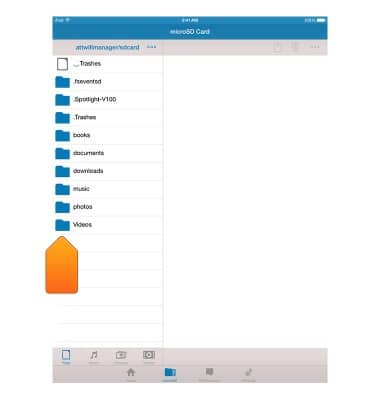
- Tap to view the desired file.
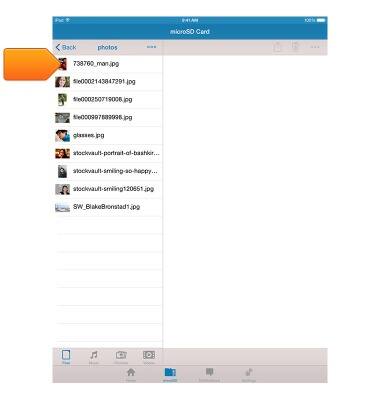
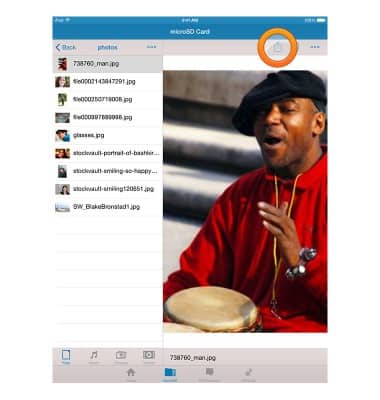
- To save the selected file to your iPad mini, tap the Transfer icon.
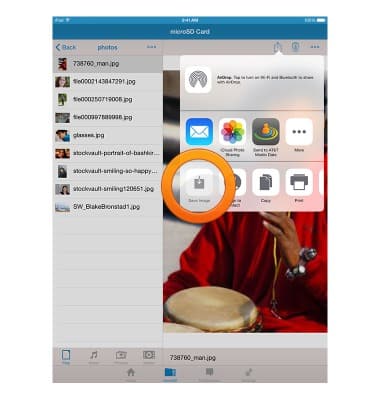
- Tap Save (filetype).
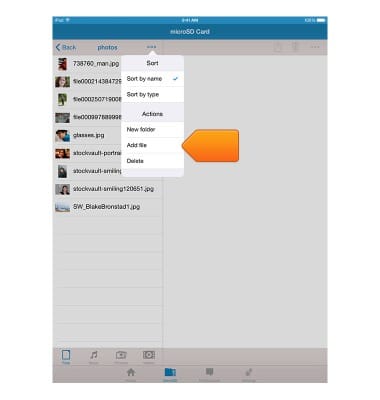
- To copy a file from your iPad mini to the selected folder, tap the Folder menu icon.
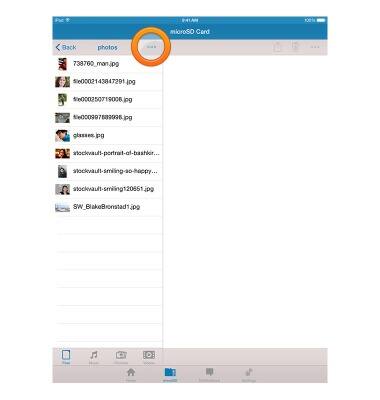
- Tap Add file, then follow the on-screen prompts.
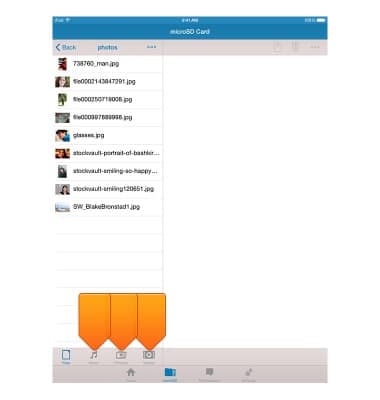
- Tap Music, Pictures or Videos to view only files of the selected media type.
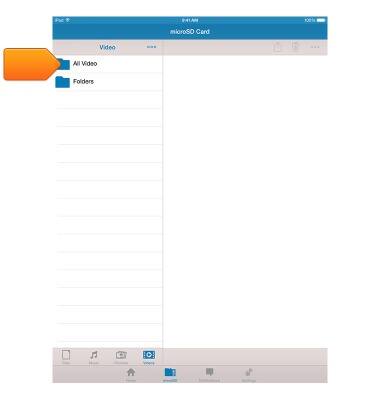
- Tap the folders to navigate to the desired media file.
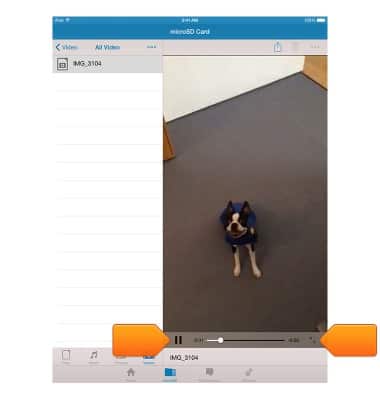
- Tap the desired file to view/play it within the AT&T Modio Data app.
Note: To play videos over 10MB from the microSD, tap the Video icon on the bottom left.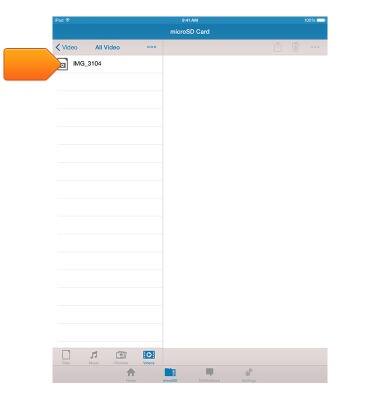
- For music and video files, Player controls are displayed near the bottom-right of the screen.
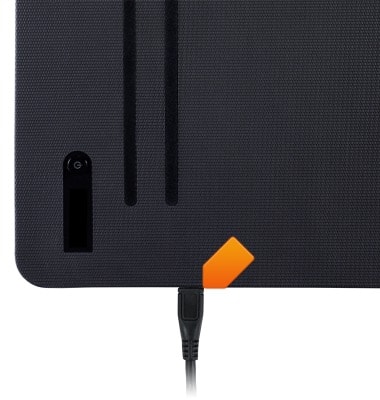
- To transfer files between your microSD card and your computer, first insert the microUSB end of the microUSB cable into the port on the bottom of your AT&T Modio LTE case.
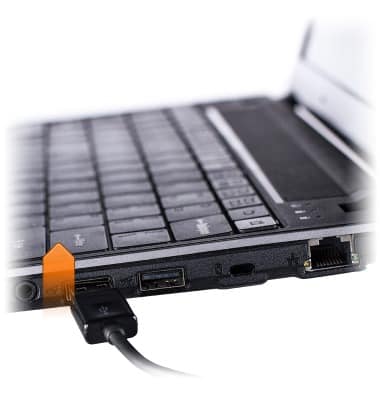
- Insert the USB end of the microUSB cable into an available port on your computer.
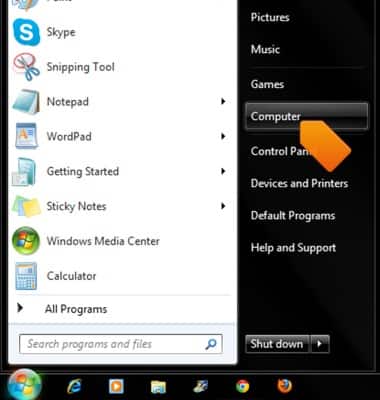
- On your computer, click to access the Start menu.
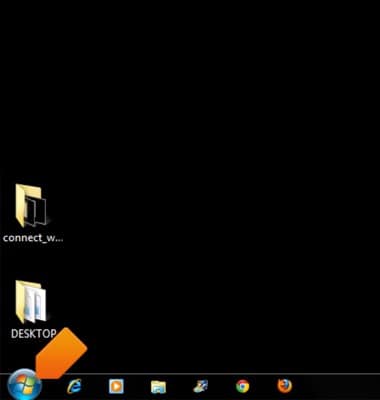
- Click Computer.
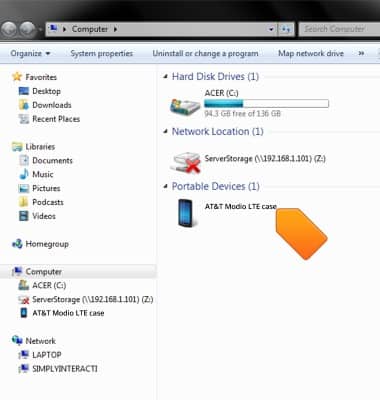
- Open the newly connected device drive.
- Navigate to the desired storage location.
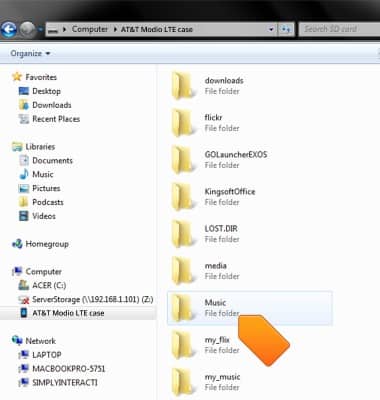
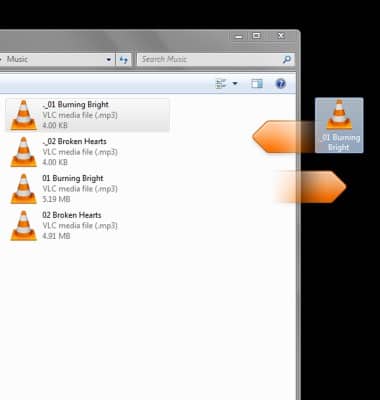
- Drag files to/from the device folder to transfer.