Change Watch Face
Change Watch Face
This tutorial shows how to change the watch face on the device.
INSTRUCTIONS & INFO
- CHANGE WATCH FACE: Swipe left or right from the clock-screen.
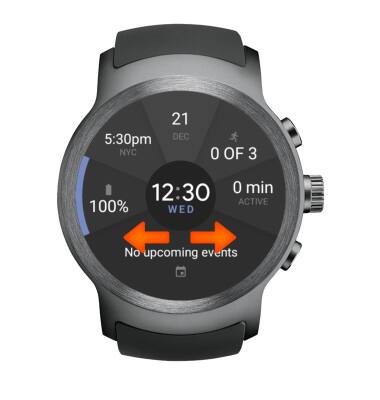
- Select the desired watch face.
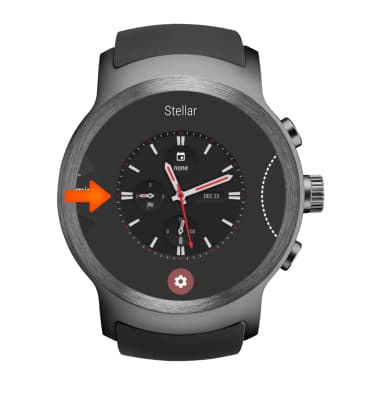
- ADD NEW WATCH FACE TO FAVORITES: Swipe left from the clock-screen and select Add more watch faces, then select the desired watch face.
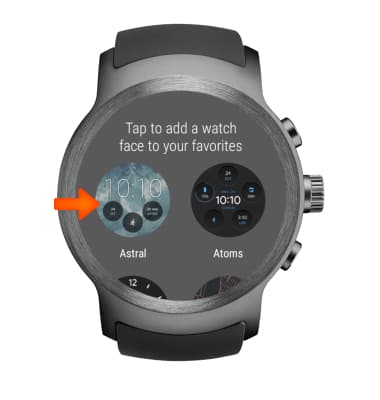
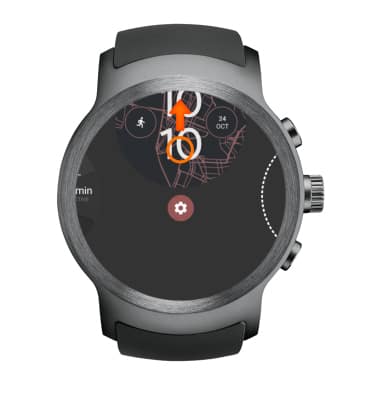
- REMOVE A WATCH FACE FROM FAVORITES: Swipe the watch face up.
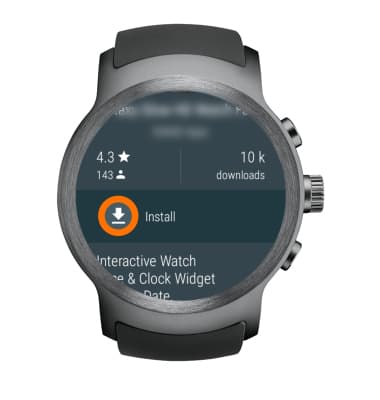
- DOWNLOAD MORE WATCH FACES: From the Add more watch faces screen scroll to and select Get more watch faces at the bottom of the screen > select Yes, I'm In > select the desired watch face > select Install.
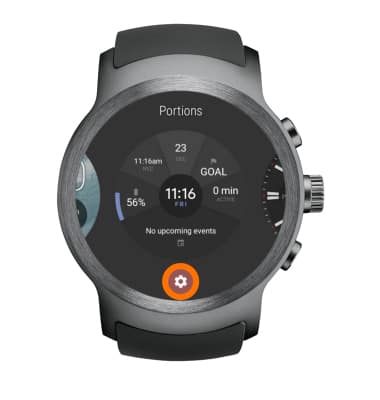
- CUSTOMIZE A WATCH FACE: Select and hold the clock-screen, or swipe left or right from the clock-screen and select the Settings icon underneath the watch face you would like to customize.
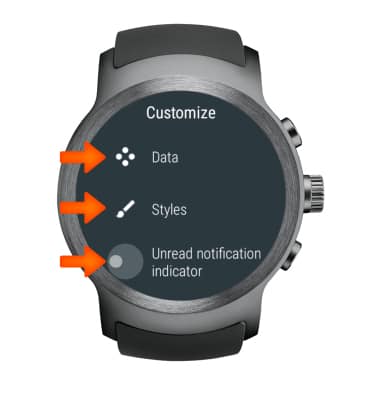
- Select the desired customization option and edit as desired.
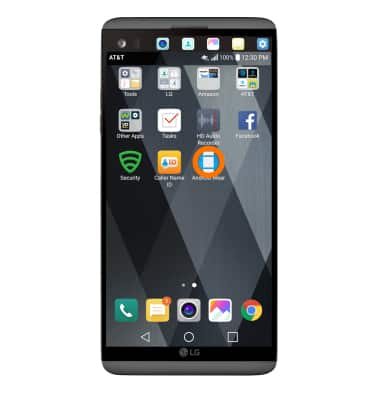
- You can also download additional watch faces from the Android Wear app on your handheld device. Select the Android Wear app.
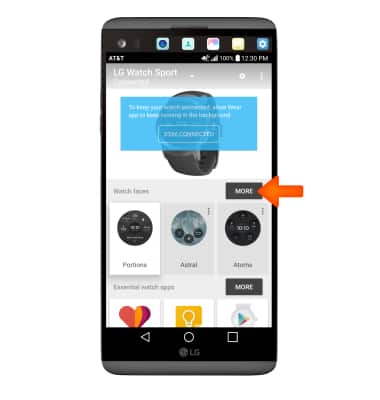
- Next to watch faces select MORE.
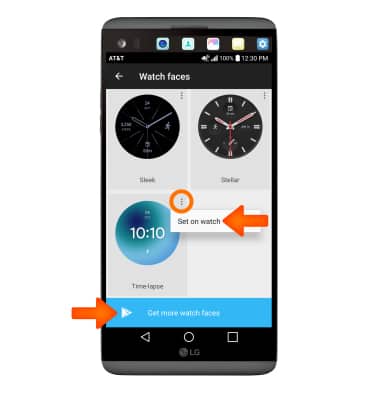
- Select the Menu icon on the desired watch face, then select Set on watch or scroll to the bottom of the screen and select Get more watch faces.
- Select the desired watch face to download, then select INSTALL. The watch face will automatically be downloaded and applied to your watch.
Note: You will be prompted with a permissions screen, review permissions and if you agree select ACCEPT.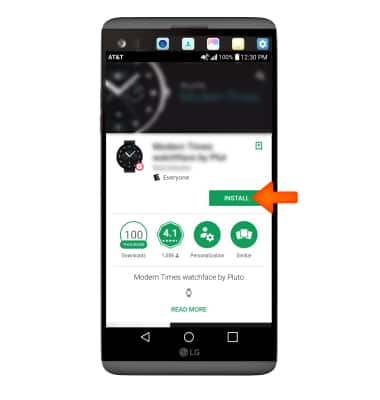
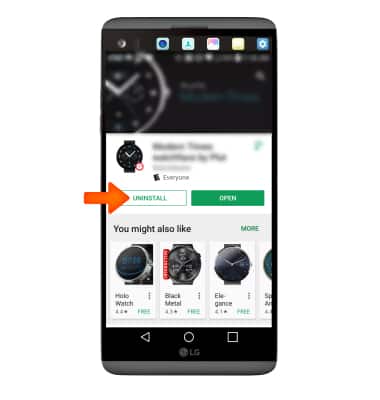
- UNINSTALL A WATCH FACE: Select UNINSTALL.