DIRECTV App
DIRECTV App
Watch, search, and record your favorite movies and shows, and turn your device into your remote control with the DIRECTV app on your phone.
INSTRUCTIONS & INFO

You must have an existing DIRECTV account or create one in order to use.
- ACCESS DIRECTV: Swipe left from the home screen, then select the AT&T folder. Select the DIRECTV app.
Note: Upon first access, you must read and review the End User Acknowledgement. Select I AGREE to continue. You will then receive permission prompts. Select ALLOW to continue. If the app is not up-to-date, you will be prompted to update the DIRECTV app. Select UPDATE. When complete, select OPEN.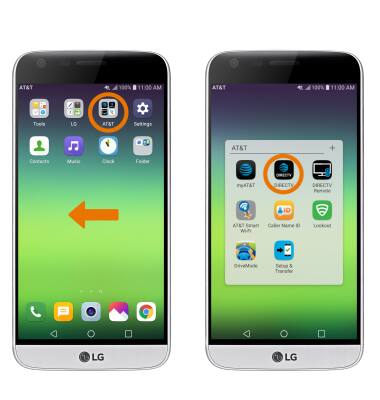
- Enter your Login information, then select Sign In.
Note: Upon first access, you will be presented with a tutorial. Select Continue to proceed. If you do not have a DIRECTV account, you will need to create a new account. Select Create one.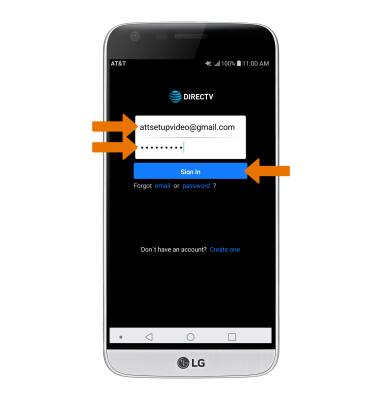
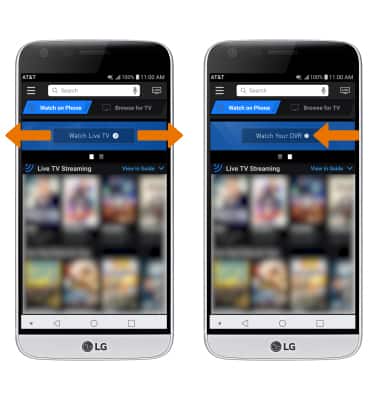
WATCH LIVE TELEVISION: Select Watch on Phone, then select Watch Live TV or the desired show.
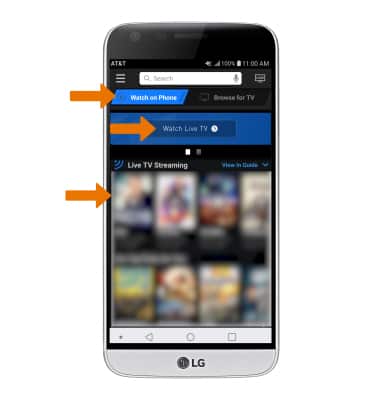
- WATCH YOUR DVR: Swipe left or right from Watch Live TV, then select Watch Your DVR and follow the prompts.
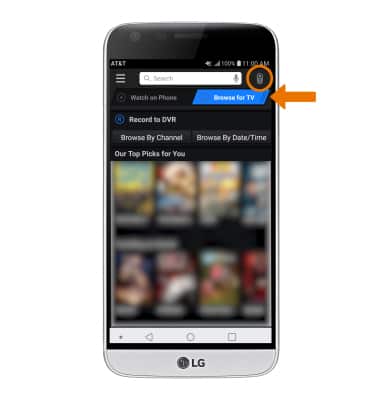
USE DTV QUICK REMOTE: Select Browse for TV, then select the Remote icon.
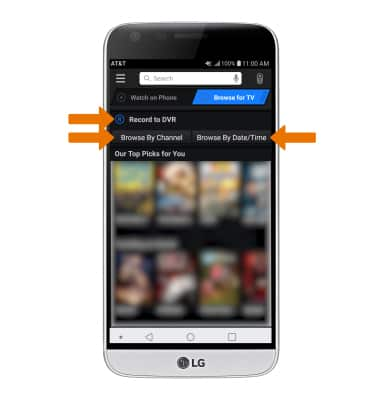
- BROWSE & RECORD PROGRAMS TO DVR: Select Record to DVR. You can also browse through programs on your phone by Channel or Date/Time by selecting the corresponding options.
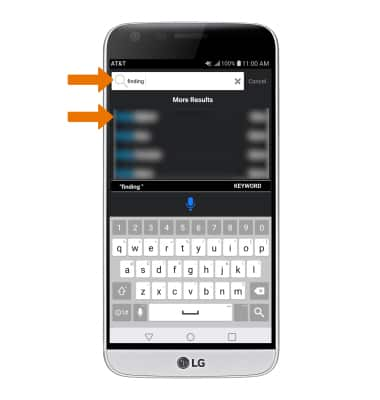
SEARCH FOR A SHOW OR MOVIE: Select the Search bar, then enter the desired show or movie. Select the desired search result.
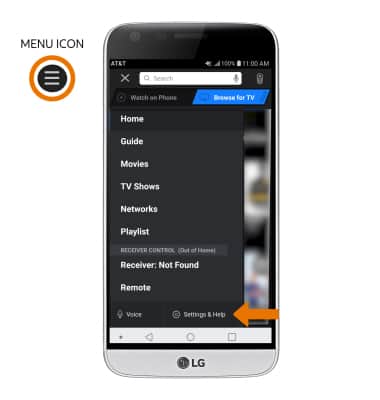
EDIT SETTINGS: Select the Menu icon, then select Settings & Help.