Backup & Restore with Google
Backup & Restore with Google
Backup Google account data in the event you have to replace or reset your device so you can restore later.
INSTRUCTIONS & INFO
- Swipe down from the Notification bar, then select the Settings icon.
Note: For more information, including what data and settings are restored, please see Back up or restore data on your device.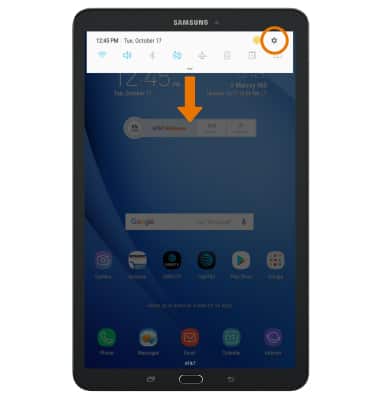
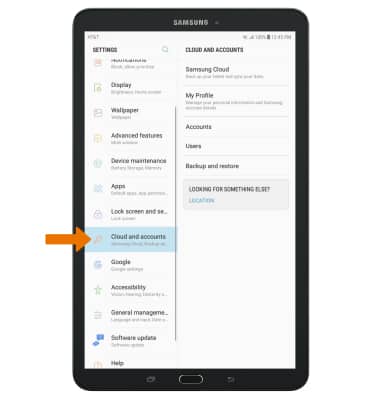
- Select Cloud and accounts.
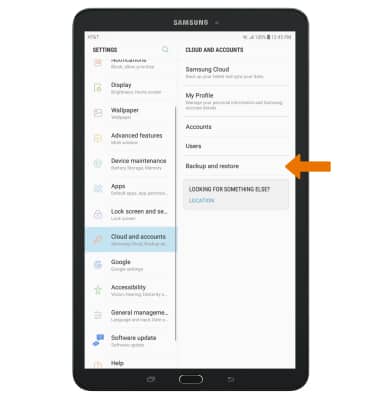
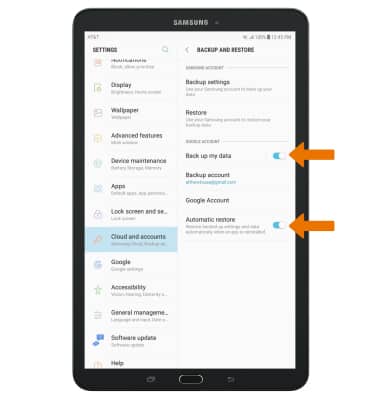
- Select Backup and restore.
- Make sure that the Back up my data and Automatic restore switches are ON.
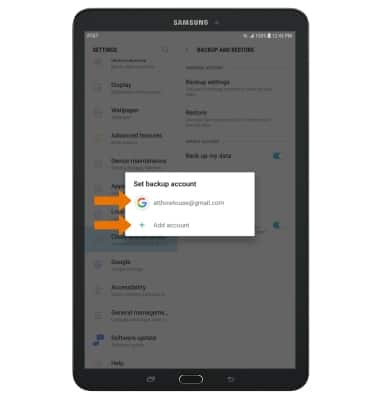
- If desired, select Backup account to ensure redundancy for backing up your data on the cloud.
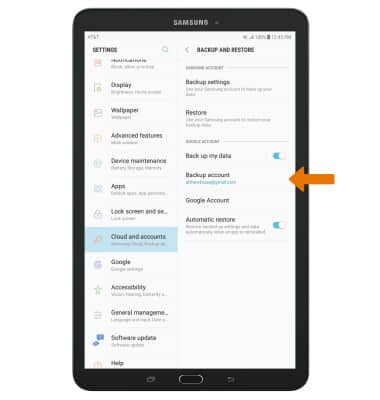
- ADD A NEW BACKUP ACCOUNT: Select the desired backup account option or select Add account to add a new backup account. When you add your Google account to a device, the data that you previously backed up for that Google account is restored to the device.