Accessibility
Accessibility
Accessibility features improve the usability of your device for users with impaired vision or hearing, cognitive difficulty, or reduced dexterity.
INSTRUCTIONS & INFO

For more information about accessibility features and TTY compatibility, see AT&T Accessibility.
In this tutorial, you will learn how to:
• Access accessibility features
• Enable/disable accessibility shortcuts
• Enable/disable Text-to-speech
Access accessibility features
1. Swipe down from the Notification bar, then select the  Settings icon.
2. Scroll to and select Accessibility.
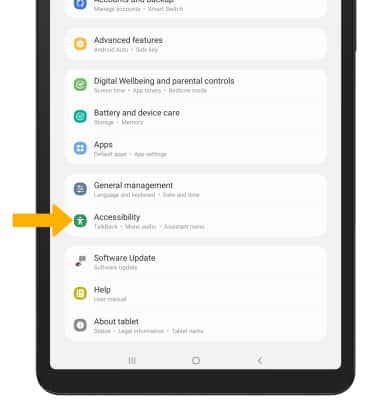
Settings icon. 2. Scroll to and select Accessibility.
Enable/disable accessibility shortcuts
1. From the Accessibility screen, select Advanced settings.
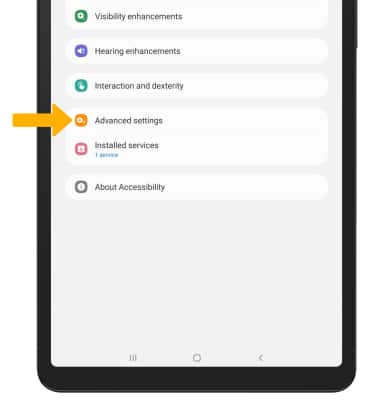
2. Select the desired button combination (Accessibility button, Side and Volume up keys, or Volume up and down keys).
Note: For this demonstration, Side and Volume up keys was selected. Accessibility button will add a button to the navigation bar at the bottom of the screen. You can have multiple accessibility shortcuts.
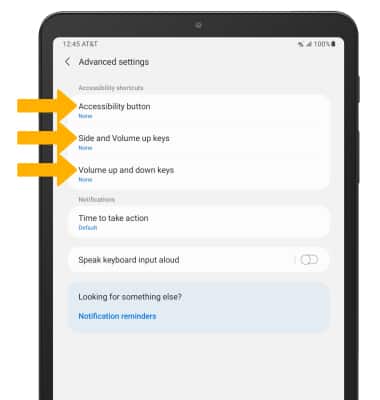
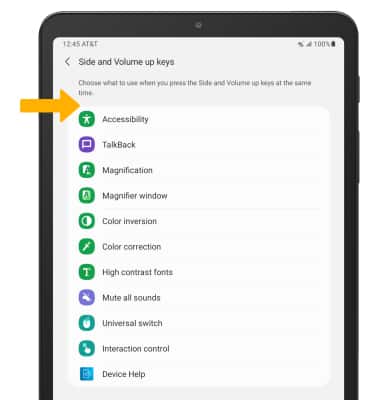
3. Select the desired accessibility feature to set as a shortcut.
2. Select the desired button combination (Accessibility button, Side and Volume up keys, or Volume up and down keys).
Note: For this demonstration, Side and Volume up keys was selected. Accessibility button will add a button to the navigation bar at the bottom of the screen. You can have multiple accessibility shortcuts.
3. Select the desired accessibility feature to set as a shortcut.
Enable/disable Text-to-speech
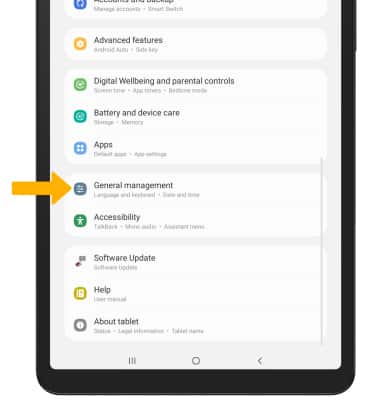
1. From the Settings screen, select General management.
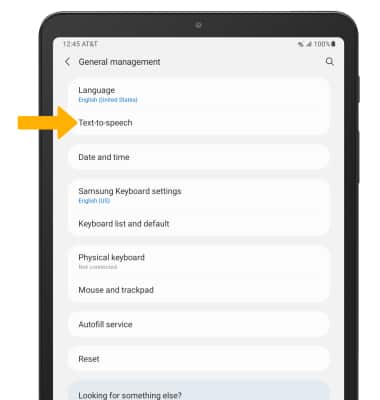
2. Select Text-to-speech.
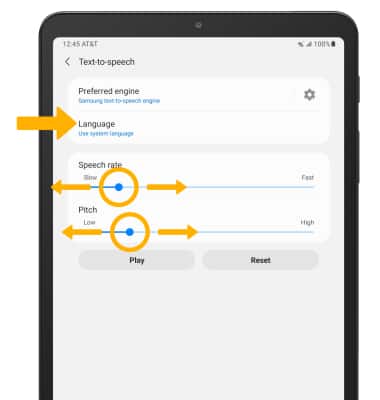
3. Edit settings as desired.
2. Select Text-to-speech.
3. Edit settings as desired.