My gateway
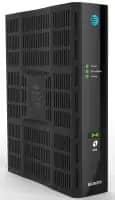
Internet equipment
Restart equipment
You can fix many common internet issues by restarting your All-Fi Hub® or Wi-Fi gateway.
- Unplug the power cord from the back of your device and the wall. (If you have an internal battery backup, remove it.)
- Wait 20 seconds. Put the internal battery back in, if applicable.
- Plug the power cord back in and wait for the hub or gateway to restart. This may take up to five minutes.
Important: When you restart your hub or gateway, it will disconnect all devices from the internet or Wi-Fi®. It may take up to five minutes for it to come back online and your devices to reconnect.
Equipment status lights
The status lights on your device give you valuable info about your internet status.
Service outages
Sometimes widespread issues affect entire areas. Find out if there’s a wireless or internet outage affecting your service.
Check for outages
FYI: Look for wireless outages if you have Internet Air.
Browsing or connection issues
Having trouble checking your email online or going to your favorite web pages? We can help. Have your AT&T ID and password handy to sign in.
Fix slow browsing issues
Internet connections
If you have a new device or just need your Wi-Fi info, we can help:
Issues with other services
Streaming video? Listening to your favorite tunes? Each connected device in your home uses your internet and affects its speed.
Optimize your connection