Notifications & Alerts
Notifications & Alerts

Learn how to access and adjust notification settings, turn notifications on or off, and more.
In this tutorial, you will learn how to:
• Access notification settings
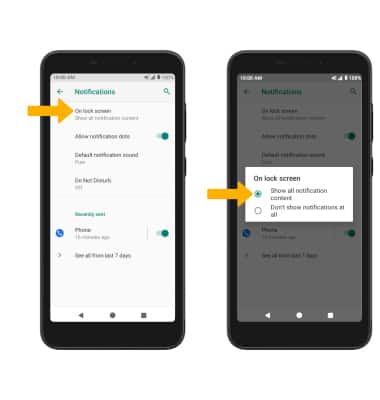
• Turn lock screen notifications on or off
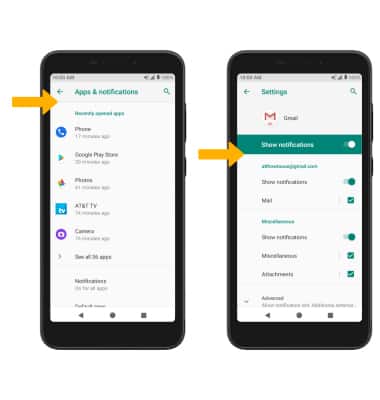
• Turn notifications on or off on a per-app basis
• Adjust notification sounds
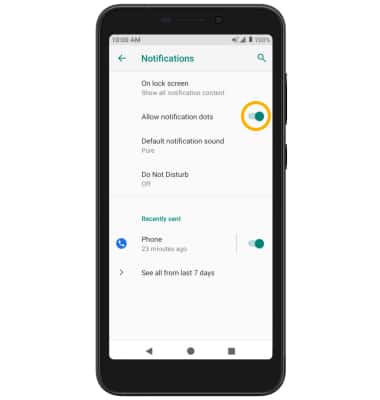
• Turn on or off notification badges
Access notification settings
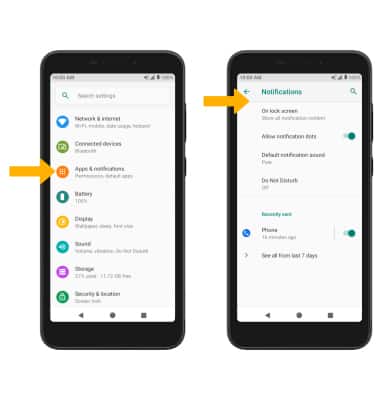
- Swipe down from the Notification bar with two fingers, then select the
 Settings icon.
 - Select Apps & notifications > Notifications > edit settings as desired.
Turn lock screen notifications on or off
From the Notifications screen, select On lock screenthen select the desired option.
Turn notifications on or off on a per-app basis
From the Apps & notifications screen, select the desired app > Notifications > adjust notification settings as desired.
Note: To enable or disable app icon badges, select Advanced > Allow notification dot switch.
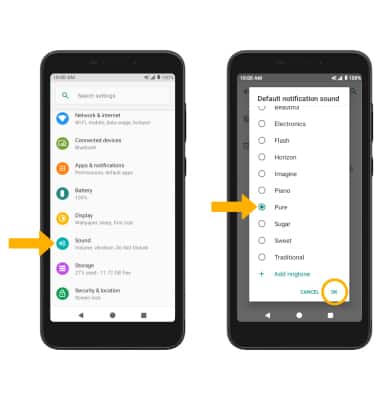
Adjust notification sounds
From the Settings screen, select Sound > scroll to and select Default notification sound > desired sound > OK.
Turn on or off notification badges
From the Notifications screen, select the Allow notification dots switch.