Messaging Settings
To back up or restore messages, access the Back up & Restore with Google tutorial.
In this tutorial, you will learn how to:
• Access messaging settings
• Access messaging settings options
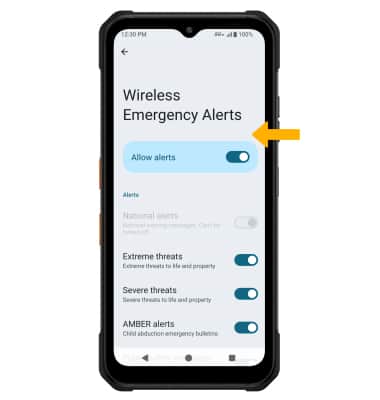
• Enable/disable Emergency Alerts
Access messaging settings
- From the home screen, select the
 Messages app.
 - Select the Google Account icon > Messages settings > edit settings as desired.
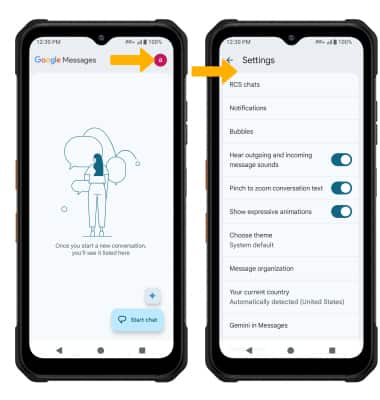
Access messaging settings options
Select the desired option to access the desired settings.
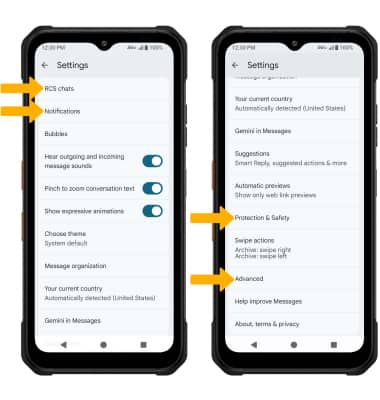
• TURN ON/OF ADVANCED RCS CHAT FEATURES: Select RCS chats > select the Turn on RCS chats switch.
• TURN ON/OFF CHAT READ RECEIPTS: Select RCS chats > select the Send read receipts switch.
• TURN ON/OFF TYPING INDICATORS: Select RCS chats > select the Show typing indicators switch.
• AUTO-DOWNLOAD FILES: Select RCS chats > Auto-download files you receive over mobile data > select the desired file size.
• SPAM PROTECTION: Select Protection & Safety > select the Enable spam protection switch.
• AUTO-DOWNLOAD MMS: Scroll to and select Advanced > select the Auto-download MMS switch.
• MMS GROUP MESSAGING: Scroll to and select Advanced > Group messaging > select the desired Group messaging option.
• ACCESS/EDIT MESSAGE NOTIFICATIONS: Select Notifications.
Note: If Advanced Messaging Chat Features is turned on and you are messaging another device using Advanced Messaging from AT&T you can share files up to 100MB, get read receipts, and see when someone is replying. To learn more, view Advanced Messaging or visit att.com/advancedmessaging.
Enable/disable Emergency Alerts
1. From the Advanced settings screen, select Wireless emergency alerts.
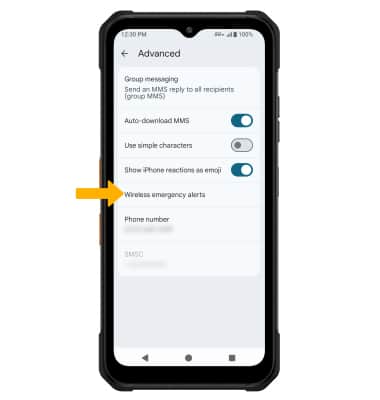
2. From the Wireless emergency alerts screen, select the  Menu icon, then select Settings.
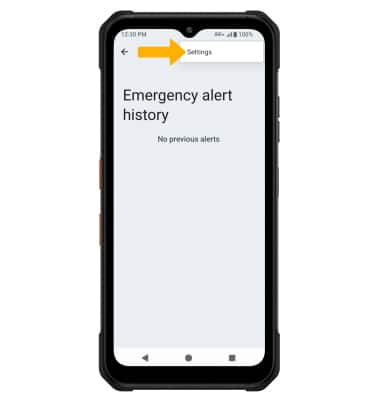
3. Select the desired switches to enable or disable alerts as desired.
Note: Learn more about Wireless Emergency Alerts (WEA).