Secure My Device
To learn more about requesting a device unlock for your AT&T mobile device so that it can operate on another compatible wireless network, visit www.att.com/deviceunlock. If your device is locked and is requesting a "PUK" code, click here for instructions on how to obtain your PUK or PUK2 code to unlock your SIM card.
In this tutorial, you will learn how to:
• Set a security lock
• Change PIN
• Lock and unlock device
Set a security lock
- From the home screen, use navigation keys to highlight the
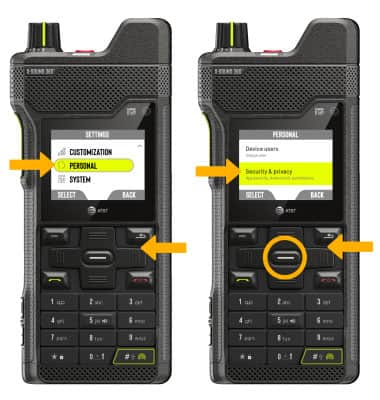
 Settings app, then press the Select button to select.
 - Press the navigation keys to scroll to and highlight PERSONAL, then press the Select button. Use the navigation keys to highlight Security & privacy, then press the Select button.
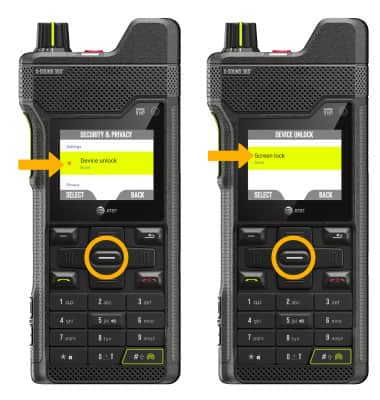
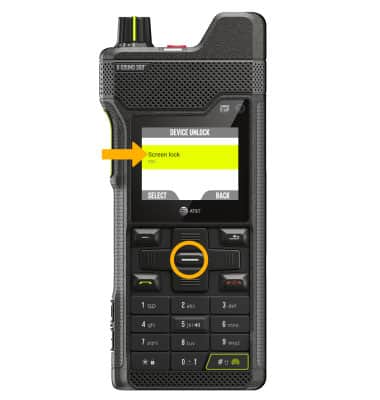
3. Ensure that Device unlock is highlighted, then press the Select button. Ensure Screen lock is highlighted, then press the Select button.
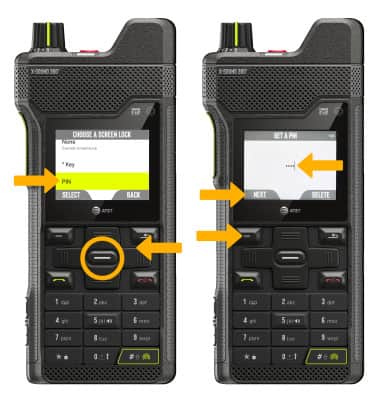
4. Use the navigation keys to highlight the desired screen lock, then press the Select button. Use the keypad to enter the desired PIN, then press the Left option button to select Next.
Note: For this demonstration, PIN will be selected. A PIN must be 4-10 digits long. To turn off screen lock, from the Security screen, ensure that Screen Lock is highlighted, then press the Select button. Use the keypad to enter your current 4 digit PIN. Press the Select button and press the Select button again to select None. You will be prompted to press the Right Dynamic key to confirm.
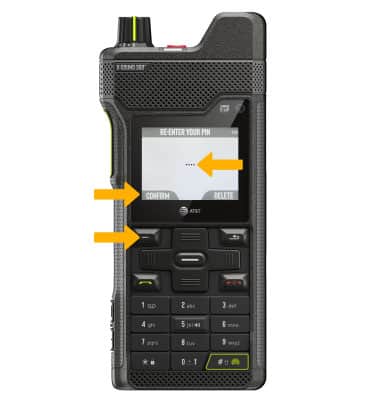
5. Use the keypad to re-enter the desired PIN, then press the Left option button to select CONFIRM.
Change PIN
From the Device unlock screen, ensure Screen lock, is highlighted then press the Select button to select.
Note: Use the keypad to confirm your current PIN, then press the Left option button to select VALIDATE. Enter the new 4 digit PIN, then press the Left option button to select Next. Enter the PIN again and press the Left option button to select Confirm.
Lock and unlock device
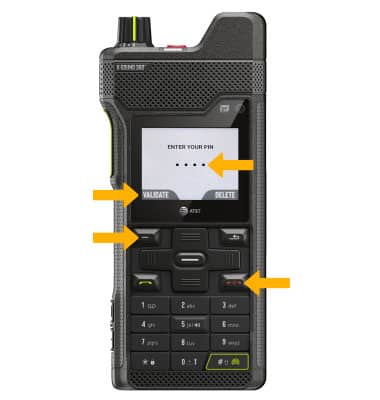
• LOG IN USING THE SECURITY LOCK: From the Lock screen, press the Left option button to select UNLOCK. Use the keypad to enter your current PIN, then press the Left option button to select VALIDATE.
• LOCK DEVICE: Press the Power/End call button.