In this tutorial, you will learn how to:
• Make an outbound video call
• Make a Video call from the AT&T amiGO™ app
Make an outbound video call
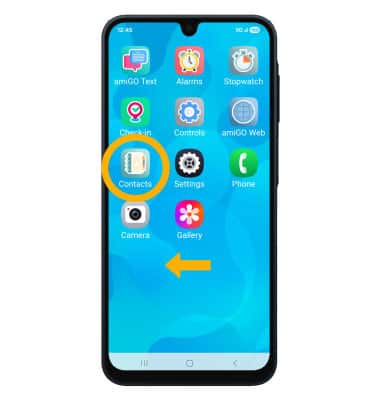
1. From the home screen, swipe left to the apps tray then select the Contacts app.
Note: To use the amiGO Call app, you must be granted access on the parent phone. To grant access, from the paired device, navigate to the AT&T amiGO™ app > Menu icon > Parental controls > App Management > amiGO Call app switch.
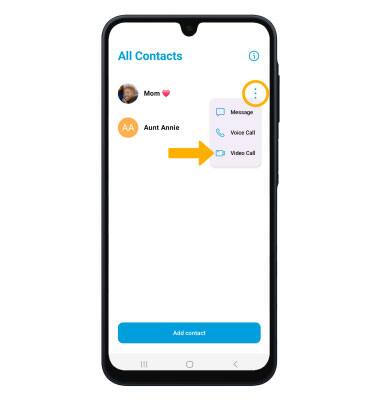
2. Select the three buttons icon next to the desired contact you wish to call, then select Video Call.
Note: Calls can only be made and received from Contacts added through the AT&T amiGO™ app.
Make a Video call from the AT&T amiGO™ app
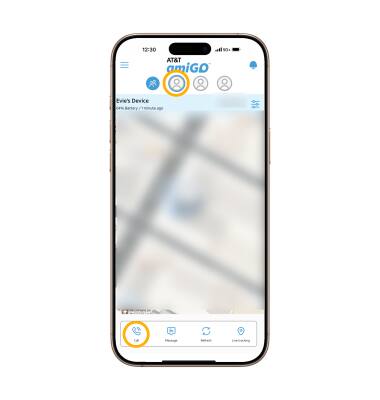
1. From your connected smart phone, navigate to and select the  AT&T amiGO™ app.
2. Select the desired device, then select Call.
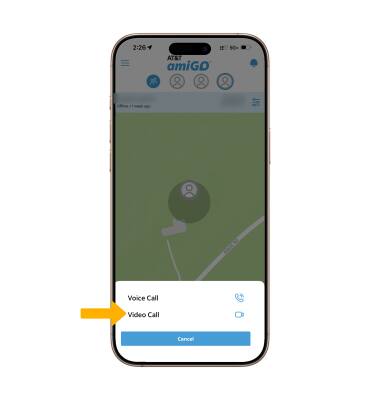
3. Select Video Call.