Device Setup
Set up your device for the first time or after having done a factory reset.

1. When turning the device on for the first time, or after a factory reset, you will be walked through a series of prompts to set up your device. Select the Drop-down icon, then select the desired language. Select Start to continue.
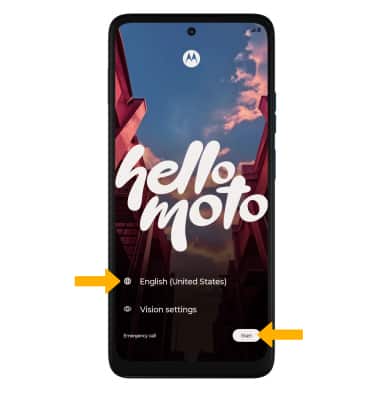
2. If you would like to set up using another device, select the desired device and follow the on-screen prompts.
3. If you would like to connect to a Wi-Fi network, select the desired network name and follow the on-screen prompts. Select Skip to continue setup without connecting to a Wi-Fi network.
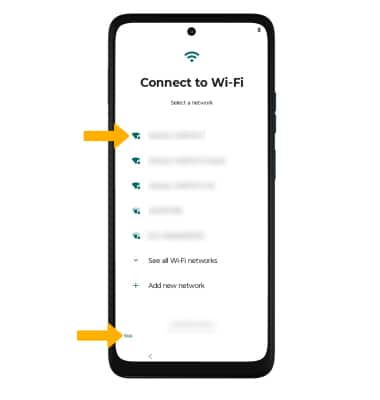
4. Review the Privacy & software updates prompt, then select the switches as desired. When finished, select Accept & continue.
5. If you would like to use your Google Account, enter the desired email or phone or select Create account. Follow the on-screen prompts to complete setup. To proceed without signing in or creating a Google Account, select Skip.
Note: If you select Skip, review the prompt then select Skip again to continue without signing in or creating a Google Account.
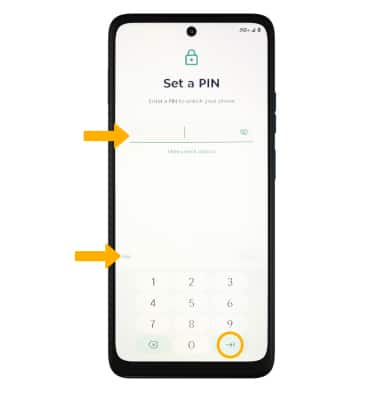
6. If you would like to set up a screen lock for security, enter the desired PIN then select Next. Follow the on-screen prompts to complete setup. To proceed without setting up a screen lock, select Skip.
Note: If you select Skip, review the prompt then select Skip again to continue without setting up a screen lock.
7. Review the Copy apps & data prompt, then select the desired option.
8. Review the Google services prompt, then select the desired switches. When finished, select Accept.
9. Review the Google services: Back up your device prompt. Select the desired checkboxes, then select the desired option.
10. Review the AT&T prompt, then select Accept.
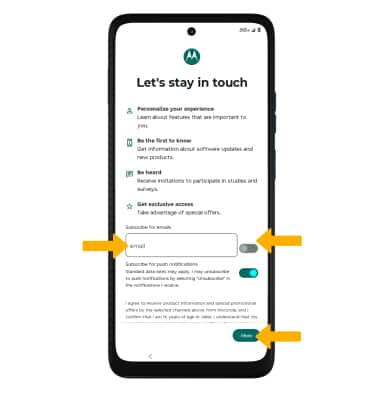
11. Review the Motorola Let's stay in touch prompt. Enter the desired email and select the switches as desired. Select Next.
12. Review the Continue setup prompt, then select the desired option.
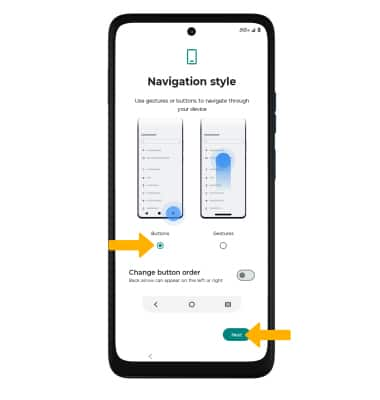
13. Select the desired Navigation style, then select Next.
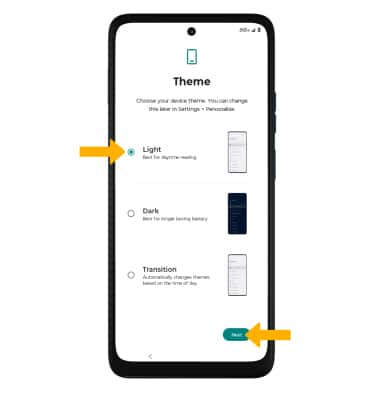
14. Select the desired Theme, then select Next.
15. Select Finish to complete setup.
16. Select the desired option to personalize or learn more about the features on your phone or select Go to my home screen to proceed without personalizing or exploring your device.
What's in the box?
• Device with preinstalled SIM
• USB-C Cable
• SIM Removal tool
• Quick Start Guide
• Legal Insert
• Nano SIM
• AT&T Collaterals