In this tutorial, you will learn how to:
• Configure a firewall section
• Open VPN
• MAC filtering
Configure a firewall section
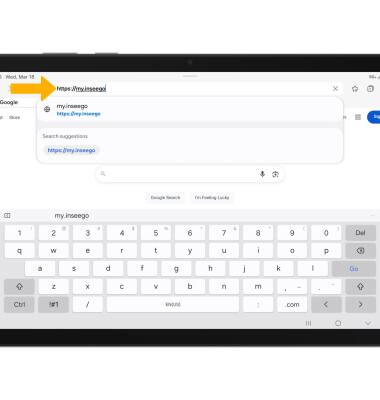
1. From your device's web browser, go to http://my.inseego.
Note: Ensure that your device is connected to the Inseego MiFi PRO M4's Wi-Fi network. For more information, please visit the Connect Devices to Wi-Fi or Connect PC or Mac to Wi-Fi tutorials. If this is your first time logging into the Web admin page, the default password will be displayed on the bottom of your device. You will be prompted to change the admin password.
Note: Ensure that your device is connected to the Inseego MiFi PRO M4's Wi-Fi network. For more information, please visit the Connect Devices to Wi-Fi or Connect PC or Mac to Wi-Fi tutorials. If this is your first time logging into the Web admin page, the default password will be displayed on the bottom of your device. You will be prompted to change the admin password.
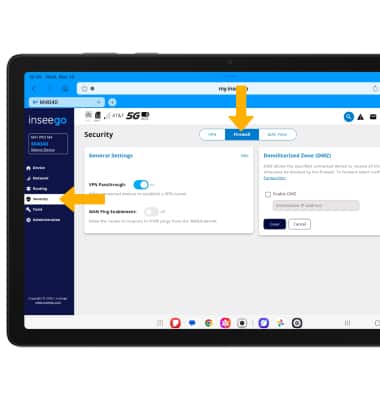
2. Select the Security menu, then select the Firewall tab.
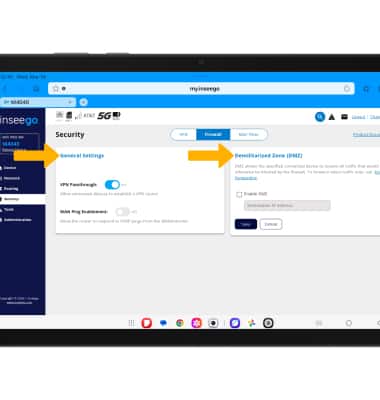
3. Edit the desired settings under General Settings and Demilitarized Zone (DMZ).
Open VPN
1. Select the Security menu, then select the VPN tab.
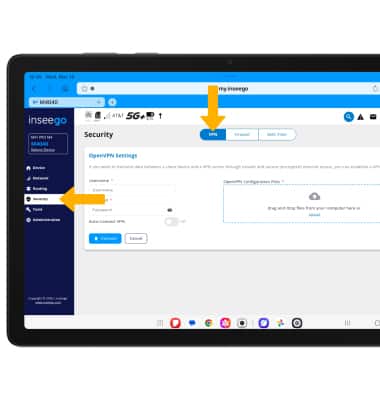
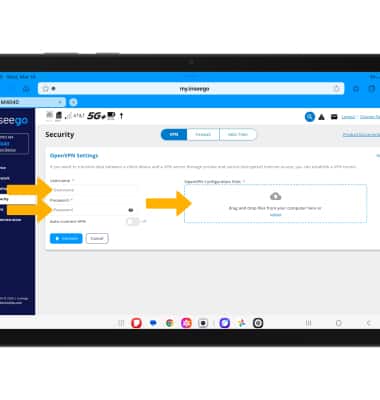
2. Enter in OpenVPN Username and Password, then drag and drop or upload OpenVPN Configuration Files.
2. Enter in OpenVPN Username and Password, then drag and drop or upload OpenVPN Configuration Files.
Note: To automatically connect to the OpenVPN tunnel, select the Auto-Connect VPN switch.
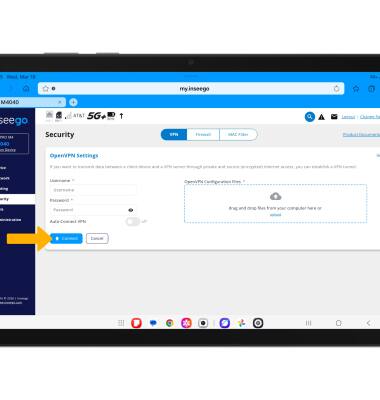
3. Select Connect.
MAC filtering
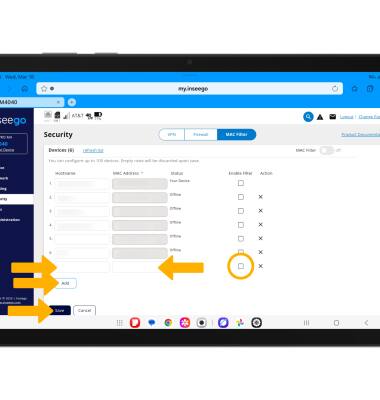
1. Select the Security menu, then select the MAC Filter tab.
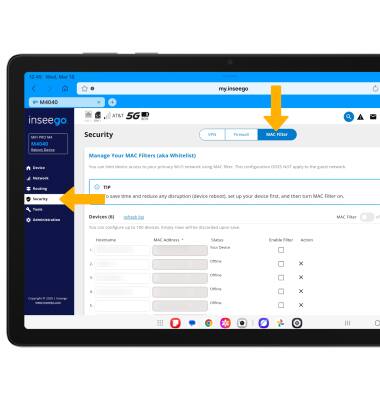
2. To turn on MAC Filter, select the Enable Filter checkbox next to the desired device, then select the MAC Filter switch on the right side of the screen. Select Save.
2. To turn on MAC Filter, select the Enable Filter checkbox next to the desired device, then select the MAC Filter switch on the right side of the screen. Select Save.
Note: Devices not selected in the MAC Filter automatically disconnects from the primary Wi-Fi network.
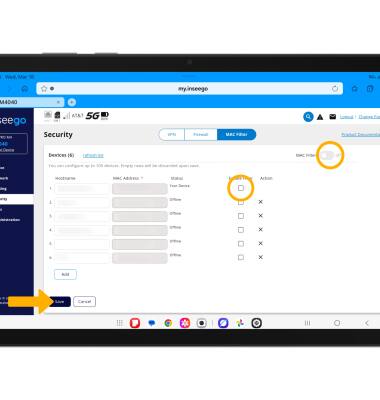
3. To add a device, select Add. Enter in device's Hostname and MAC address, then select the Enable Filter checkbox. Select Save.
Note: To remove a device, select the X icon next to the desired device.