Messaging Settings
Manage settings such as notification alerts, message limits, restore default settings, and emergency/AMBER alert settings.

In this tutorial, you will learn how to:
• Access messaging settings
• Access messaging settings options
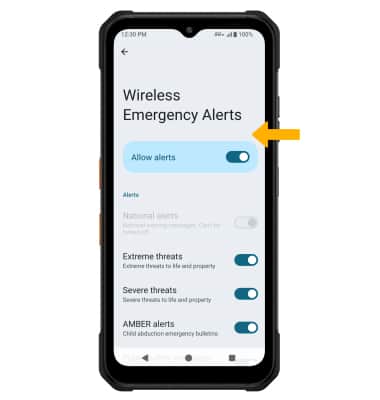
• Enable/disable Emergency Alerts
Access messaging settings
 Messages app.
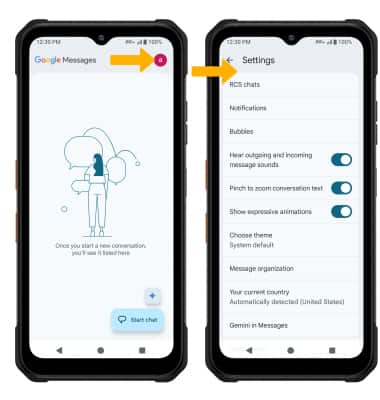
2. Select the Google Account icon > Messages settings > edit settings as desired.
Access messaging settings options
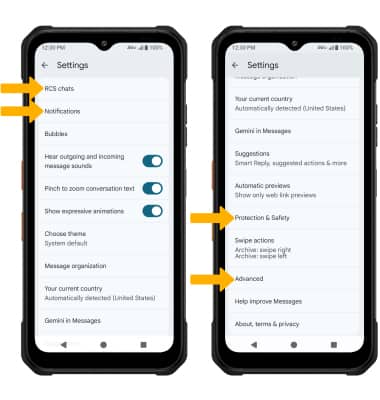
• TURN ON/OF ADVANCED RCS CHAT FEATURES: Select RCS chats > select the Turn on RCS chats switch.
• TURN ON/OFF CHAT READ RECEIPTS: Select RCS chats > select the Send read receipts switch.
• TURN ON/OFF TYPING INDICATORS: Select RCS chats > select the Show typing indicators switch.
• AUTO-DOWNLOAD FILES: Select RCS chats > Auto-download files you receive over mobile data > select the desired file size.
• SPAM PROTECTION: Select Protection & Safety > select the Enable spam protection switch.
• AUTO-DOWNLOAD MMS: Scroll to and select Advanced > select the Auto-download MMS switch.
• MMS GROUP MESSAGING: Scroll to and select Advanced > Group messaging > select the desired Group messaging option.
• ACCESS/EDIT MESSAGE NOTIFICATIONS: Select Notifications.
Note: If Advanced Messaging Chat Features is turned on and you are messaging another device using Advanced Messaging from AT&T you can share files up to 100MB, get read receipts, and see when someone is replying. To learn more, view Advanced Messaging or visit att.com/advancedmessaging.
Enable/disable Emergency Alerts
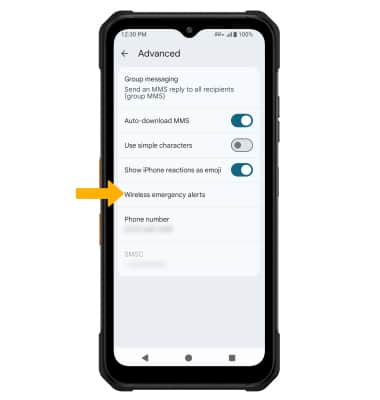
 Menu icon, then select Settings.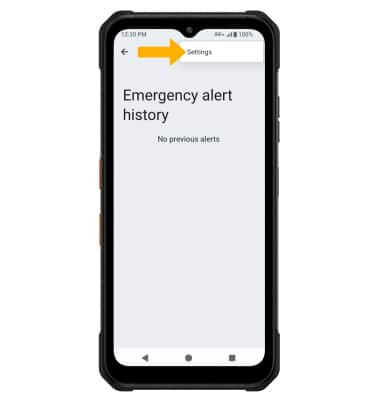
3. Select the desired switches to enable or disable alerts as desired.
Note: Learn more about Wireless Emergency Alerts (WEA).