
Overview | Orientation | Tasks

 Previous
|
Next
Previous
|
Next 
Add and Edit Employees, continued
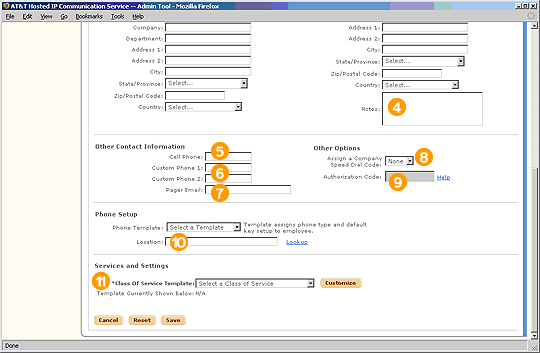
Select Save to enter your changes into HIPCS.
Highlights

The Notes section is helpful for miscellaneous information, such as special package delivery instructions or times of day when the Employee can be reached at home.

Cell phone is the same as a mobile phone. Enter the Employee's cell phone number here.

Custom phone numbers are other phone numbers that the Employee uses often, such as a conference room phone or pager.

Some pagers have an email address to which you can send a text message to the Employee. Enter this information here.

Assigning a Company Speed Dial code means that everyone in the company will be able to dial this Employee by dialing a particular code, such as *03.

You can assign the Employee an Authorization Code in allow him/her to make external calls from phones normally restricted to dialing internal extensions. Make sure to activate Authorization Code in the user's services, below.

You must assign each Employee a location in the HIPCS system. Similar to an email address, the location tells HIPCS where to send all of the Employee's voice, data, and fax traffic.

Class of Service (COS) Templates are preset collections of feature services and dialing restrictions that can be assigned to Employees. After applying a template, you can customize specific settings in the table below.
Related Pages
Previous
|
Next