Recover your digital phone password
Learn what to do if you forget your Digital Phone password.
What should I do if I forgot my Digital Phone password?
Your AT&T Primary Member ID has two passwords: (1) The Account Password provides access to email, att.net home page, online Internet account management, backup Dial-up, and AT&T Wi-Fi hotspots. (2) The DSL Network Password is a system-generated password that is used by the modem or router to authenticate and connect to the DSL network. AT&T Sub Accounts only have an Account Password. This article provides instructions on how to reset the Account Password.
If you remember your Account Password and just want to change it, learn how to change your Account Password.
If you forgot your Account Password, you should:
If you could not resolve your problem, please contact us.
If you remember your Account Password and just want to change it, learn how to change your Account Password.
If you forgot your Account Password, you should:
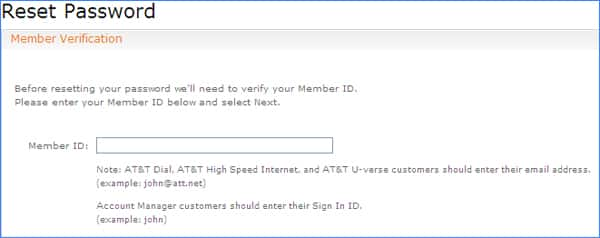
- Go to the Reset Password screen, enter the member ID (email address) for which you need to reset the password, and click Next.
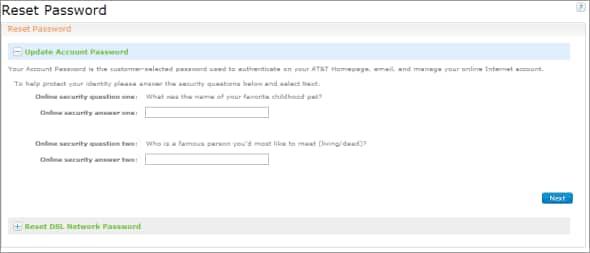
- Answer the security questions that were setup when you registered your account, and click Next.
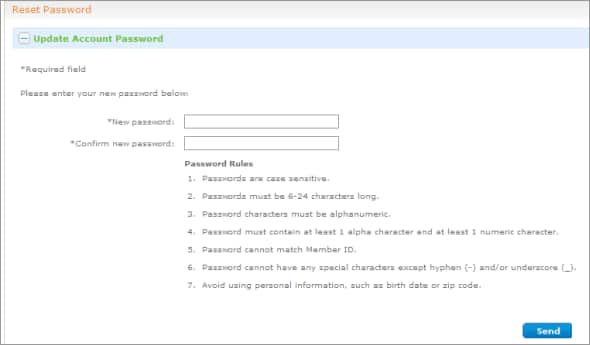
- Select a new password, confirm the password, and click Send.
- If you access your email using an email client program like Outlook, Windows Mail, or Mac Mail, you must update the password stored in your client in order to send and receive email.
If you could not resolve your problem, please contact us.
Last updated: January 4, 2024