
All AT&T Video Call participants need a video call capable device and a postpaid wireless account that is set up for AT&T HD Voice. At this time, Video Call is available between AT&T customers within AT&T HD Voice coverage areas and with users on carriers that interoperate with AT&T. Each call uses both voice & data (HD Voice part of the call is billed as a regular voice call, while the video portion of the call incurs data usage charges). No voice or data charges apply once a Video Call hands over to Wi-Fi. Certain features (Smart Limits, Ringback Tones, OfficeDirect and OfficeReach) are incompatible with Video Call.
In this tutorial, you will learn how to:
• Make a video call
• Respond to an incoming video call
• Enable or disable a video call
Make a video call
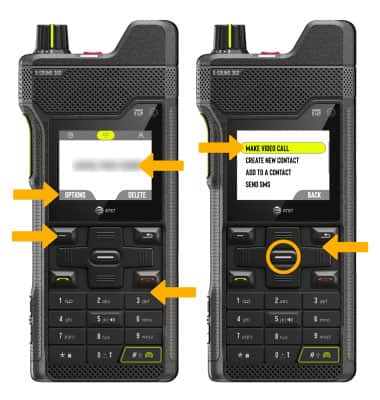
A video call can be made through the Key****pad in the Phone app or through the Contacts list in the Contacts app. To make a video call through the Keypad, enter the desired number. Press the Left option button to select OPTIONS. Ensure MAKE VIDEO CALL is highlighted, then press the Select button.
Respond to an incoming video call
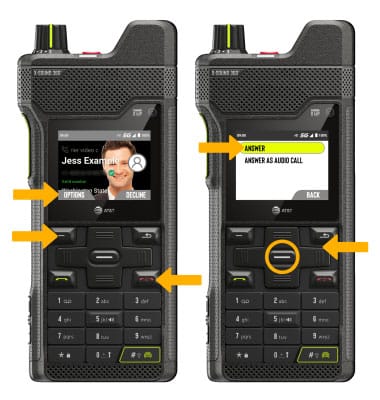
Press the Left option button to select OPTIONS. Ensure Accept is highlighted, then press the Select button to accept a call. Press the Decline button to decline a call.
Enable or disable a video call
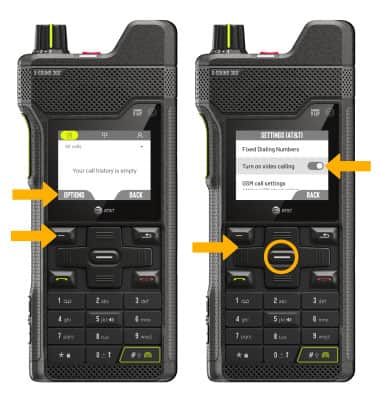
From the Phone app, press the Left option button to select Options > use the navigation keys to highlight Settings > press the Select button > use the navigation keys to highlight Calling accounts > press the Select button > press the Select button > use the navigation keys to highlight Turn on video calling > press the Select button.
Note: Video Call is turned on by default. When Video Call is off, incoming Video Calls will appear as voice calls. Group video calling may not work for those using a different mobile operator.
Certain restrictions, requirements or limitations may apply for this feature/service. For more details, visit AT&T Video Call.