In this tutorial, you will learn about the actions available from the active call screen as well as how to:
• Active call screen options
• Hold/resume call
• Access the home screen during a call
• Return to an active call
Active call screen options
While on an active call, the following options are available:
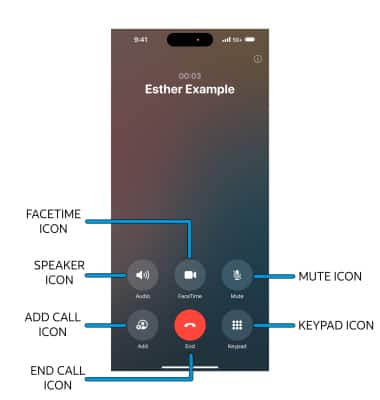
• ADJUST CALL VOLUME: Press the Volume buttons on the left side of the device.
• MUTE/UNMUTE: Select the Mute icon.
• SHOW/HIDE KEYPAD: Select the Keypad icon.
• ENABLE/DISABLE SPEAKER PHONE: Select the Speaker icon.
• ADD CALL: Select the Add Call icon and follow the prompts. For information about conference calls, see the Conference Calling tutorial.
• CONVERT THE CALL TO FACETIME: Select the FaceTime icon.
• END CALL: Select the End call icon.
• MUTE/UNMUTE: Select the Mute icon.
• SHOW/HIDE KEYPAD: Select the Keypad icon.
• ENABLE/DISABLE SPEAKER PHONE: Select the Speaker icon.
• ADD CALL: Select the Add Call icon and follow the prompts. For information about conference calls, see the Conference Calling tutorial.
• CONVERT THE CALL TO FACETIME: Select the FaceTime icon.
• END CALL: Select the End call icon.
Hold/resume call
Adding a call will automatically place your current call on hold. While on a conference call, select Swap to change which call is put on hold.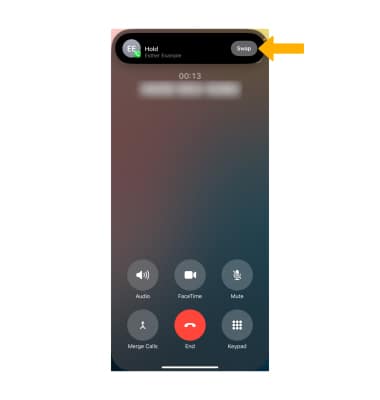
Access the home screen during a call
While in an active call, swipe up from the bottom of the screen to access the home screen.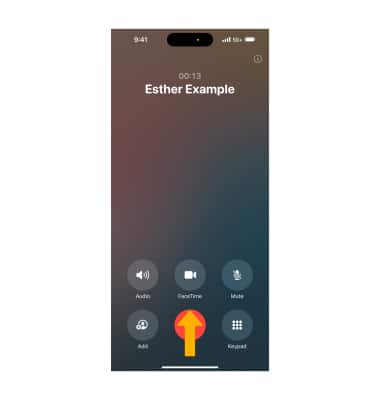
Return to an active call
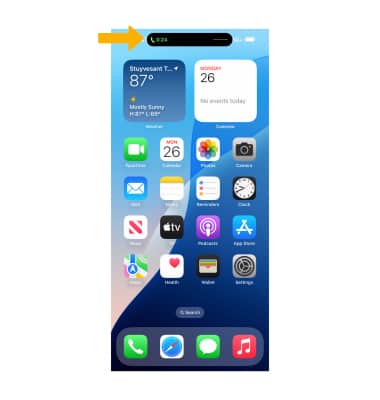
Select the Active call bar on the Dynamic Island at the top of the screen.
Note: If your iPhone does not have Dynamic Island (iPhone 14 or higher), select the green Active call bar at the top of the screen.