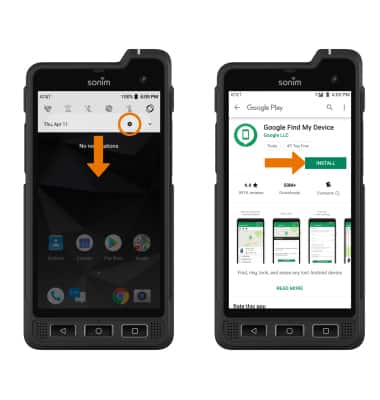
1. ENABLE ANDROID DEVICE MANAGER: Swipe down from the Notification bar, then select the Settings icon > scroll to and select Google > Security > select Find my device > Find my device > INSTALL.
Note: You will also need a screen lock enabled and a Google account added. Android Factory Reset Protection is now available on devices with software version 5.1 or later. To view your software version, see the Software Version tutorial.
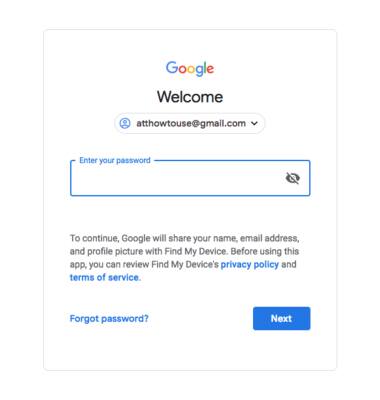
2. REMOTELY RING, LOCK OR ERASE DEVICE USING A COMPUTER: Sign in to your Google Account on www.android.com/devicemanager. From here you can makes changes to settings and choose the desired option.
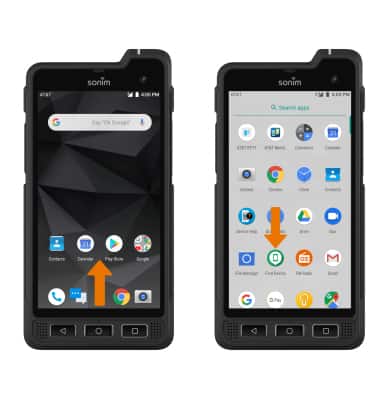
3. REMOTELY RING, LOCK OR ERASE DEVICE USING ANOTHER ANDROID DEVICE: From the home screen, swipe up from the bottom of the screen to access the Apps tray then select the Find My Device app.
Note: New users will need to select Accept and sign in to continue.
Note: New users will need to select Accept and sign in to continue.
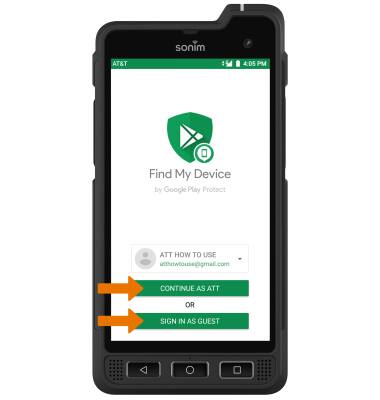
4. To sign into the account registered on the device, select CONTINUE AS. Select SIGN IN AS GUEST to sign into a new account.
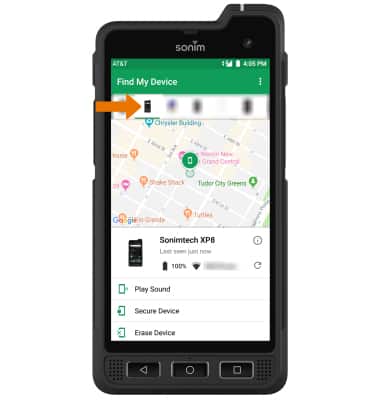
5. At the top of the screen, scroll to and select the device you wish to find. Android Device Manager will show the location of that device.
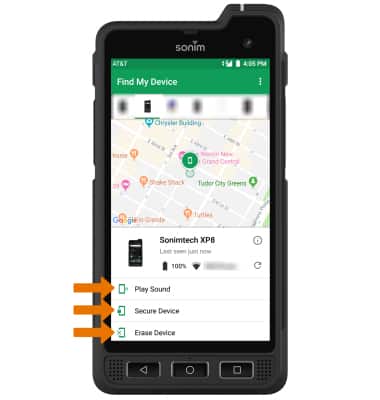
6. Play Sound: The device rings at full volume for 5 minutes, even if it is set to silent or vibrate. Secure Device: Locks the device with a new password. Erase Device: Permanently deletes all data on the device.
Note: For more information on device protection from Google, please go to Google’s support site.
Note: For more information on device protection from Google, please go to Google’s support site.