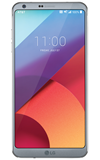
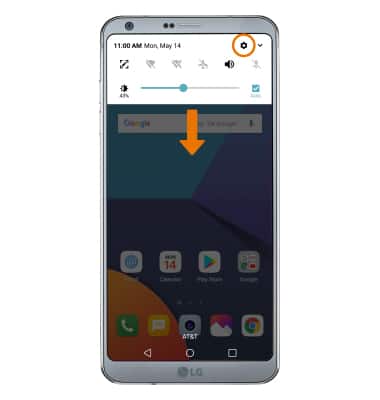
- ACCESSIBILITY FEATURES: Swipe down from the Notification bar, then select the Settings icon.
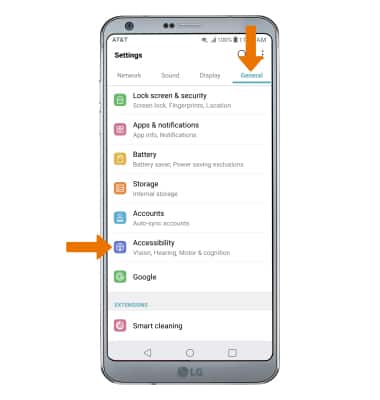
- Select the General tab, then select Accessibility.
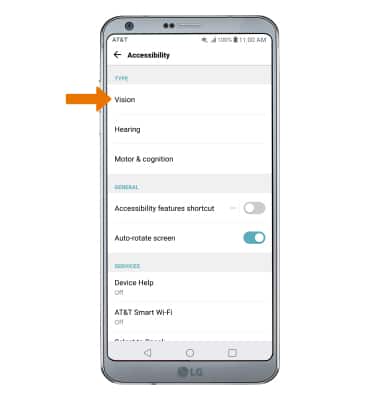
- VISION ACCESSIBILITY: From the Accessibility screen, select Vision.
- ENABLE/DISABLE TALKBACK: TalkBack provides spoken feedback for all interactions with the phone. From the Vision screen, select the TalkBack switch to enable or disable TalkBack.
Note: When turning on TalkBack you will be prompted to TURN ON to confirm. To quickly turn off TalkBack, press and hold both volume buttons for 3 seconds.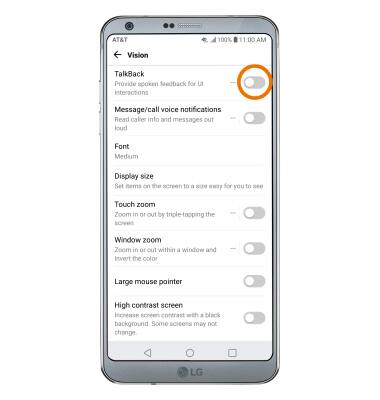
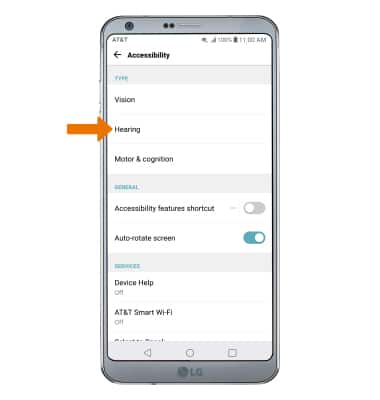
- HEARING ACCESSIBILITY: From the Accessibility screen, select Hearing.
- ENABLE/DISABLE FLASH ALERTS: Flash alerts enables a flash for all calling, message, or alert notifications. From the Hearing screen, select the Flash alerts switch to enable or disable Flash alerts.
Note: You will be prompted to select TURN ON to confirm.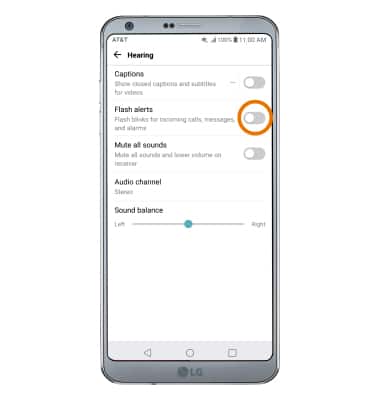
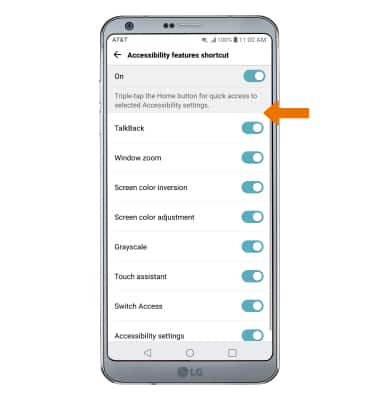
- TURN ON/OFF ACCESSIBILITY SHORTCUT: Swipe down from the Notification bar, select the Settings icon > scroll to and select Accessibility > select Accessibility features shortcut > select the switch to turn it on or off.
Note: When the Accessibility features shortcut is enabled, triple-tap the Home key for quick access to the desired accessibility settings.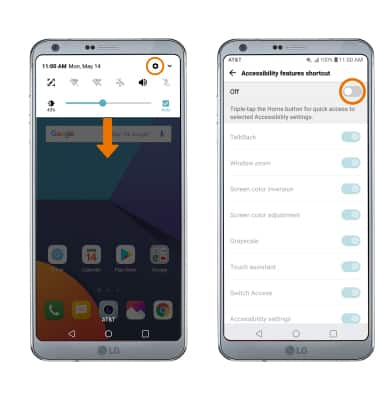
- EDIT ACCESSIBILITY SHORTCUT: From the Accessibility features shortcut screen, select the desired option to enable or disable the desired feature.
Accessibility
LG G6 (H871 / H871S)
Accessibility
Accessibility features improve the usability of your device for users with impaired vision or hearing, cognitive difficulty, or reduced dexterity.
INSTRUCTIONS & INFO

For more information about accessibility features and TTY compatibility, see AT&T Accessibility.