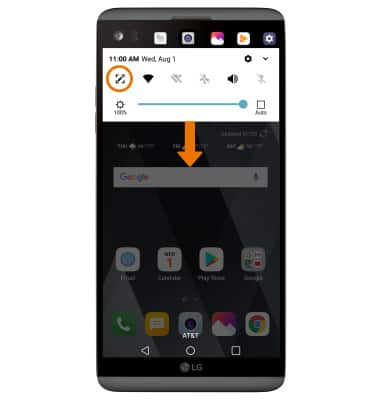
- ACCESS CAPTURE+: Swipe down from the Notification bar, then select the Capture+ icon.
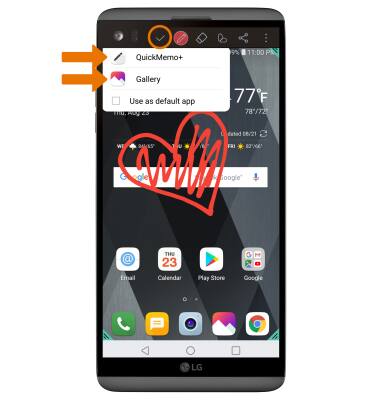
- DRAW WITH THE PENCIL TOOL: To draw on the screen, select the Pencil icon. Double-tap the Pencil icon to customize the pencil. To erase unwanted writing, select the Eraser icon. Double-tap the Eraser icon to customize the eraser. To move or change specific parts of the memo, select the Cut icon. To save the memo, select the Checkmark icon.
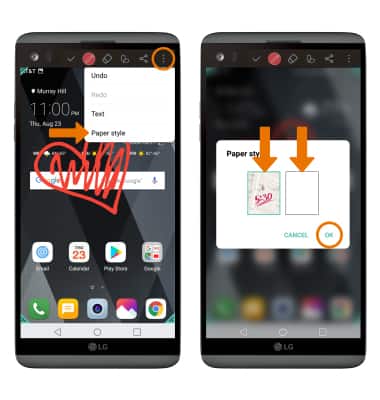
Note: To undo an action, redo an action, or add text to a memo select the Menu icon then select the desired option.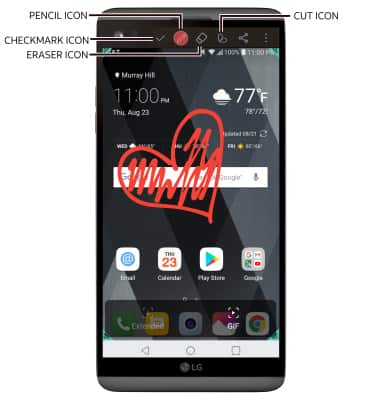
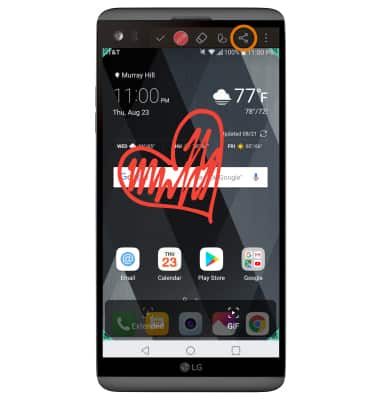
- SHARE A MEMO: Select the Share icon.
- CHANGE MEMO BACKGROUND: Select the Menu icon, then select Paper style to write on a blank screen instead of a screenshot. Select the desired background color, then select OK.
- SAVE A MEMO: Select the Checkmark icon, then select the desired location to save.
- SCHEDULE A MEMO: From the home screen, swipe left then select the Tools folder. Select the QuickMemo+ app.
Note: Review the terms and conditions, then select AGREE. Select the desired Google account you wish to sync your memos to.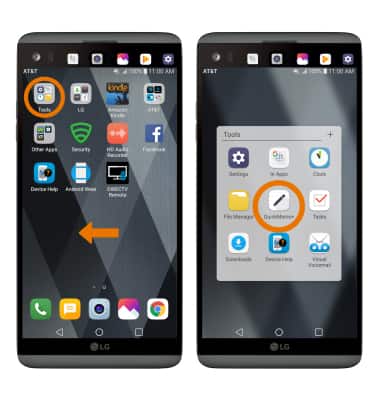
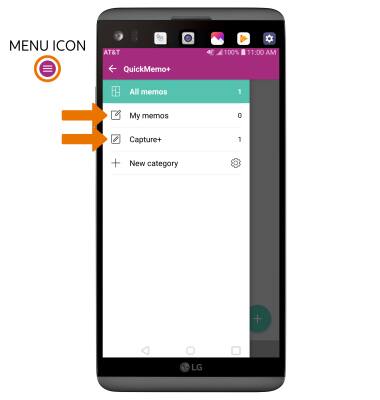
- Select the Menu icon, then select the category, such as Capture+ or My memos.
- Select the desired memo.
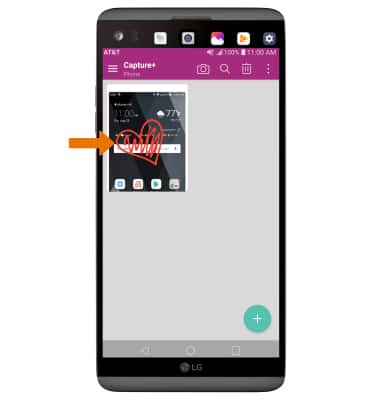
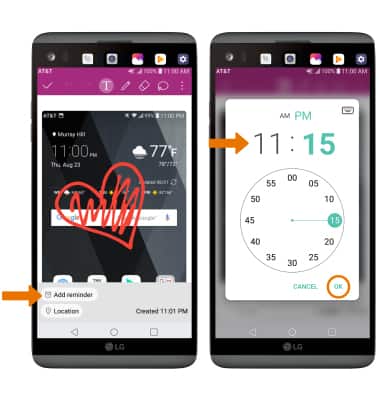
- Select Add reminder > Time > desired date > desired time > OK.
Capture+
LG V20 (H910)
Capture+
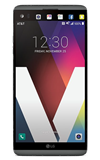
The Capture+ feature allows you to capture screenshots, create memos, edit memos, save memos, change memo background, write or draw on almost every screen, and schedule memos to appear at certain times.
INSTRUCTIONS & INFO