- ADJUST DATE & TIME: Swipe down from the Notification bar with two fingers, then select the Settings icon. From the General tab, scroll to and select Date & time.
Note: The device will automatically attempt to set the date and time from the network. This tutorial demonstrates how to manually set the date and time on your device.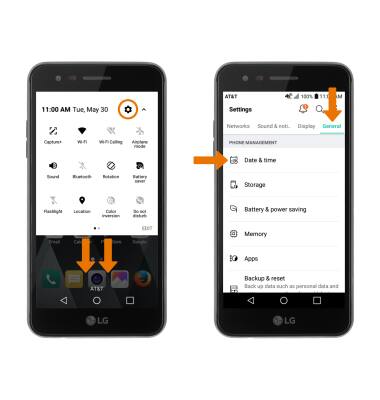
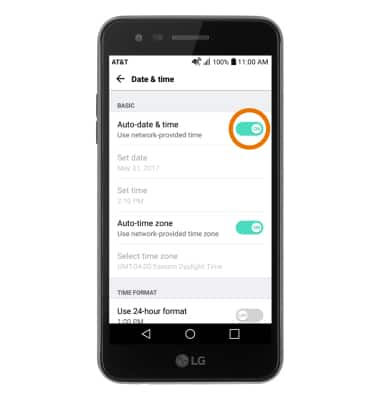
- Select the Auto-date & time switch to manually set date & time.
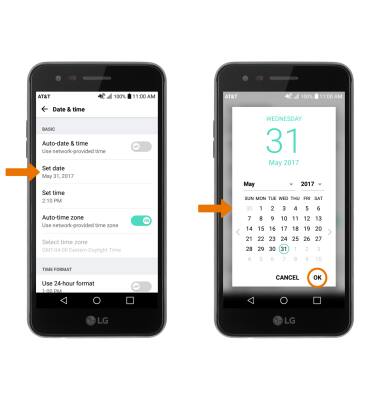
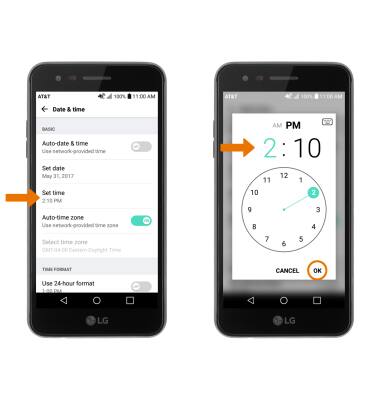
- CHANGE THE DATE: Select Set date. Select the desired date, then select OK.
- CHANGE THE TIME: Select Set time. Select the desired time, then select OK.
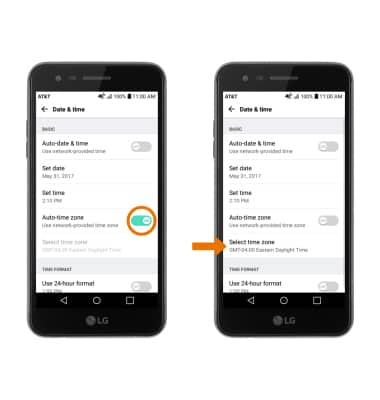
- CHANGE TIME ZONE: Select the Auto-time zone switch. Select Select time zone, then select desired time zone.
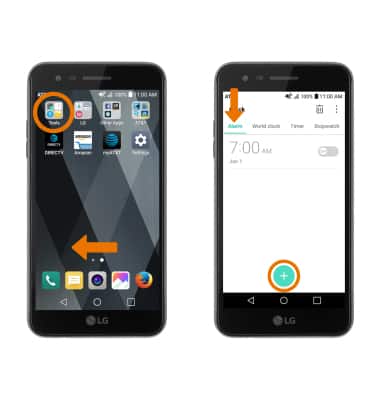
- SET ALARM: From the home screen, swipe left > select the Tools folder > Clock > Alarm tab > Add alarm icon.
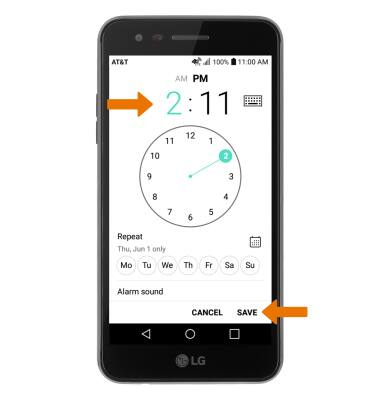
- Set desired time, then select SAVE.
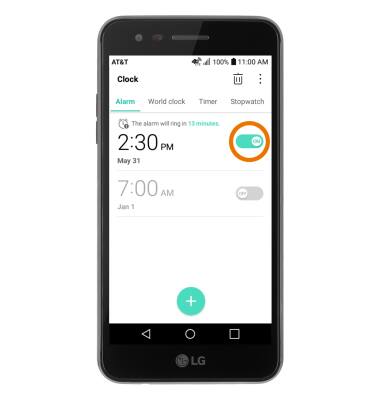
- TURN OFF AN ALARM: Select the switch next to the desired alarm to turn the alarm on or off.
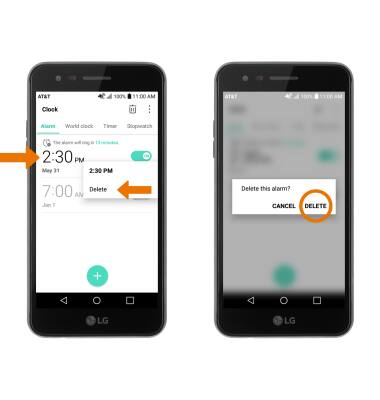
- DELETE AN ALARM: Select and hold the desired alarm, then select Delete. Select DELETE again to confirm.
Date & Time
LG Phoenix 3 (M150)
Date & Time
Set the date, time, time zone and alarms.
INSTRUCTIONS & INFO