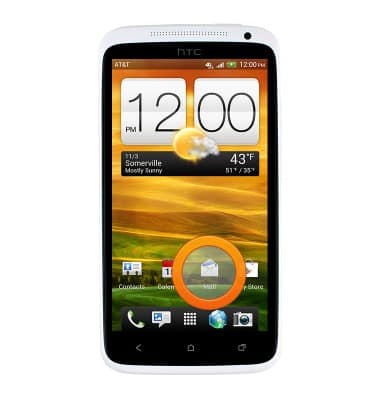
- To send an email, tap Mail from the home screen.
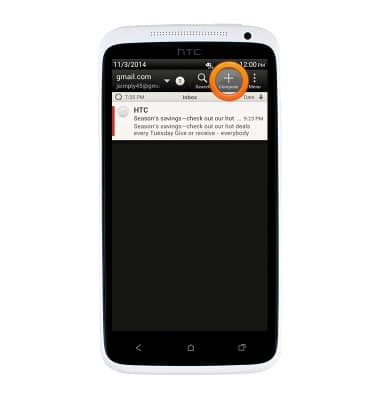
- Tap the Compose icon.
- Enter the desired email address or contact name.
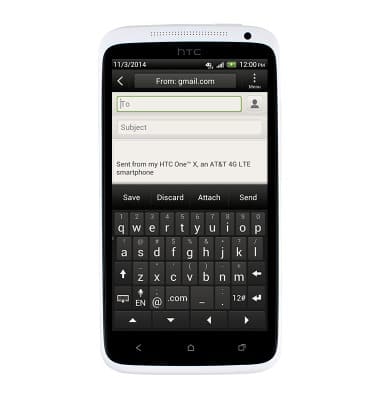
- If multiple email accounts are configured, you can change the "from" email account by tapping the From field, and then selecting the desired account.
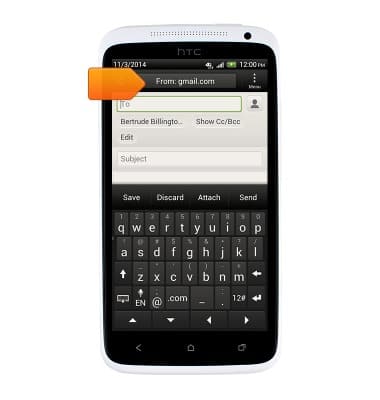
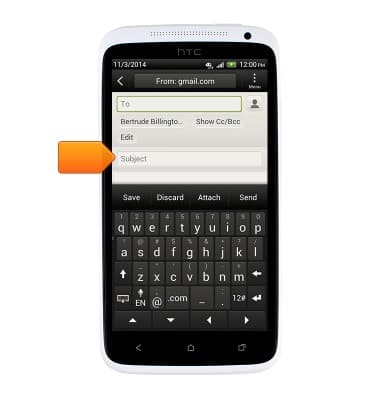
- Tap the Subject field, and then enter the desired subject.
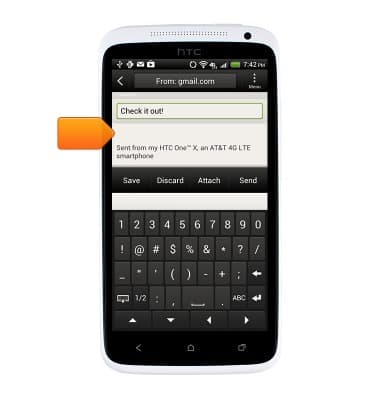
- Tap the Message field, and then enter the desired text.
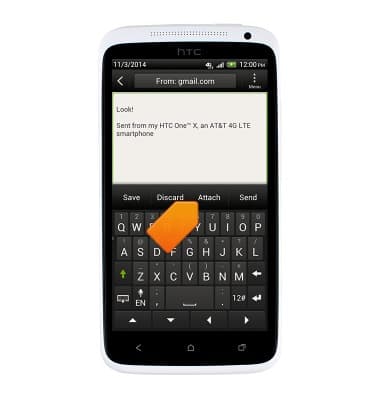
- Tap Attach to add an attachment, such as a picture or document.
- Press the Menu icon to adjust the message priority, tracking, and security options.
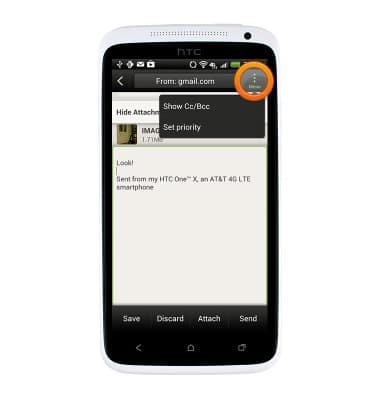
- Tap Send.
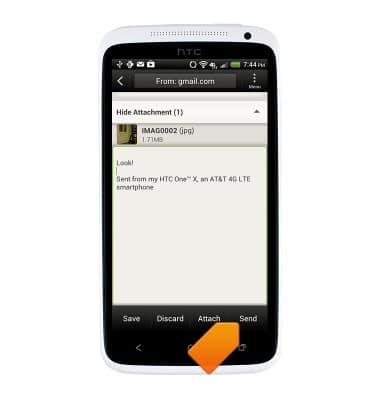
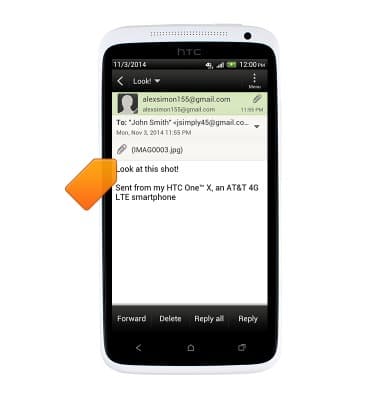
- To view a received email, tap the desired message.
Note: An icon will be displayed in the notification bar when a new email is received and unread messages will be displayed with their senders and subjects in bold.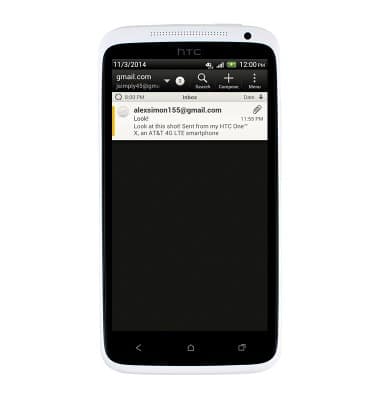
- The selected message will be displayed.
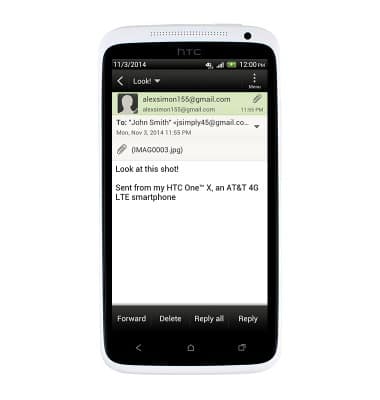
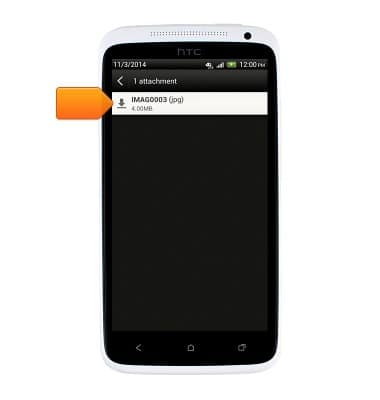
- If the email includes an attachment (indicated with a Paperclip icon), tap the attachment.
- Tap the file name to save the attachment.
Send & receive email
HTC One X (PJ83100)
Send & receive email
Add and download email attachments, respond to an email and more.
INSTRUCTIONS & INFO