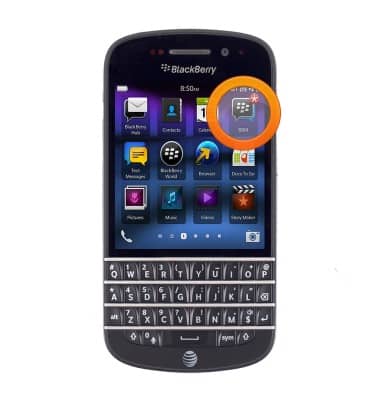
- From the home screen, tap BBM.
Note: If a BlackBerry ID is currently in use on your device, BBM will log in automatically.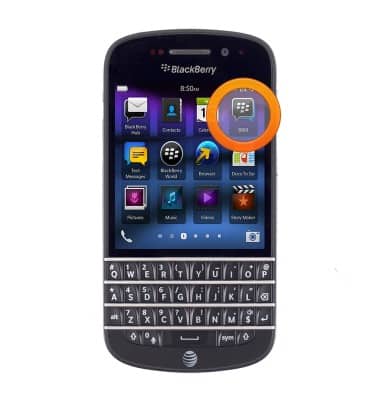
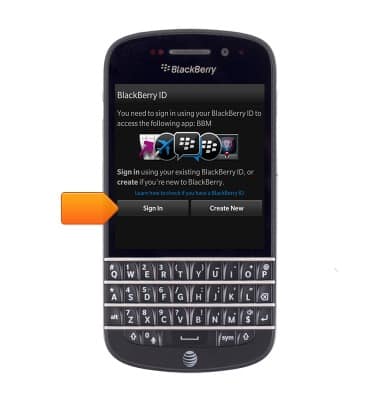
- Tap Sign In.
- Enter the required Blackberry ID Username.
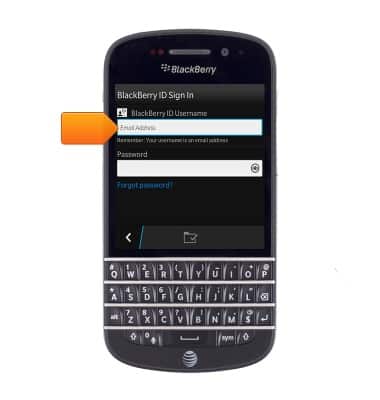
- Tap the Password field, then enter the appropriate password.
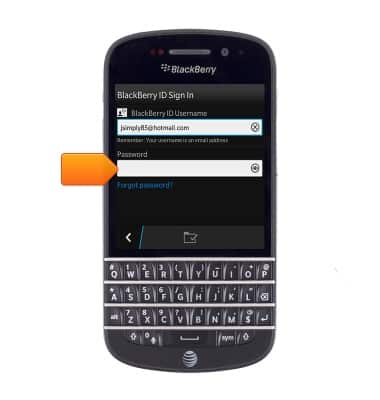
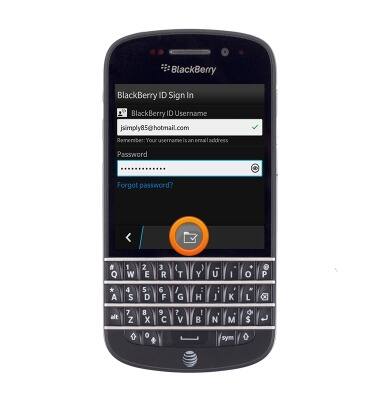
- Tap the Save icon.
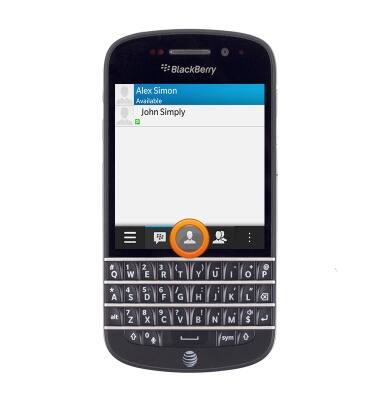
- To send a message, tap the Contact icon.
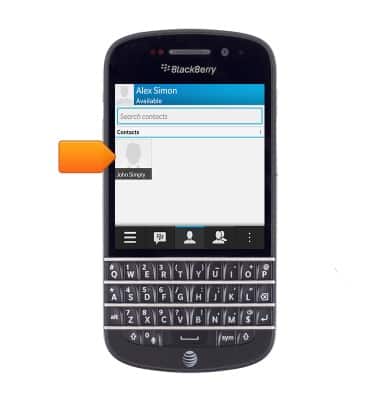
- Tap the desired contact.
- Enter the desired message.
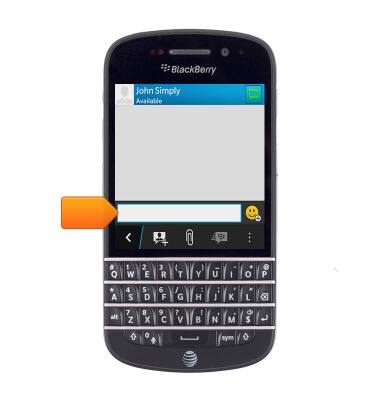
- To add an attachment, tap the Paperclip icon.
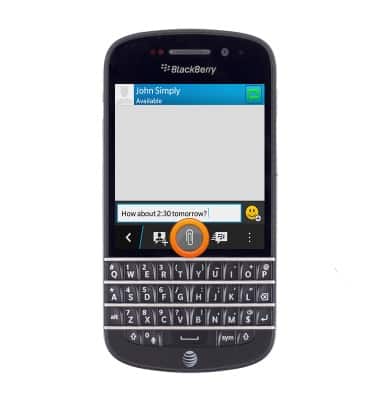
- Tap the desired option.
Note: For this demonstration, tap 'Picture.'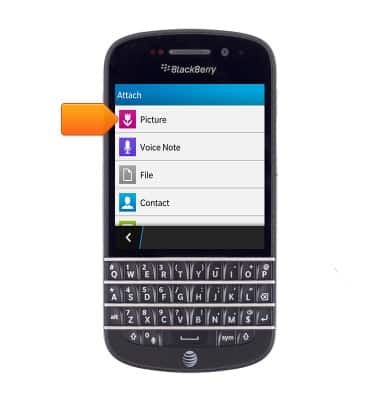
- Tap the desired image.
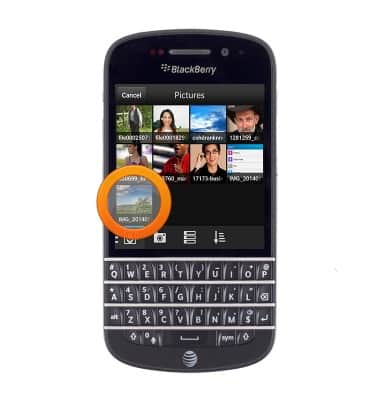
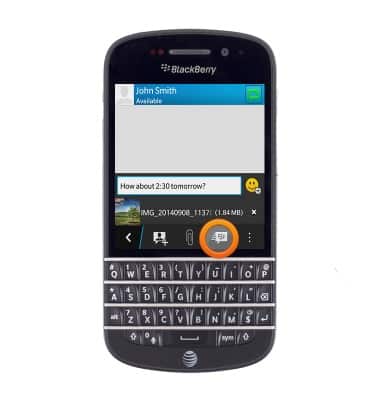
- Tap the Send icon.
- When you have received a new BBM chat, the notification icon will be display next to the BBM icon. Tap BBM.
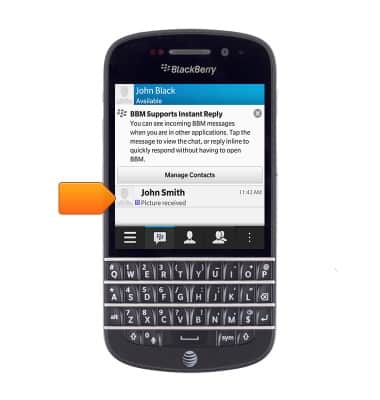
- Tap the desired new chat.
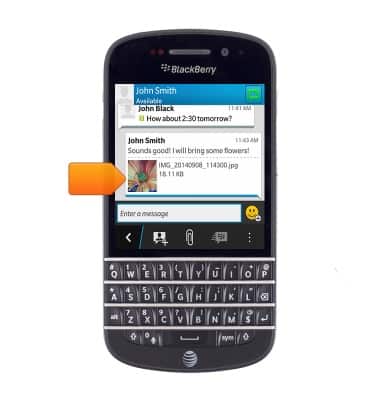
- To save an attachment, tap the desired file.
- Tap the Menu icon.
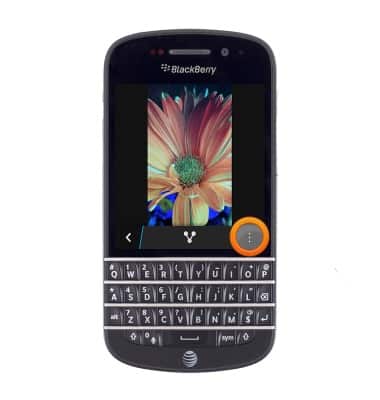
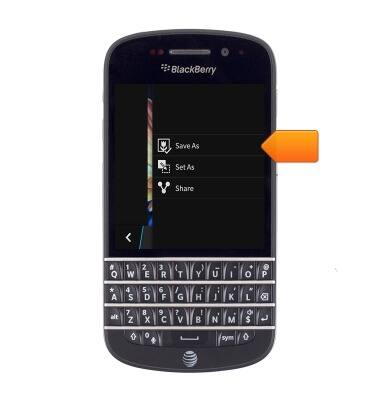
- Tap Save As.
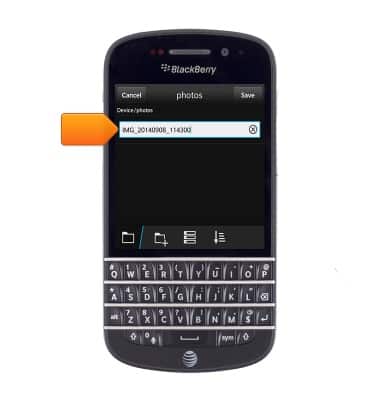
- Enter the desired file name.
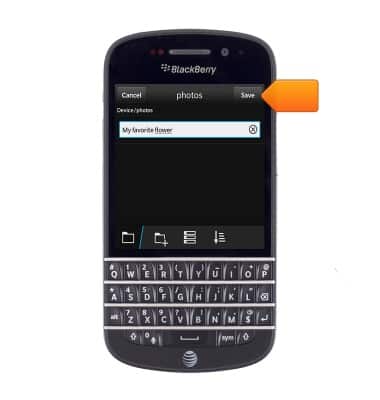
- Tap Save.
- To delete a BBM chat, touch and hold the desired chat.
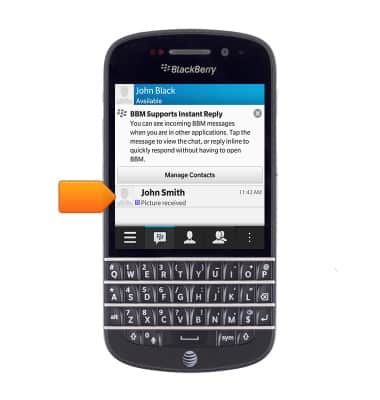
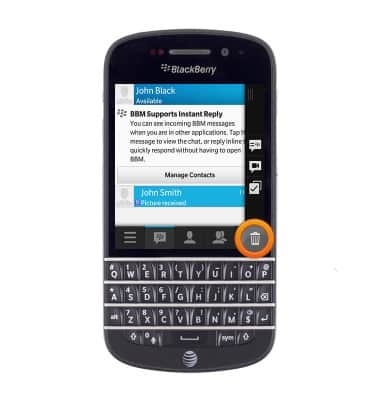
- Tap the Delete icon.
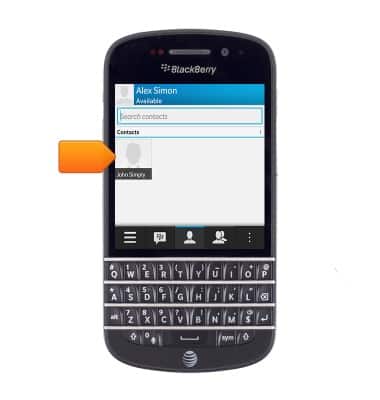
- To start a BBM Video chat, tap the desired contact.
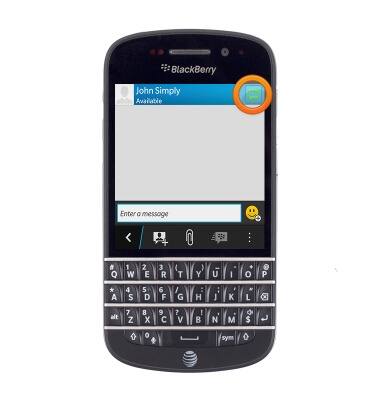
- Tap the Video icon.
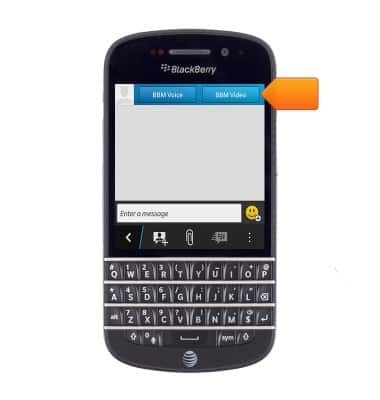
- Tap BBM Video.
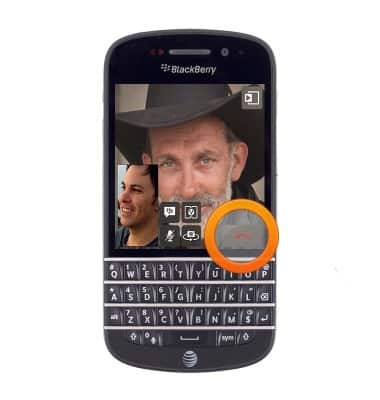
- Tap the End icon to end video calling.
BlackBerry Messenger
BlackBerry Q10 (SQN100-1)
BlackBerry Messenger
Use BlackBerry Messenger (BBM) to send and receive messages with other BBM users.
INSTRUCTIONS & INFO