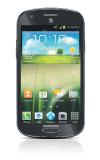
- Use your AT&T device as a mobile Wi-Fi hotspot to share your data connection with Wi-Fi-capable devices such as: other smartphones, tablets, netbooks, MP3 players, and more.
Note: Eligible data plan required, learn more.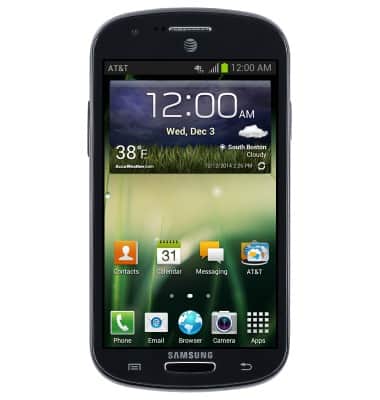
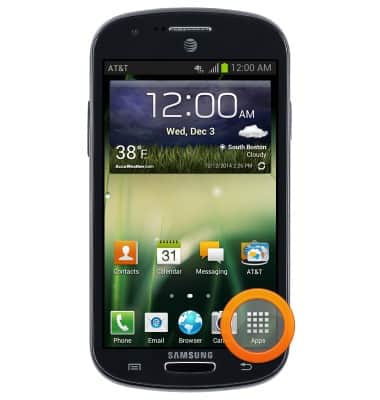
- From the home screen, tap Apps.
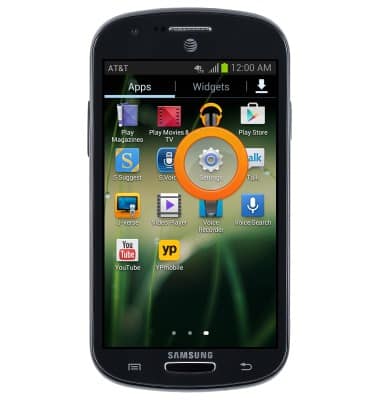
- Swipe to, then tap Settings.
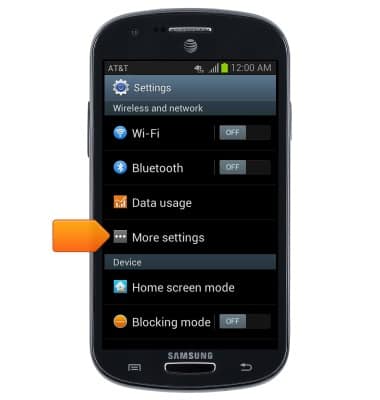
- Tap More settings.
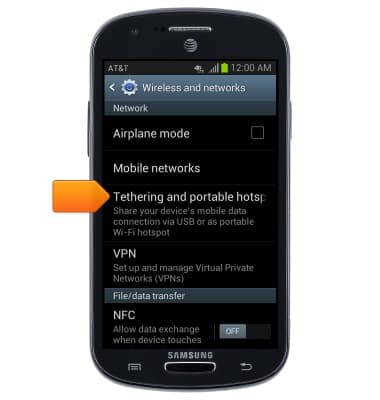
- Tap Tethering and portable hotspot.
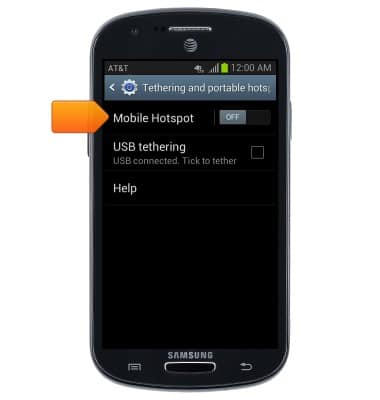
- Tap Mobile hotspot to turn Wi-Fi hotspot on.
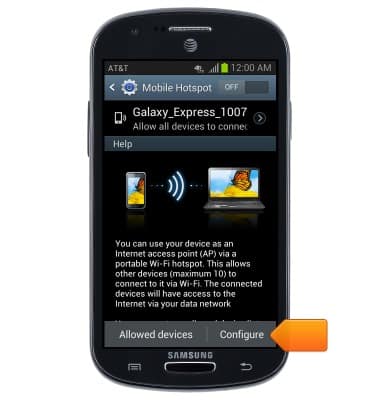
- Tap Configure.
- Tap the Mobile Hotspot switch to turn the Wi-Fi hotspot on or off.
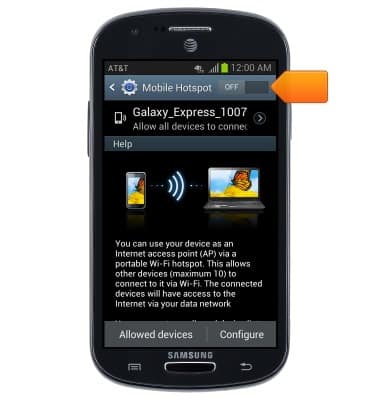
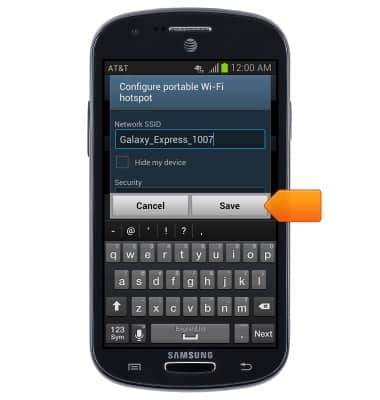
- Tap the Network SSID field in order to set the desired name for the hotspot network, then tap Save.
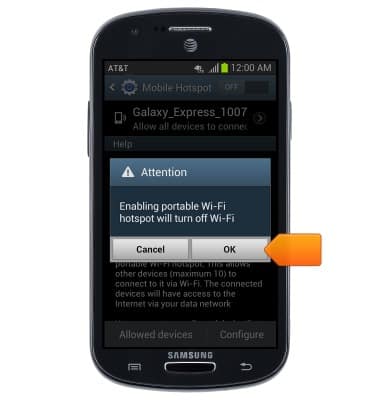
- Tap OK.
- Connected devices will be displayed under Connected devices.
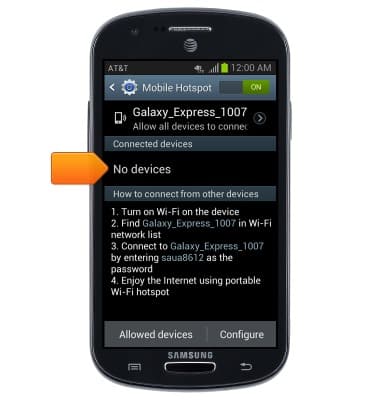
- While Wi-Fi hotspot is enabled, the Wi-Fi Hotspot Icon will be displayed in the notifications bar.
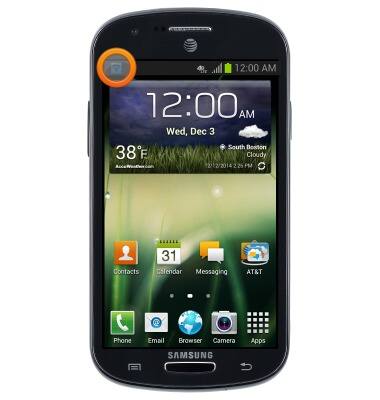
Mobile hotspot
Samsung Galaxy Express (I437/I437p) OS 4.0-4.1
Mobile hotspot
How to set up your device as a mobile hotspot to share your data connection with Wi-Fi-capable devices.
How to Set Up a Personal Mobile Hotspot
Learn what you need to use your smartphone as a personal mobile hotspot and how to set it up.
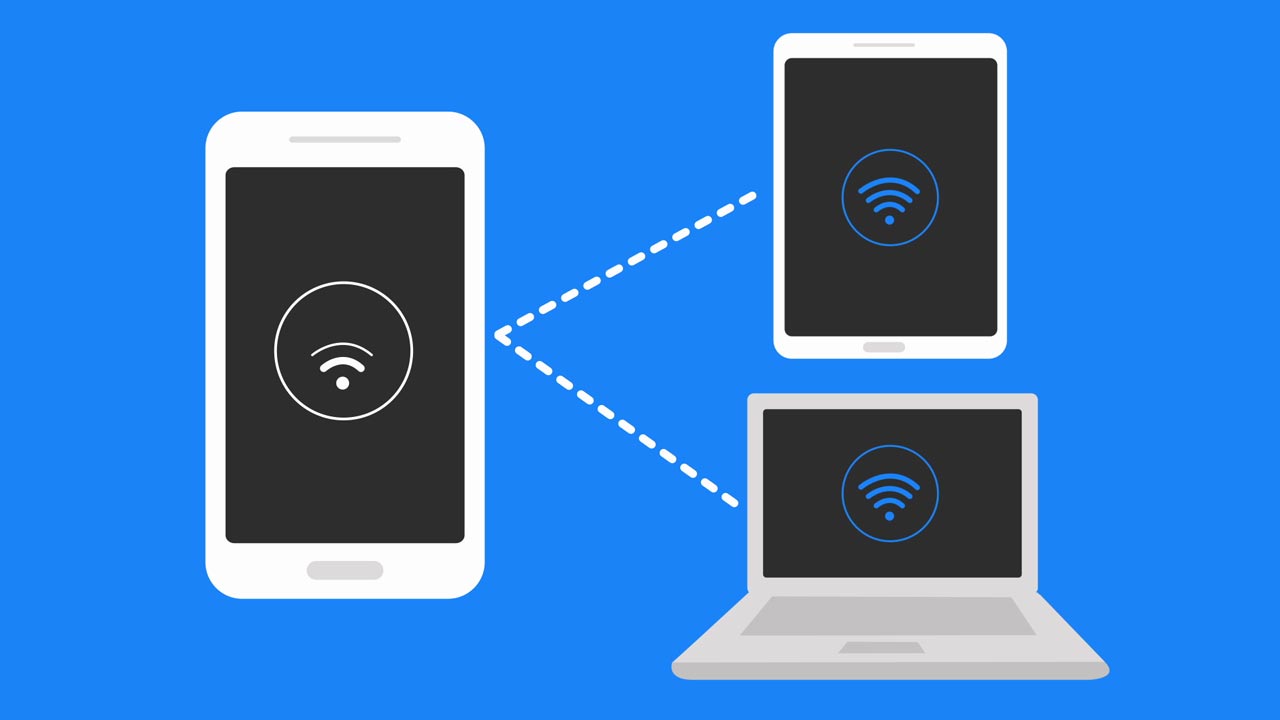
How to Set Up a Personal Mobile Hotspot
2:03
INSTRUCTIONS & INFO