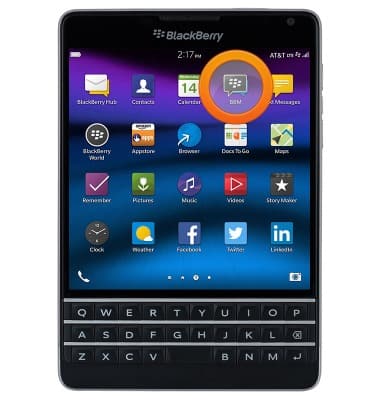
- From the home screen, tap BBM.
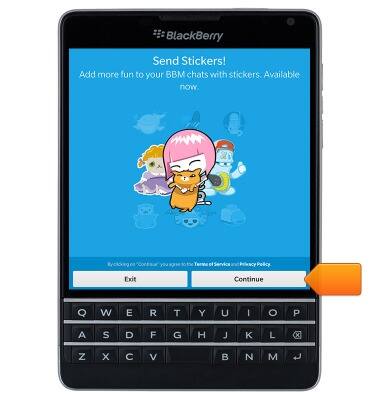
- If prompted, tap Continue.
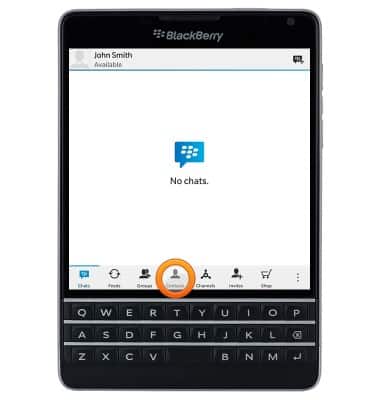
- To send a new message, tap Contacts.
- Tap the desired contact.

- Tap the Enter message field, then enter the desired message.
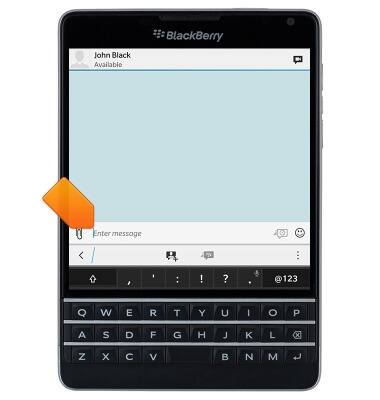
- To attach a file, tap the Attachment icon then follow on-screen prompts.
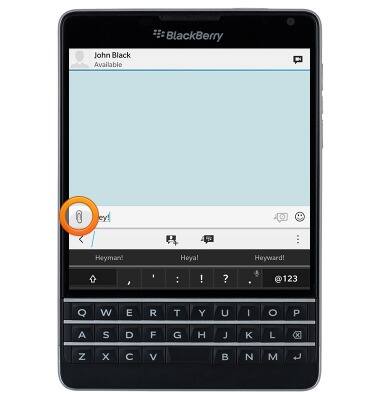
- Tap the Send icon or press the Return key to send.
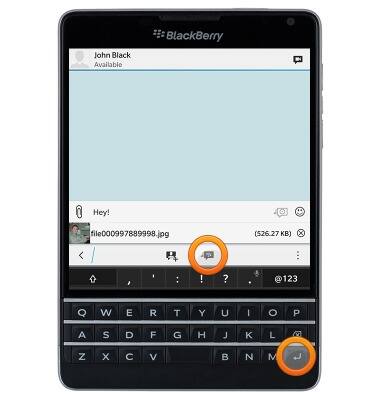
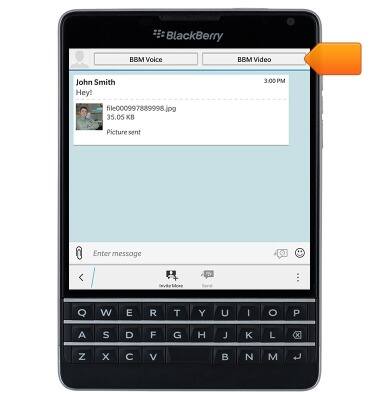
- To start a video chat, tap the Video icon.

- Tap BBM Video.
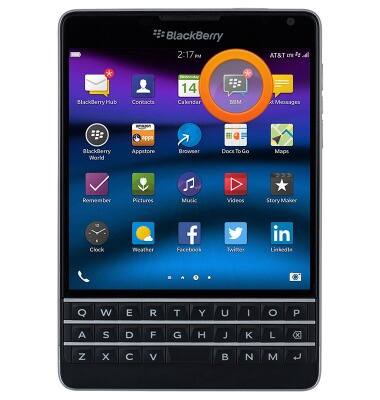
- When you receive a new BBM, a Notification icon will display in the upper-right corner of the BBM icon on the home screen.
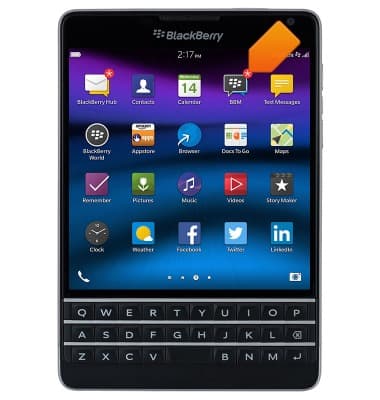
- Tap BBM to view your messages.
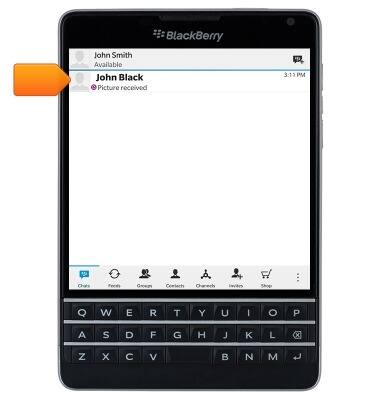
- Tap the desired chat to view.
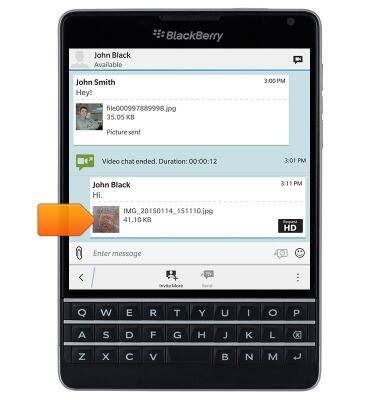
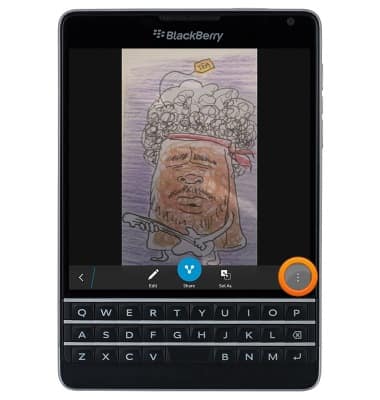
- To view an attachment, tap the desired attachment.
- To save an attachment, tap the Menu icon.
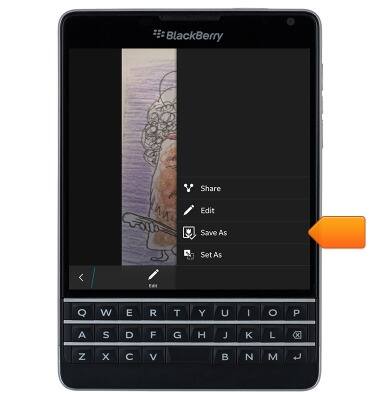
- Tap Save As.
- Edit the filename and storage location as desired, then tap Save.
Note: The selected storage location is displayed in the upper-left corner of the display, beneath the 'Cancel' button.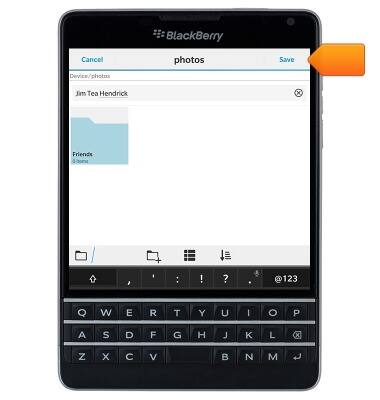
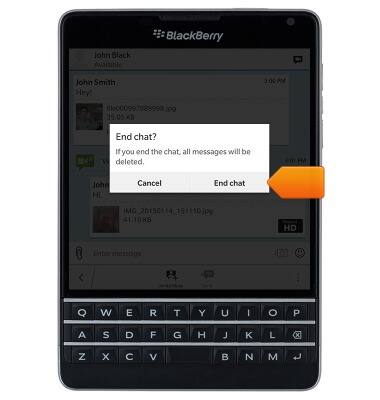
- To delete the current chat, tap the Menu icon.

- Tap End Chat.

- Tap End chat.
BlackBerry Messenger
BlackBerry Passport (SQW100-3)
BlackBerry Messenger
Use BlackBerry Messenger (BBM) to send and receive messages with other BBM users.
INSTRUCTIONS & INFO