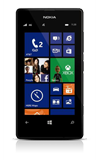
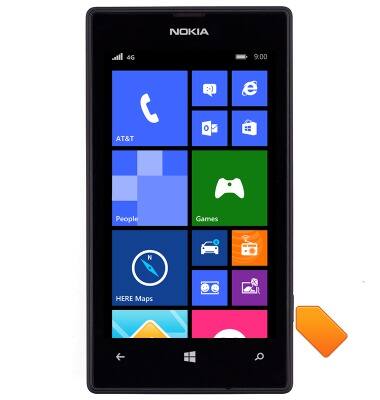
- Press the Camera key.
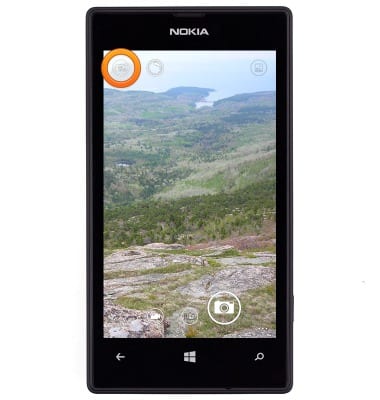
- To select a scene, tap the Scene icon.
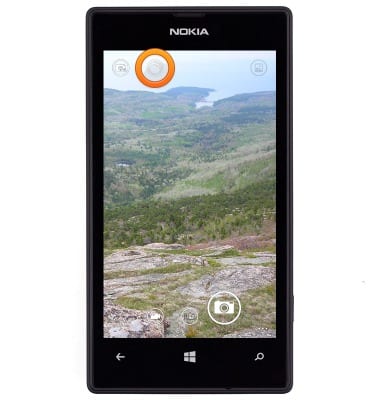
- To select a lens, tap the Lens icon.
- To access the gallery, tap the Gallery icon.
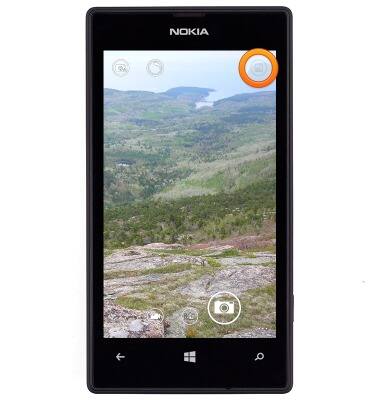
- Tap the More icon.
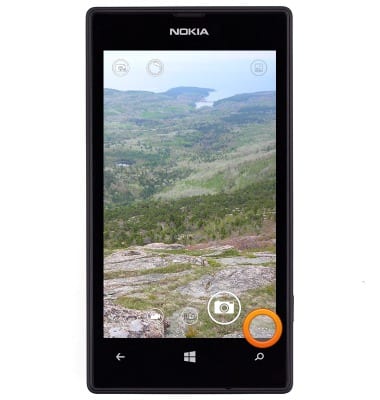
- To change the photo settings, tap photo settings. To change the video settings, tap video settings.
Note: For this demonstration, 'photo settings' was selected.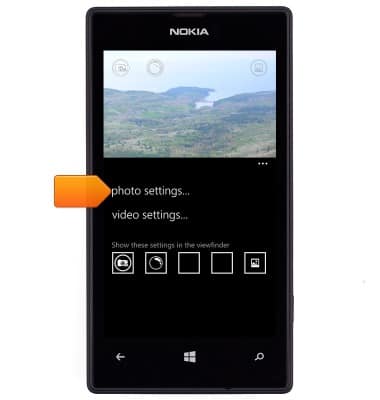
- Scroll to, then tap the desired setting field.
Note: For this demonstration, 'ISO' was selected.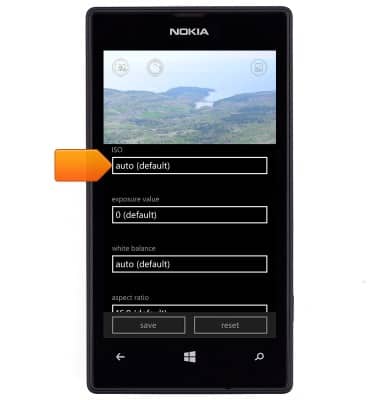
- Tap the desired option.
Note: For this demonstration, '800' was selected.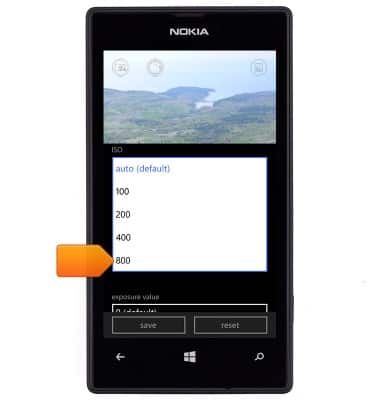
- Edit additional settings as desired.
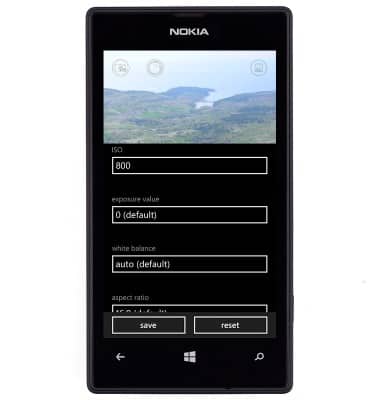
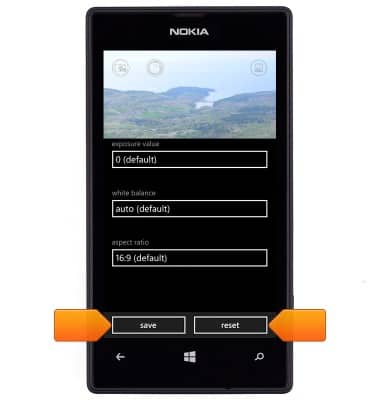
- To change the picture size, tap aspect ratio. Tap save. To revert back to the default settings, tap reset.
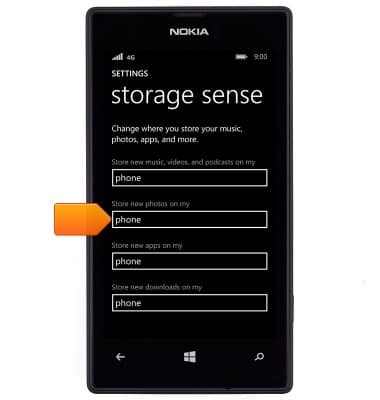
- To set the default storage location, from the settings menu, tap storage sense > 'Store new photos on my' field > Select the desired storage location.
- To learn more about your camera settings and features download the user manual from a computer.
Camera & video settings
Nokia Lumia 520
Camera & video settings
How to change the camera settings.
INSTRUCTIONS & INFO