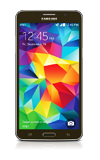
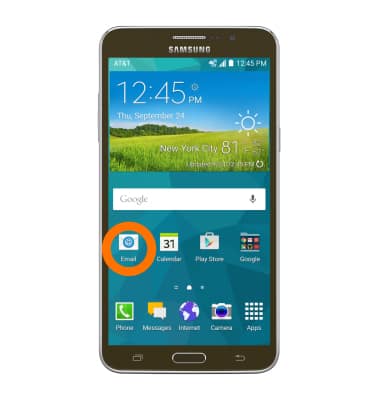
- To send or receive email, from the home screen, tap Email.
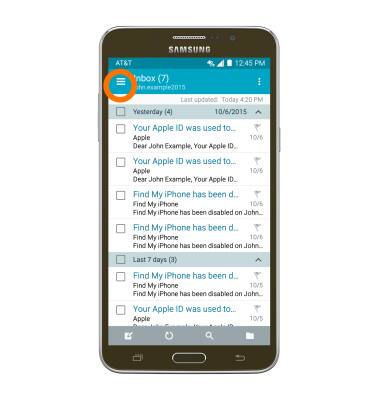
- Tap the Menu icon to switch between mailboxes if multiple email accounts are configured.
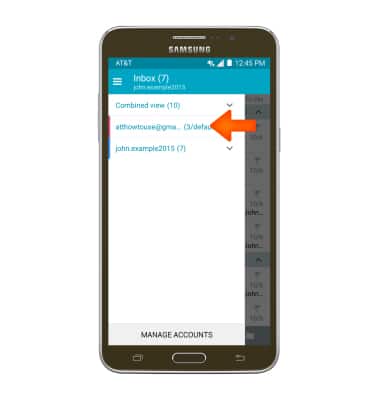
- Tap the Desired mailbox.
- The inbox will refresh automatically. To view, tap the Desired email.
Note: When in “Easy” mode, you can’t see the last time the inbox was updated.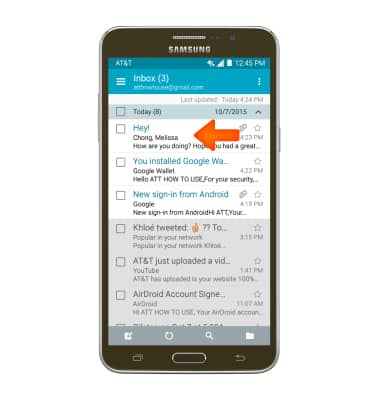
- To reply, reply all, forward, or delete an email, tap the Corresponding icon.
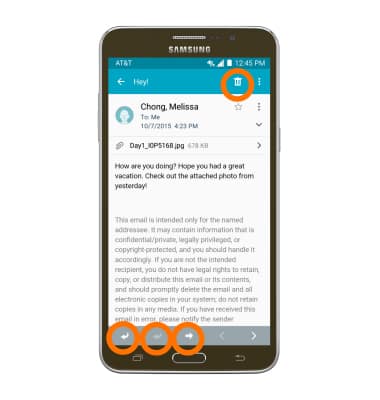
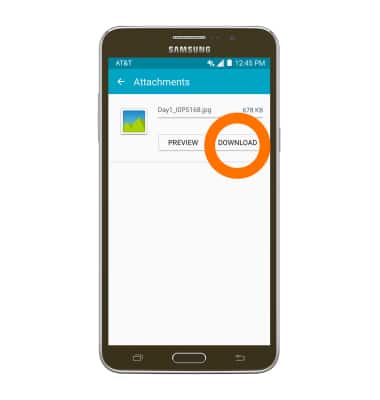
- To view or download an attachment, tap the Desired attachment.
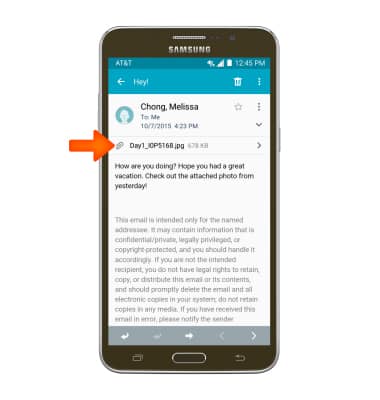
- To view an attachment, tap PREVIEW.
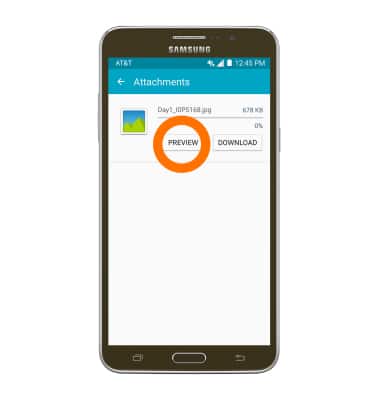
- To download an attachment, tap DOWNLOAD.
- The file will be saved to the indicated storage location.
Note: By default attachments will be saved to Device Storage > Download. To view saved attachments, go to apps > Samsung > my files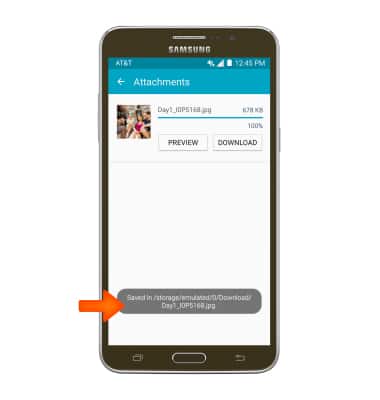
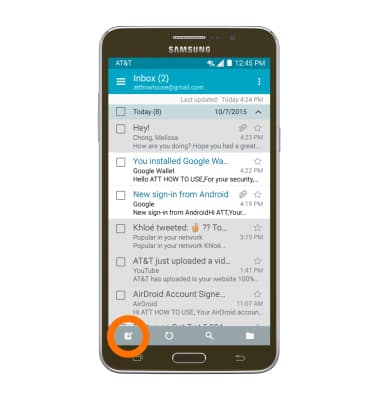
- To compose a new email, tap the Compose icon.
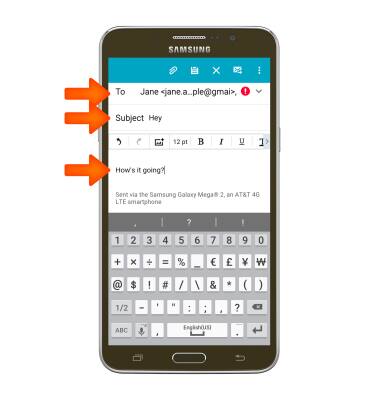
- Tap the To field to enter the desired recipients, tap the Subject field to enter the desired email subject and tap the Message field to enter the desired message.
- To attach a file, tap ATTACH.
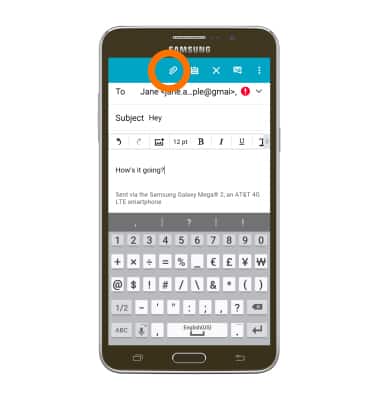
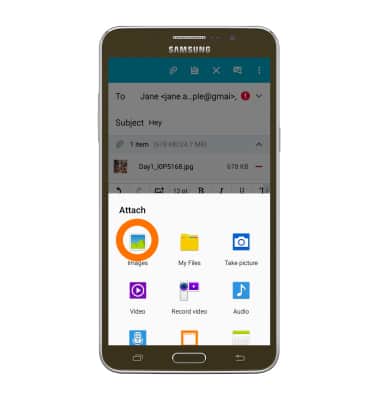
- Tap the desired attachment.
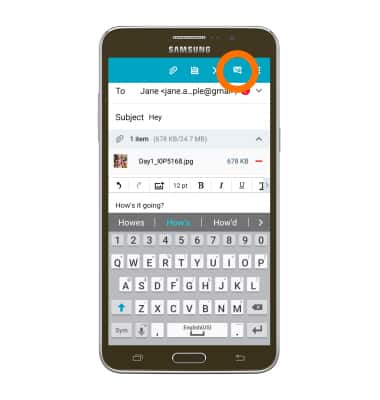
- Tap the Send icon to send.
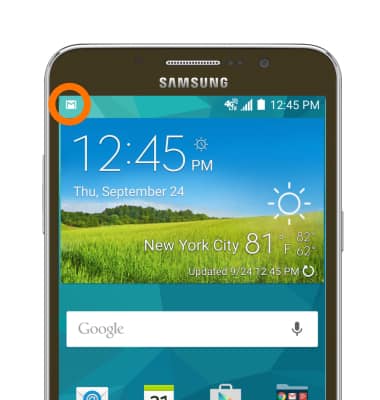
- When a new email is received, the New email icon will display in the notification bar.
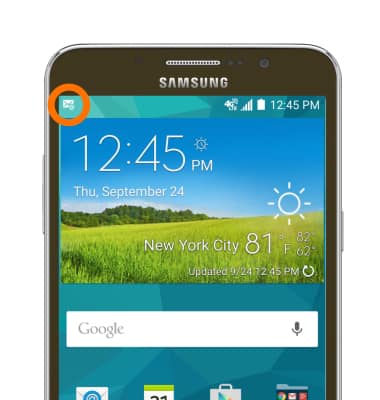
- When a new gmail is received, the New Gmail icon will display in the notification bar.
Send & receive email
Samsung Galaxy Mega 2 (G750A)
Send & receive email
Add and download email attachments, respond to an email and more.
INSTRUCTIONS & INFO