
- Use your AT&T device as a mobile Wi-Fi hotspot to share your data connection with Wi-Fi-capable devices such as: other smartphones, tablets, netbooks, MP3 players, and more. To turn Mobile hotspot on, swipe down from the top of the screen, then tap the Settings icon.
Note: Eligible data plan required, learn more.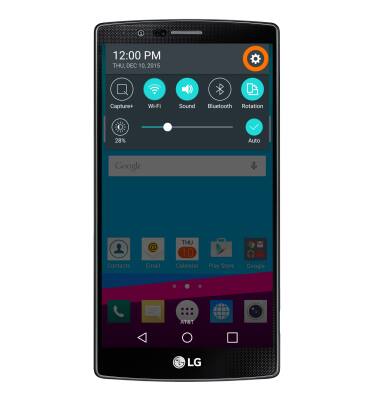
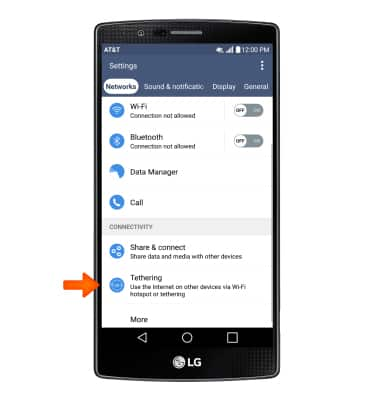
- Tap the Connectivity tab. Then scroll to and tap Tethering.
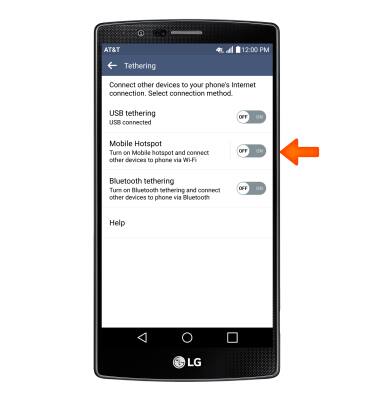
- Tap the Mobile Hotspot toggle.
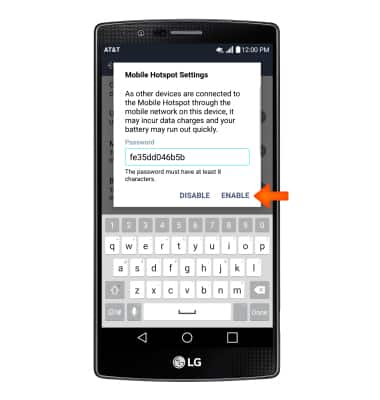
- Enter a Password, then tap ENABLE.
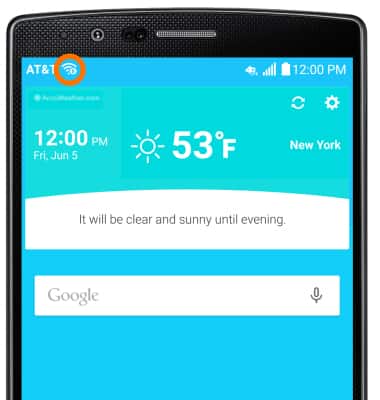
- When Mobile hotspot is on, the Mobile hotspot icon will display in the Notification bar.
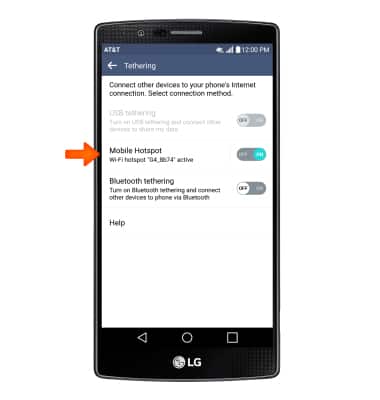
- To configure Mobile hotspot, tap Mobile Hotspot.
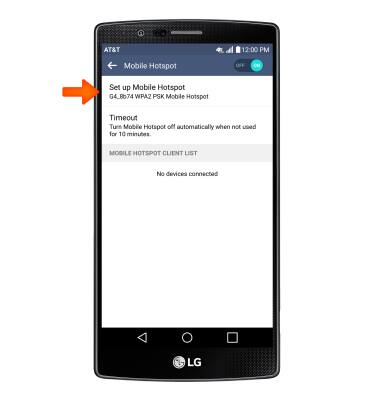
- Tap Set up Mobile Hotspot.
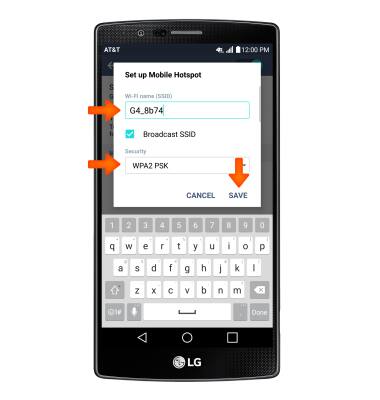
- Edit the Wi-Fi network name and password, and security settings, and then tap SAVE.
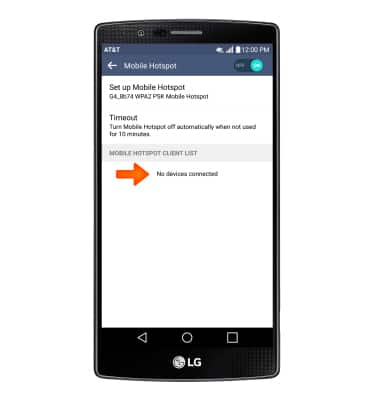
- Connected devices are listed under MOBILE HOTSPOT CLIENT LIST.
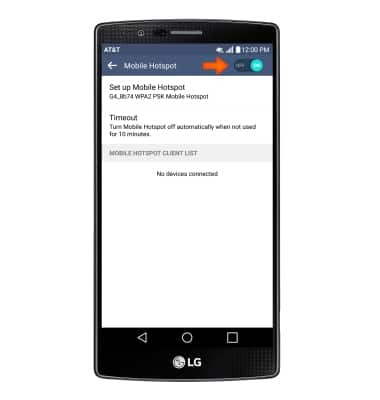
- To turn Mobile hotspot off, from 'Mobile hotspot settings' screen, tap the Toggle.
Mobile hotspot
LG G4 (H810)
Mobile hotspot
Set up your device as a personal hotspot and share your data connection with Wi-Fi-capable devices.
INSTRUCTIONS & INFO