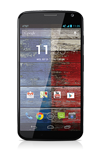
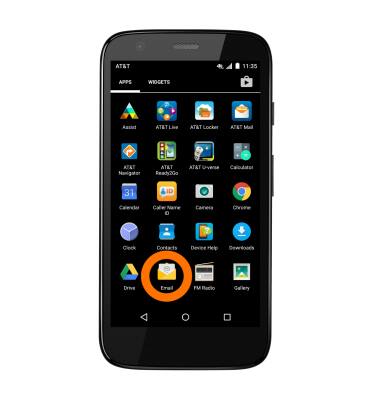
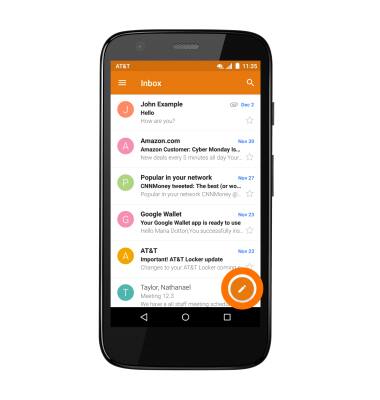
- To send or receive email, from the Apps Menu, tap Email.
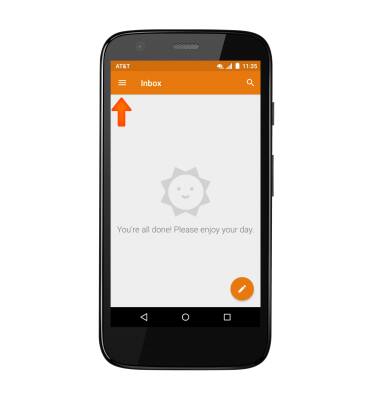
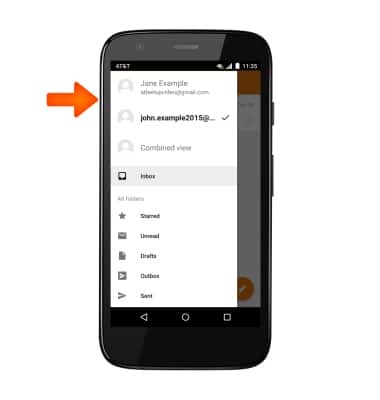
- Tap the Menu icon to switch between mailboxes if multiple email accounts are configured.
- Tap the Desired mailbox.
- To refresh your inbox, pull down from the top of the screen.
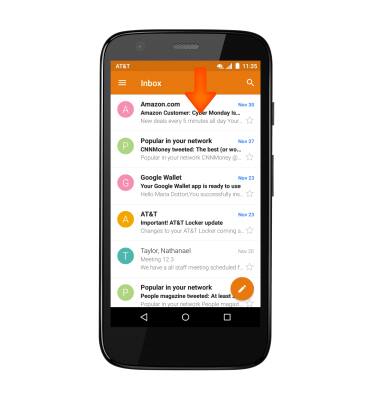
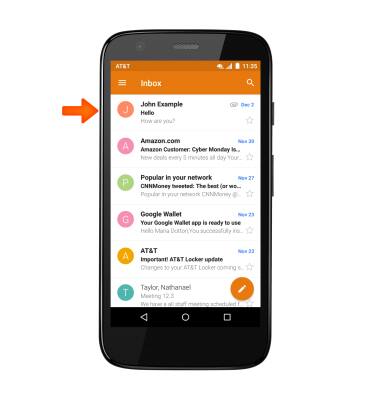
- To view an email, tap the Desired email.
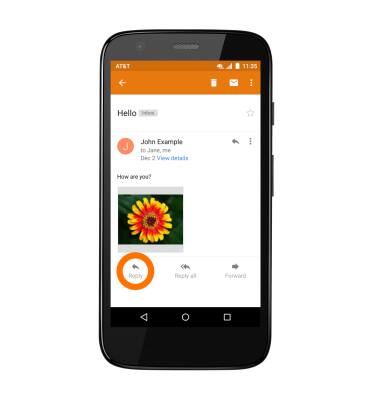
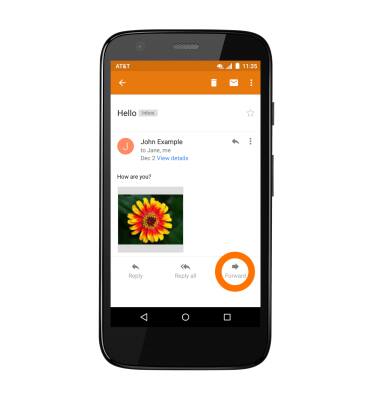
- To reply to the email, tap the Reply icon.
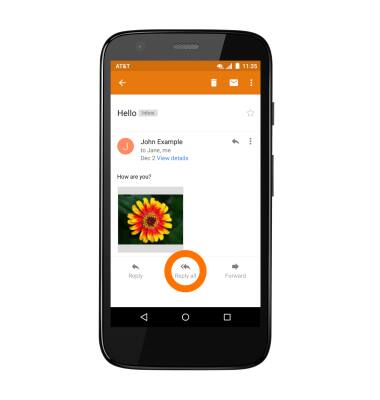
- Tap the Reply all icon to reply to all.
- Tap the Forward icon to forward the email.
- To view an attachment, tap the Desired attachment.
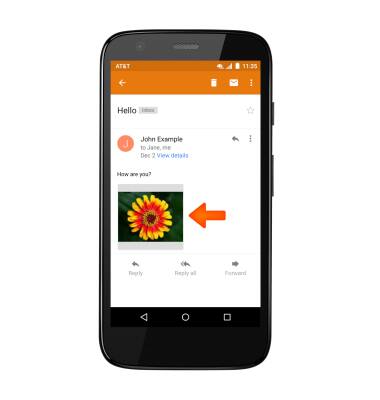
- To save the attachment, tap the Menu icon.

- Tap Save.
Note: By default attachments will be saved to Apps icon > Downloads. To view saved attachments, tap the Apps icon > Gallery icon > Download album.
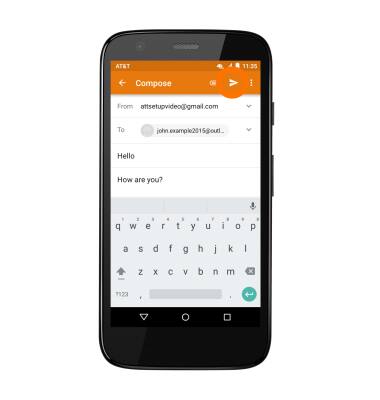
- To compose a new email, tap the Compose icon.
- Enter the Desired recipient, subject and message in the appropriate field.
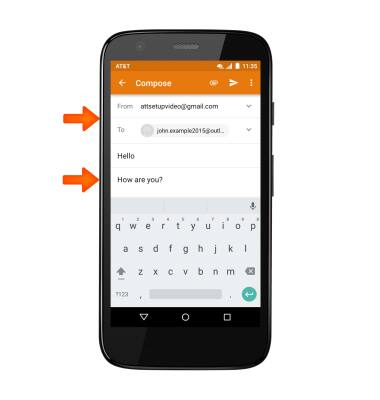
- To attach a file, tap the Attachment icon and follow prompts.

- Tap the Send icon to send.
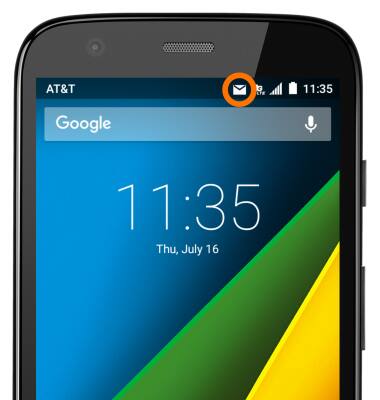
- When a new email is received, the New email icon will display in the Notification bar.
Send & receive email
Motorola Moto g (XT1045)
Send & receive email
Add and download email attachments, respond to an email and more.
INSTRUCTIONS & INFO