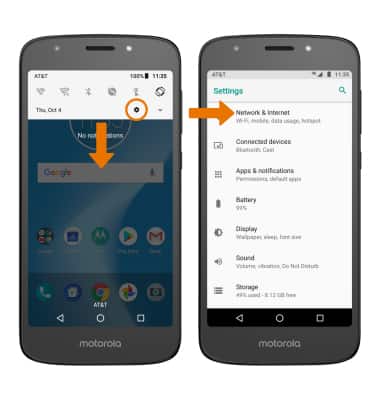
- In order to project your screen to another device, both devices need to be connected to the same Wi-Fi network. Swipe down from the Notification bar, then select the Settings icon. Select Network & Internet.
- Select the Wi-Fi switch to turn Wi-Fi on, then select Wi-Fi. Select the desired Wi-Fi network.
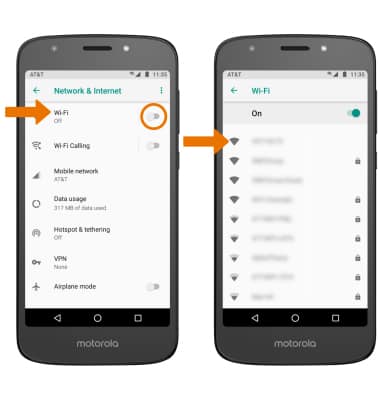
- If necessary, enter the Password then select CONNECT.

- ACTIVATE SCREEN PROJECTING: Swipe down from the Notification bar with two fingers, then swipe left to access the second page of Expanded Quick Settings. Select the Cast icon.
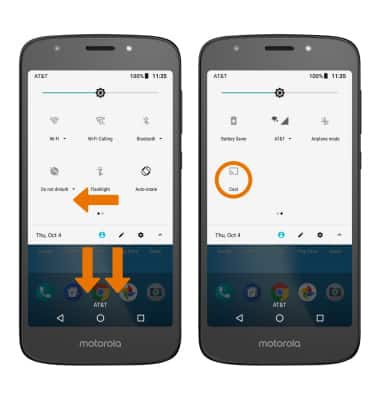
- Select the desired device.
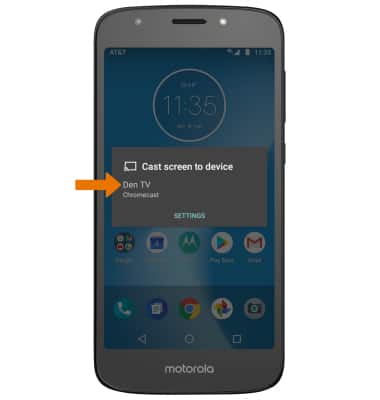
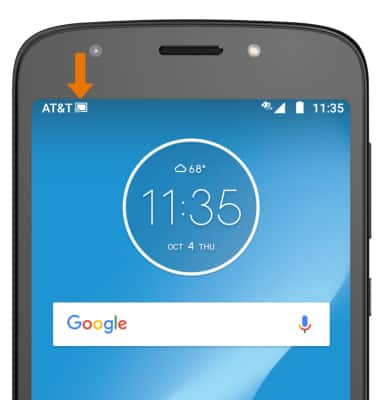
- When Casting your screen, the Cast icon will be displayed in the Notification bar.
- TURN OFF SCREEN PROJECTING: Swipe down from the Notification bar, then select DISCONNECT on the Casting screen notification.
Note: Alternately, you can turn off Screen projecting through Settings. Swipe down from the Notification bar > select the Settings icon > Connected devices > Cast > desired connected device > DISCONNECT.
Screen Projecting
Motorola Moto e5 play (XT1921-2)
Screen Projecting
Project photos, videos, and media on your device to another device (TV, tablet, computer, etc.).
INSTRUCTIONS & INFO