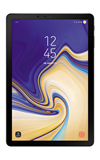
- VIEW AVAILABLE MEMORY: Swipe down from the Notification bar, then select the Settings icon.

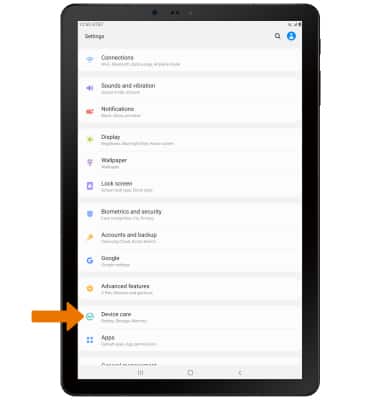
- Select Device care.
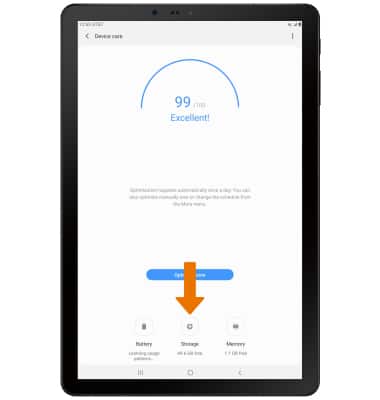
- Select Storage.
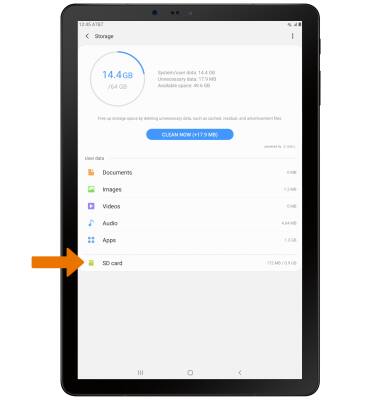
- VIEW MEMORY CARD STORAGE: Select SD card.
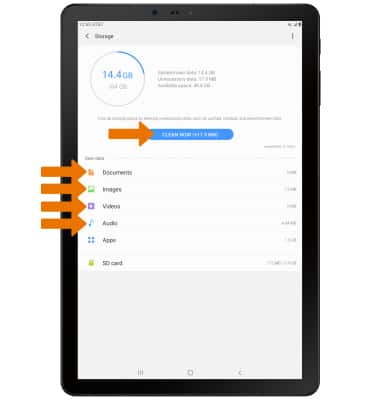
- FREE UP MEMORY: Select CLEAN NOW or delete unwanted Documents, Images, Videos and Audio by selecting the desired field from the Storage screen.
- Select the desired photo(s), then select DELETE.
Note: For this demonstration, Images was chosen. You will be prompted to select DELETE again to confirm.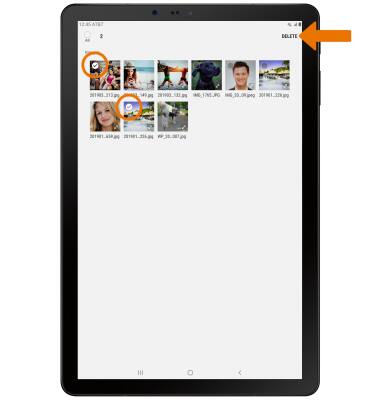
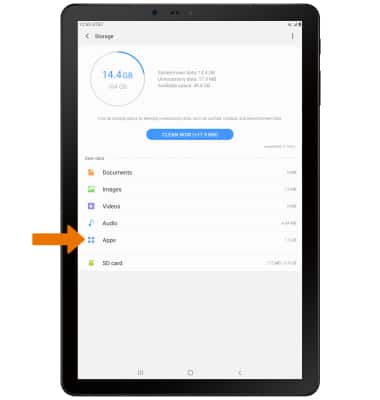
- REMOVE UNUSED APPS: From the Storage screen, select Apps.
- Installed apps will be displayed. Select the desired app you would like to uninstall.
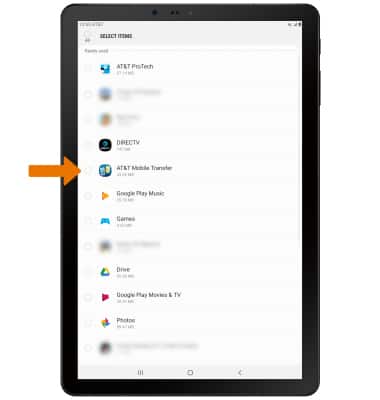
- Select Uninstall.
Note: You will be prompted to select OK to confirm.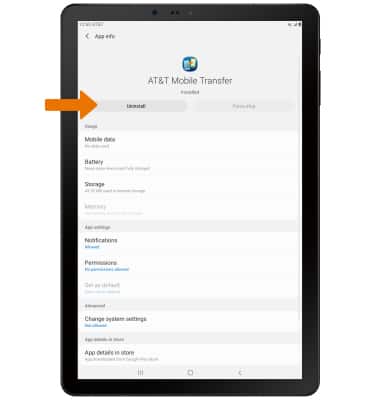
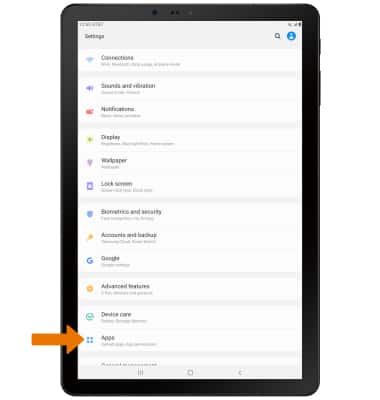
- CLEAR APP DATA/APP CACHE: From the Settings screen, select Apps.
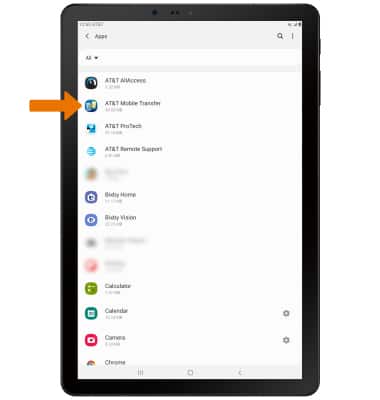
- Select the desired app.
- Select Storage.
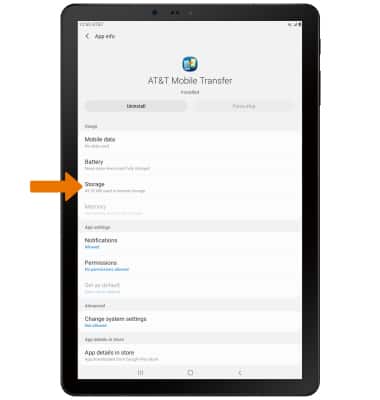
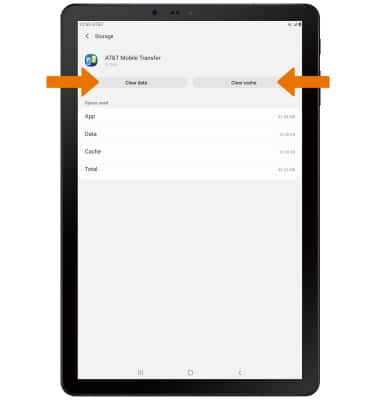
- Select Clear data or Clear cache.
- ADDITIONAL STORAGE: Purchase an SD card or download a Cloud storage app from the Play Store.
Note: For information on storing data to a memory/microSD card, visit the Backup & Restore with a Memory Card tutorial.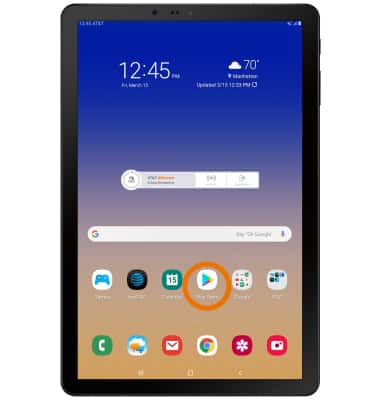
Available Memory
Samsung Galaxy Tab S4 (SM-T837A)
Available Memory
Check the available device storage.
INSTRUCTIONS & INFO
 This device is available with 64GB of internal memory and the option to add a MicroSD card up to 400GB (sold separately).