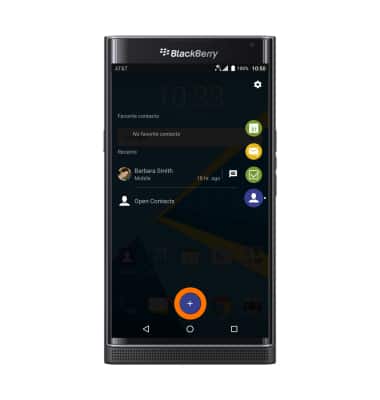
The productivity tab provides an "at a glance" view of the most pertinent information from the Calendar, Hub, Tasks, and Contacts. To access the Productivity Tab, along the right side of the screen's curved edge, swipe the white tab from the edge of the screen.
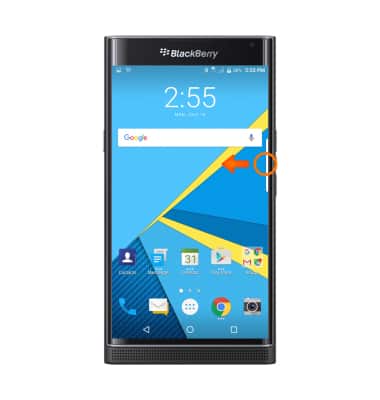
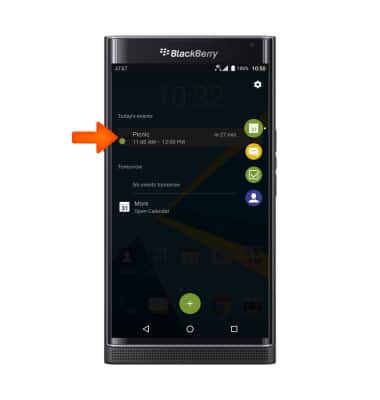
- To access the Calendar overview, tap the Calendar icon. This displays a list of upcoming appointments and meetings.To open a calendar event in the Calendar app, tap the desired event.
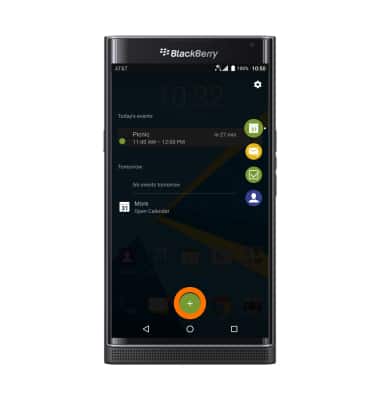
- To quickly add a calendar event, tap the Add event icon at the bottom of the screen.
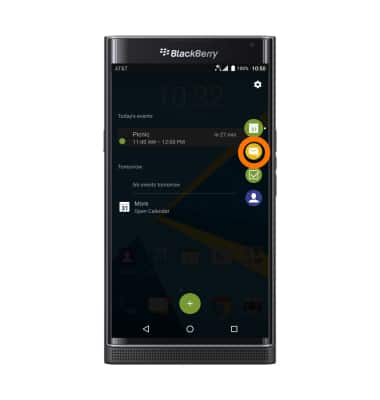
- To access the Hub overview, tap the Hub icon. This displays a list of unread email and text messages received in the last 24 hours.
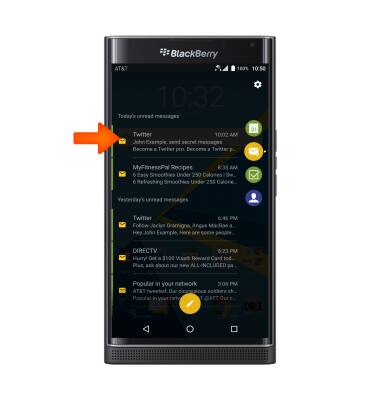
- To open a message in the Hub app, tap the desired message from the list.
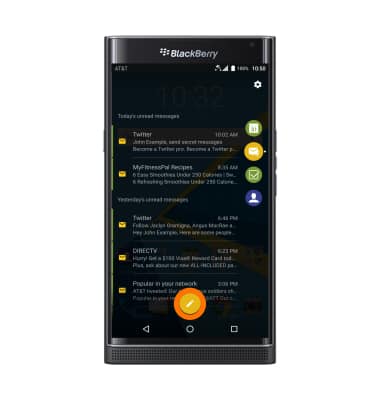
- To quickly compose a new message, tap the Compose icon at the bottom of the screen.
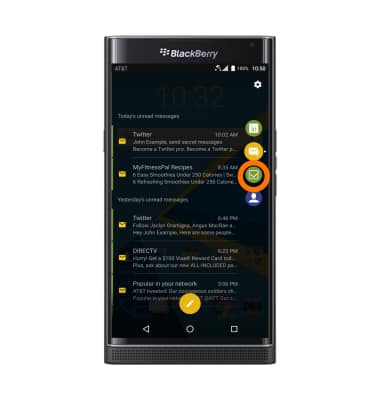
- To access the Tasks overview, tap the Tasks icon. This displays a list of tasks sorted by their due date.
- To open a task in the Tasks app, tap on the desired task from the list. From the app, tasks can be modified or marked as complete.
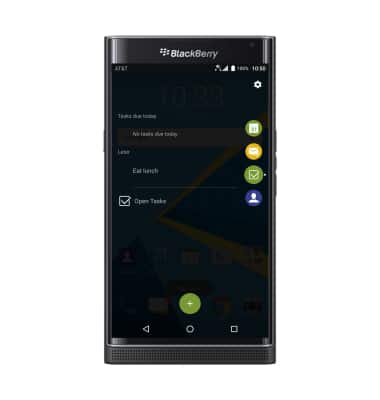
- To quickly create a new task, tap the New task icon at the bottom of the screen.
Note: Tasks without a due date set are placed at the bottom of the scrollable list.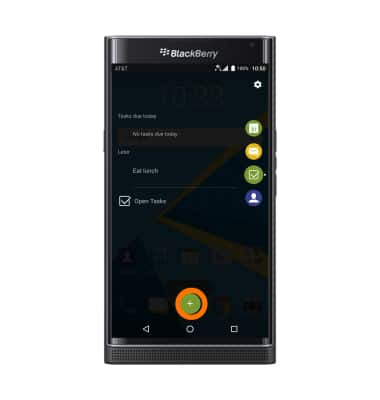
- To access your contacts from the productivity tab, tap the Contacts icon. This displays a list of your favorite contacts.
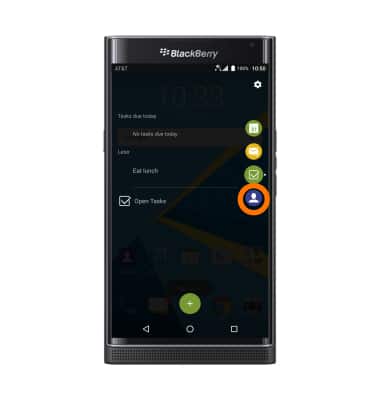
- To open a contact in the contacts app, tap the desired contact from the list.
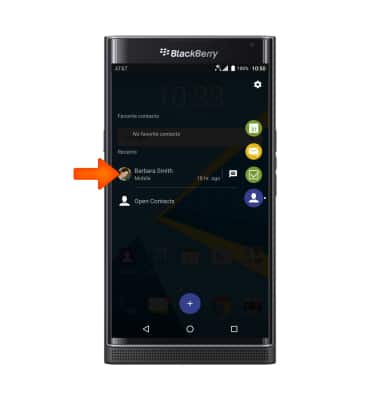
- To quickly add a new contact, tap the Add contact icon at the bottom of the screen.
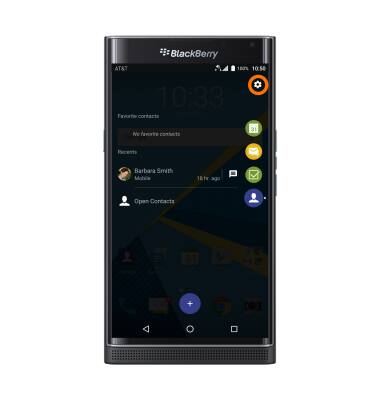
- To access Productivity Tab settings, tap the Settings icon.
Productivity tab
BlackBerry PRIV by BlackBerry (STV100-1)
Productivity tab
Navigating and using the productivity tab.
INSTRUCTIONS & INFO