
In this tutorial, you will learn how to:
• Set up eSIM
• Manage cellular plans
• Switch cellular plan for phone call
• Switch cellular plan for message
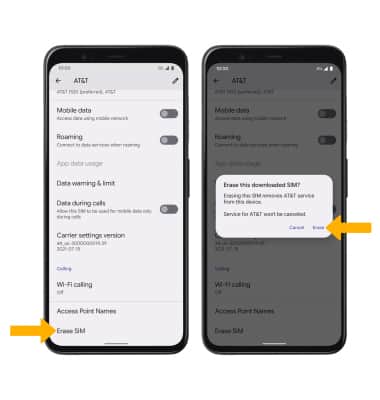
• Erase eSIM
If you are trying to find your EID for your associated eSIM, view the Find IMEI & Serial number tutorial.
Set up eSIM
1. From the home screen, swipe down from the Notification bar with two fingers, then select the  Settings icon.
2. Select Network & internet, then select the Add icon next to SIMs.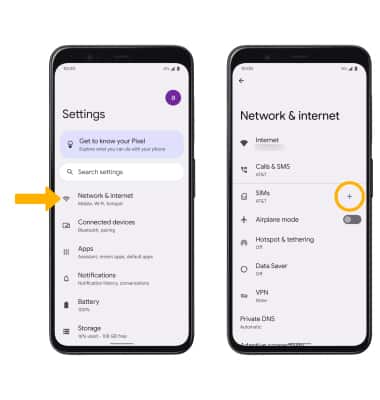
3. Select Download a SIM instead? to activate an eSIM. Select Yes to confirm.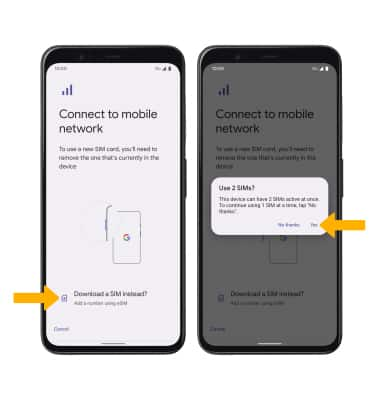
4. Select Next. Use your camera to scan the QR code.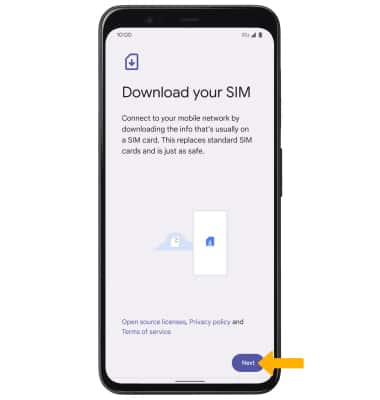
5. Select Download. 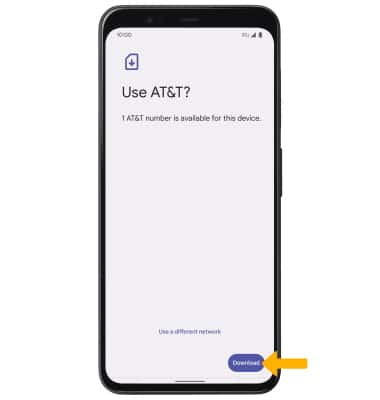
6. Select Settings. 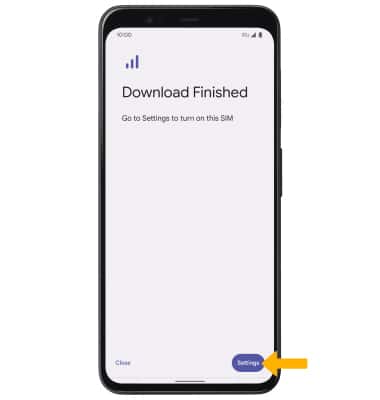
Manage cellular plans
1. To switch between cellular plans, from the SIMs screen, select the SIM not currently being used for data.
Note: Both of your phone numbers can make and receive voice calls and send and receive messages. However, your phone can only use one cellular data network at a time.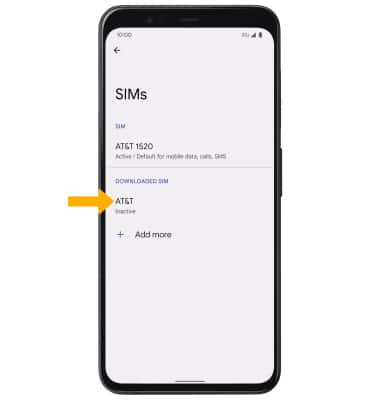
2. Select the Use SIM switch, then select Yes to confirm. 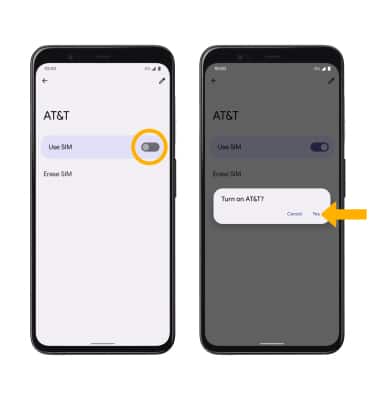
Switch cellular plan for phone call
1. From the  Phone app, select the
  Menu icon then select Settings. Select Calling accounts.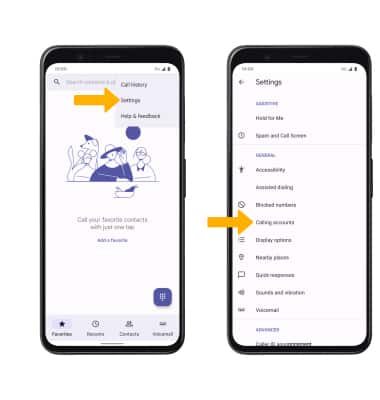
2. Select Make calls with, then select the desired option.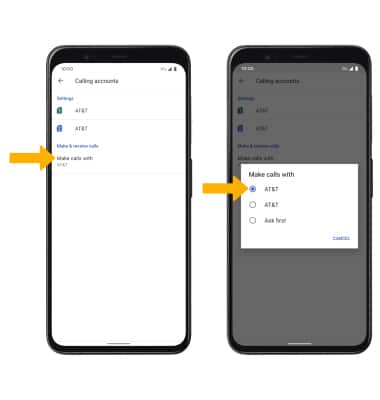
3. To switch cellular plans while on an active call, select Change SIM. 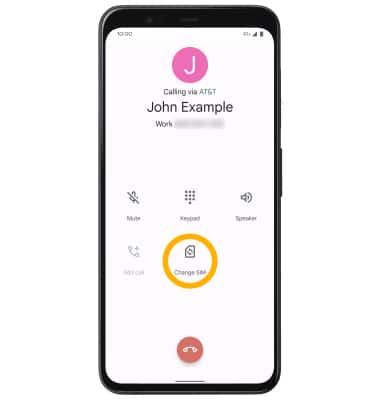
Switch cellular plan for message
From a message thread in the  Messages app, select the SIM icon then select the desired SIM.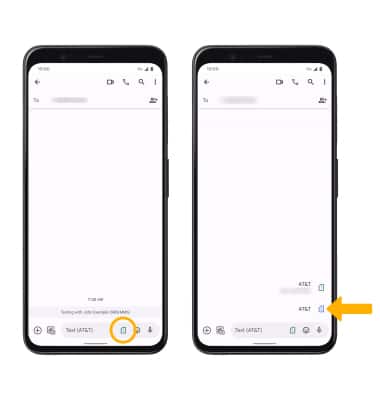
Erase eSIM
1. From the SIMs screen, select the desired eSIM number. 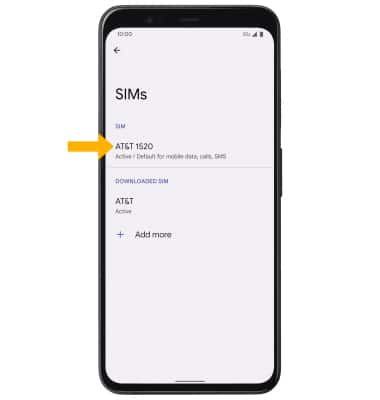
2. Scroll to and select Erase SIM. Select Erase to confirm.
Note: For more information, visit Using Dual SIM with an eSIM.