
This tutorial will cover how to:
• Access the email settings screen
• Change your email signature
• Add additional email accounts
• Delete an email account
Access the email settings screen
1. From the home screen, select the  Outlook app.
2. Select the  Home icon, then select the
  Settings icon.
Note: The Home icon may be displayed as a different app icon if you are in a specific email inbox.
Change your email signature
1. From the email settings screen, select Signature. 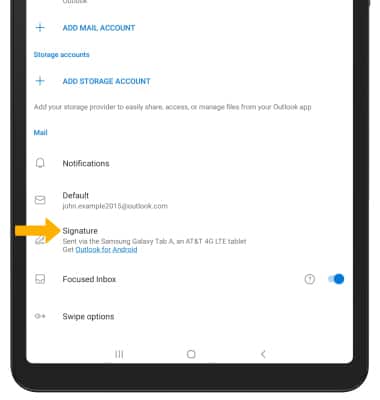
2. Enter the desired signature, then select the Checkmark icon. 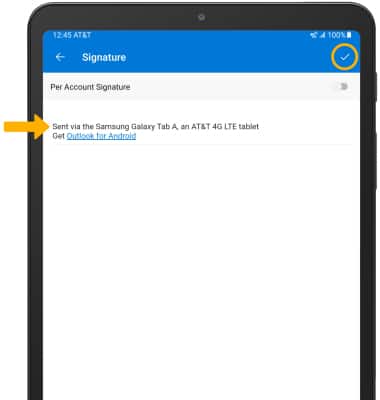
Add additional email accounts
From the Email settings screen, select ADD MAIL ACCOUNT then follow the on-screen prompts.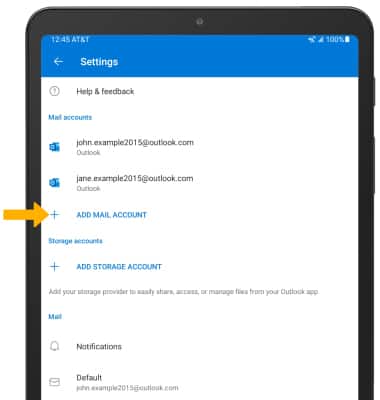
Delete an email account
1. Select the desired email account. 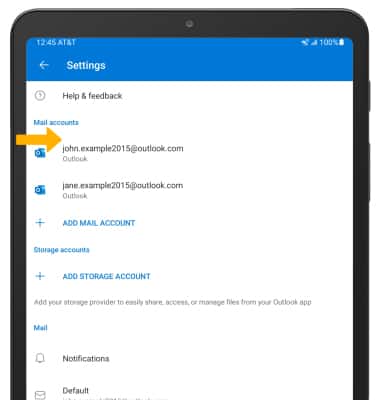
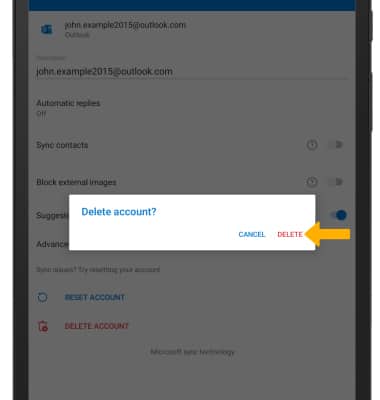
2. From the desired email account settings screen, select DELETE ACCOUNT. 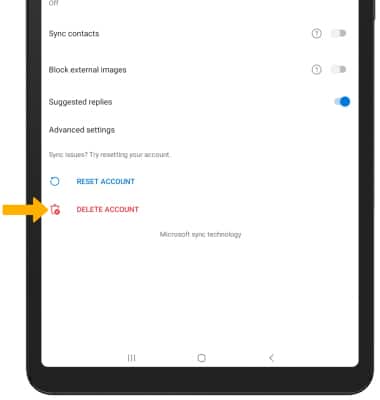
3. Select DELETE to confirm.