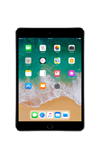
• Change wallpaper
• Add widgets
• Add a Smart Stack
• Add a Smart Stack
Change wallpaper
1. From the home screen, select the  Settings app.
Settings app.2. Select Wallpaper, then select Choose a New Wallpaper.
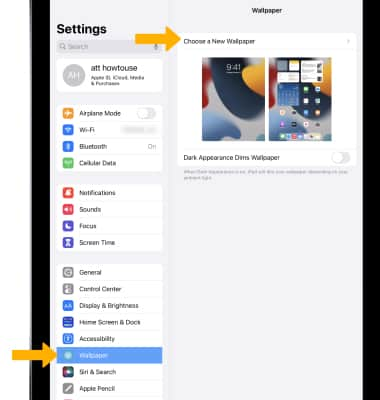
3. Select the desired wallpaper type.
Note: For this demonstration, Stills was selected. To save battery life, turn off Live and Dynamic wallpapers.
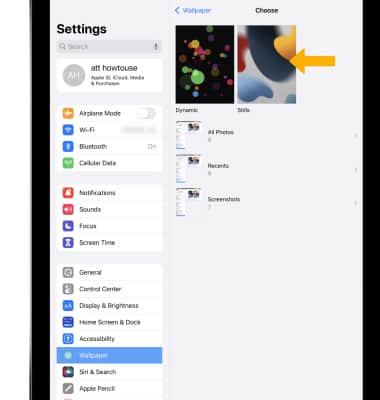
Note: For this demonstration, Stills was selected. To save battery life, turn off Live and Dynamic wallpapers.
4. Select the desired wallpaper.
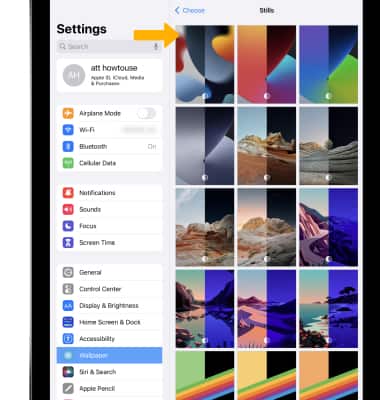
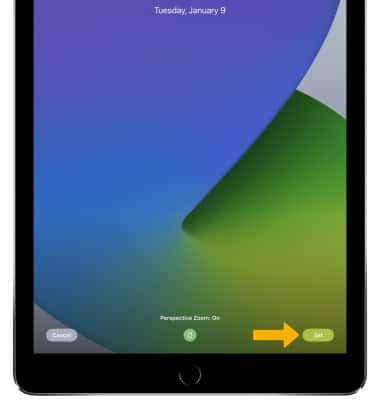
5. Select Set.
Note: You will be prompted to select Set Lock Screen, Set Home Screen, or Set both. Select the desired option. Perspective wallpapers will move as you tilt the iPad.
Add widgets
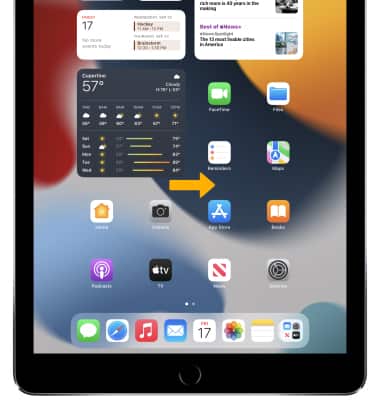
1. From the home screen, swipe right to access widgets.
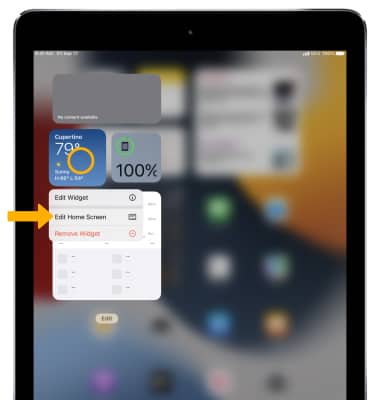
2. Select and hold a widget, then select Edit Home Screen.
3. Select the Add icon.
4. Search for or select the desired widget.
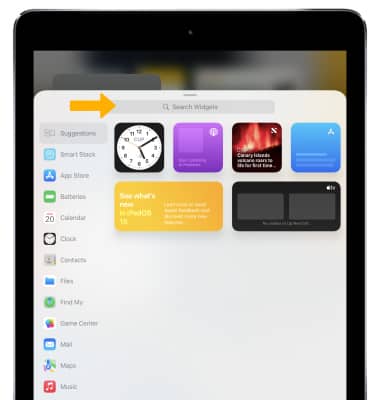
5. Select Add Widget.
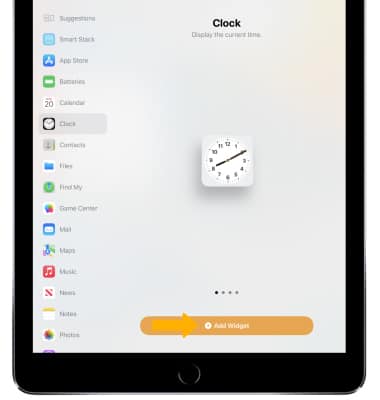
2. Select and hold a widget, then select Edit Home Screen.
3. Select the
Add icon. 4. Search for or select the desired widget.
5. Select Add Widget.
Add a Smart Stack
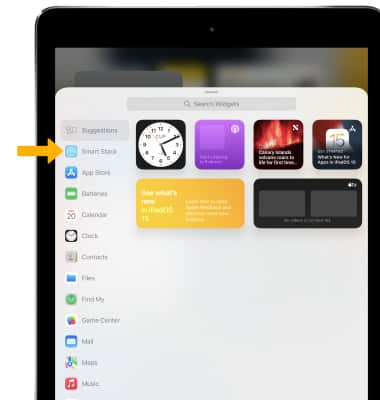
Smart Stacks uses on-device intelligence to show the right widget at the right time in your day.1. To add a Smart Stack, from the Search Widgets screen select Smart Stack.
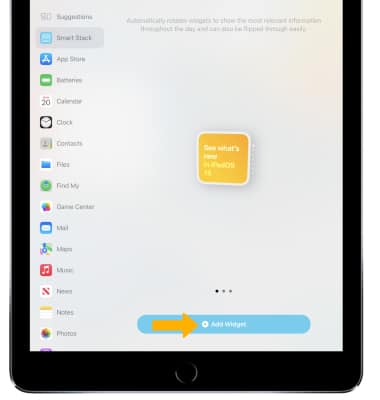
2. Select Add Widget.
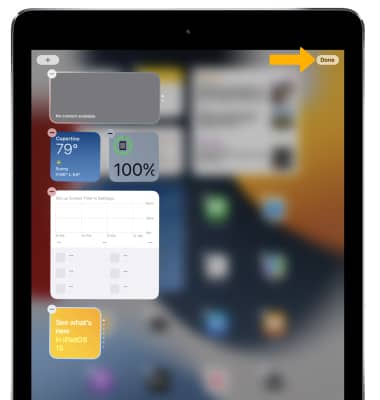
3. Select Done when finished.
2. Select Add Widget.
3. Select Done when finished.