
Overview | Orientation | Tasks

 Previous
|
Next
Previous
|
Next 
Contacts
The Contacts page lets you search for and view information about Personal, Company, and External Contacts.
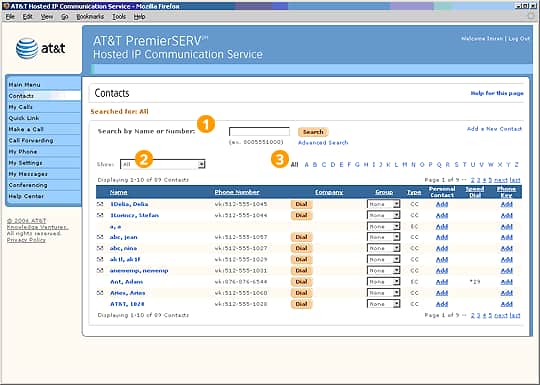
 There are three different types of Contacts in HIPCS:
Company Contacts are Employees in your company.
External Contacts are outside contacts like clients and vendors.
Personal Contacts are people in your individual contact list (which can include Company and External Contacts).
Select a Contact name to view and edit information about the Contact.
To edit information about a Company or External Contact, you must first make it a Personal Contact by selecting "Add" in the "Personal Contact" column.
Select Dial to call a Contact directly from your computer.
Select the envelope icon to send the Contact an email message.
Select a Group name from the pull-down menu. Groups are used to define Caller ID Routing Plans and are used in conjunction with Call Forwarding to direct callers to a designated location.
Select an underlined column header to sort the entries by that column. Selecting the header again will reverse the order.
Highlights

In the Search field, you can enter a last name or phone number. When you select Search, a list of all Contacts that match your search criteria will be displayed in the Contacts list below.

The pull-down menu to the left of the Browse bar lets you choose a certain type of Contact to be displayed, such as Personal, Company, or External Contacts.

Selecting a letter of the alphabet in the Browse bar will display all Contacts whose last names begin with your selected letter.
Related Pages
Previous
|
Next