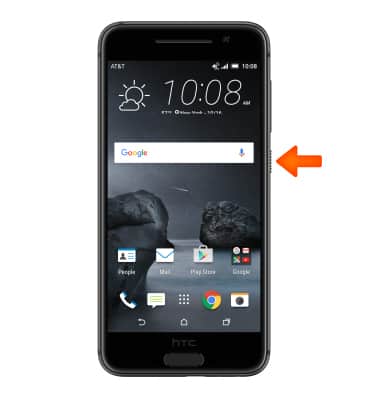
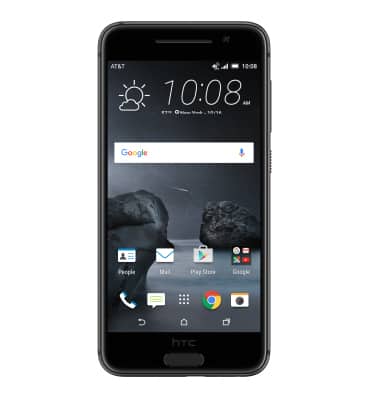
- To lock and unlock the device, press the Power/Lock key.
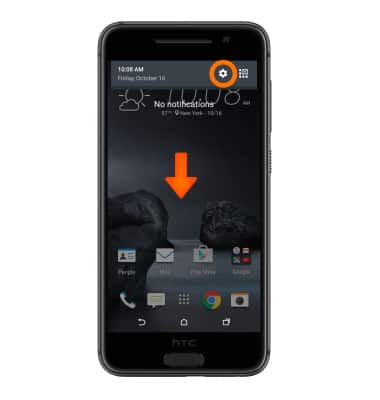
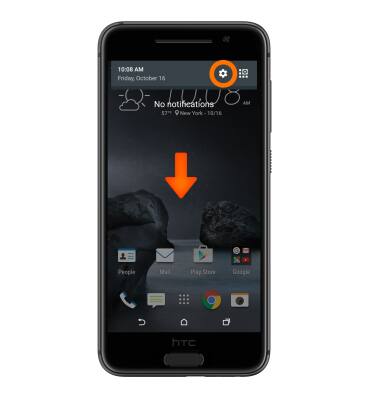
- To set additional screen security, swipe down from the top of the screen then tap the Settings icon.
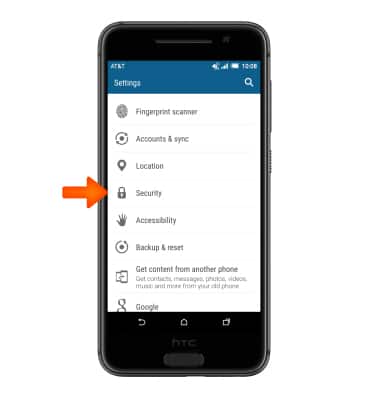
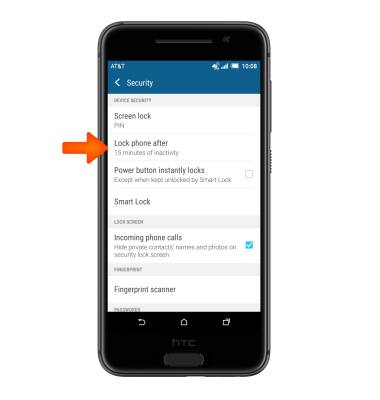
- Swipe to, then tap Security.
- Tap Fingerprint scanner.
- Tap Add fingerprint.
- Tap NEXT.
- Select a desired backup screen lock option then follow prompts to set up.
- Select desired notification privacy option, then tap DONE.
- Tap START.
- Place your finger on the sensor until it vibrates, then lift and repeat until it reads 100%.
- Tap DONE.

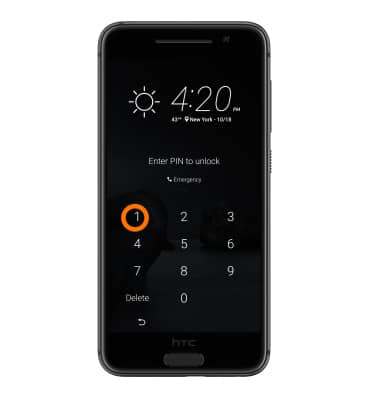
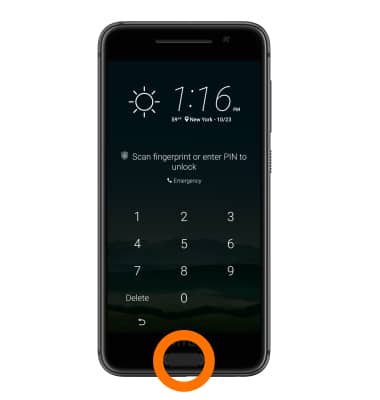
- To login using the security lock, from the lock, screen place your finger over the sensor.
- To change the security lock type, swipe down from the top of the screen and tap the Settings icon.
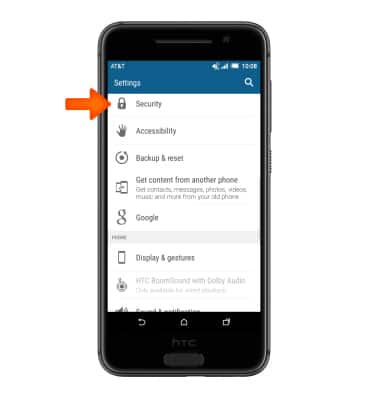
- Scroll to and tap Security.
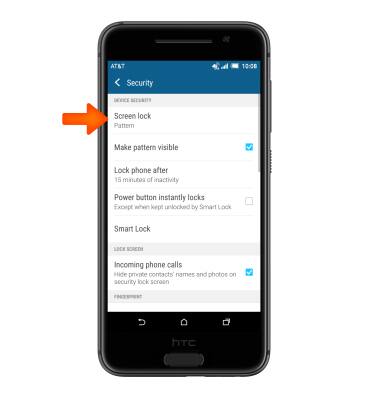
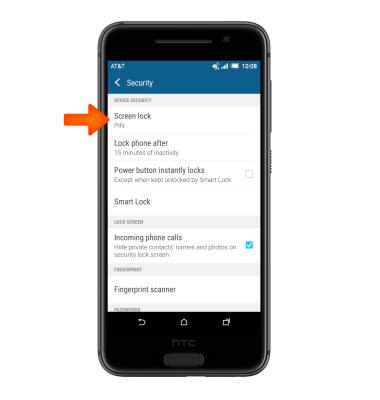
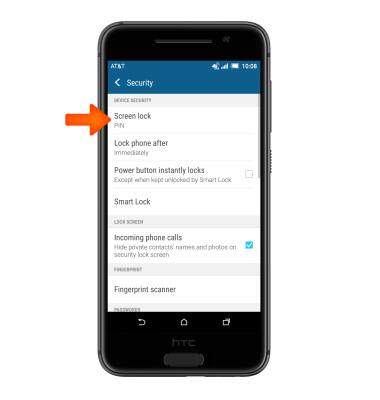
- Tap Screen lock.
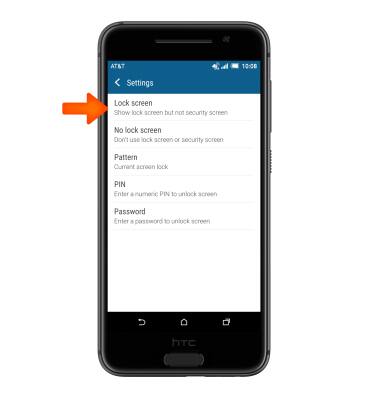
- Select desired screen lock option and follow prompts to set up.
Note: You will need to enter your backup screen lock from when you set up your fingerprint scanner in order to select a new screen lock option. To learn more about requesting a device unlock for your AT&T mobile device, visit www.att.com/deviceunlock. If your device is locked and is requesting a "PUK" code, click here for instructions on how to obtain your PUK or PUK2 code to unlock your SIM card.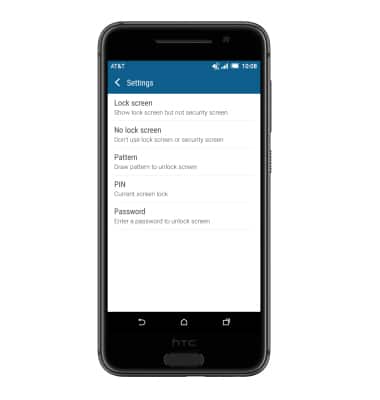
Secure my device
HTC One A9 (2PQ9120)
Secure my device
Lock the device screen, set and change security lock, and locate device.
INSTRUCTIONS & INFO