- To access the camera, from the home screen, tap Camera.
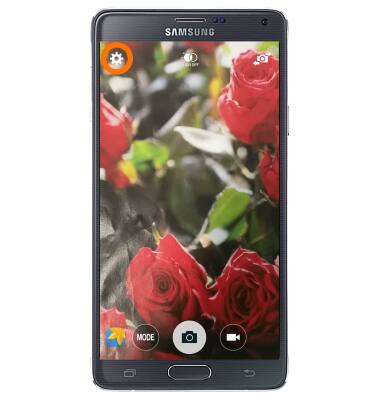
Note: When in “Easy” mode, only a limited amount of camera settings and modes will be available.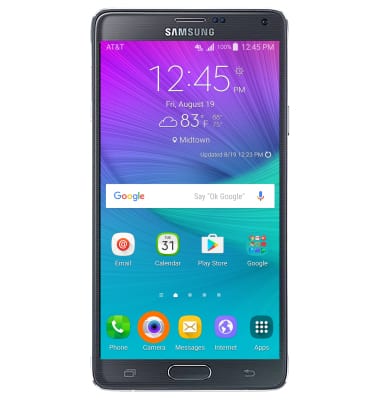
- Tap the Settings icon.
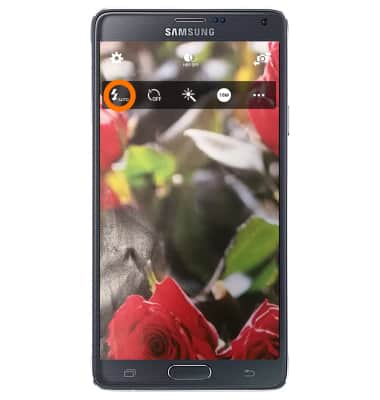
- Tap the Flash icon to cycle through flash modes.
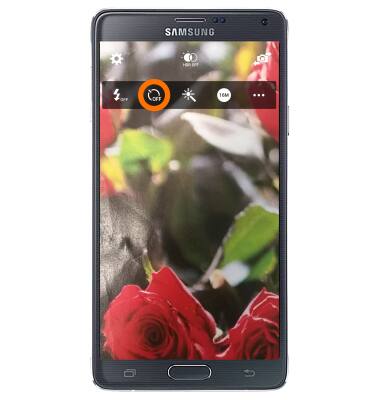
- Tap the Timer icon to set a timer.
- Tap the Desired timer option.
Note: All photos taken will be delayed by the amount chosen.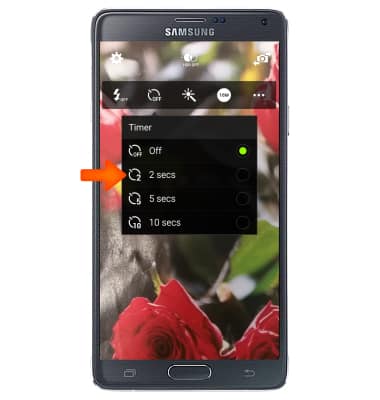
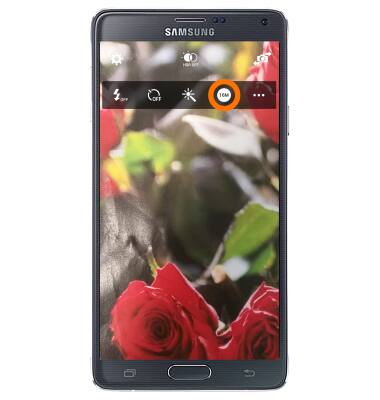
- Tap the Picture size icon to adjust the picture size.
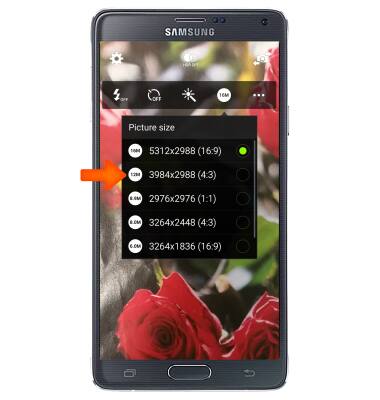
- Tap the Desired picture size option.
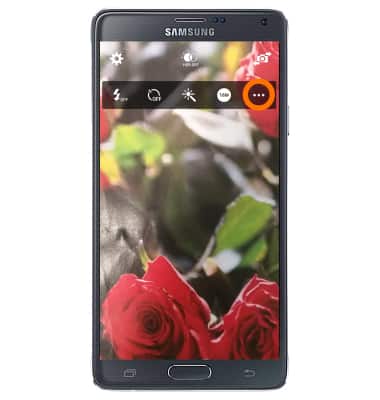
- Tap the Menu icon to access additional settings.
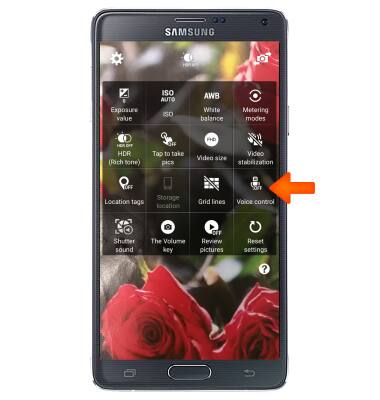
- To turn on voice control, tap the Voice control toggle.
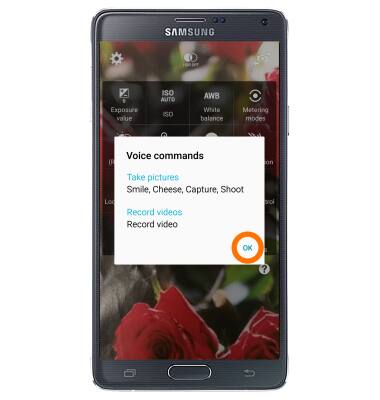
- The voice commands will be listed. Tap OK. Voice commands are now enabled.
- To learn more about your camera settings and features, scroll to the bottom of the screen, then tap User Manual.
Note: To download the user manual from a computer, go to att.com/devicehowto. Select your device, then scroll to the bottom and select User Manual.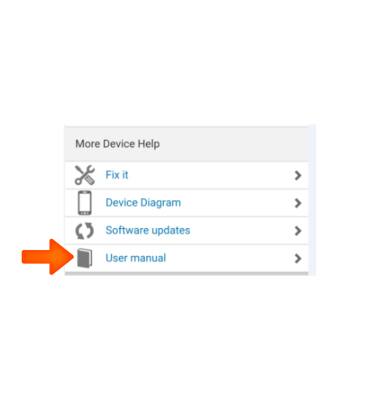
Camera & video settings
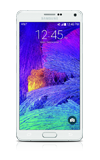
Samsung Galaxy Note 4 (N910A)
Camera & video settings
Manage camera and video settings including flash, timer, voice control, recording mode, storage location, and more.
INSTRUCTIONS & INFO