In this tutorial, you will learn about:
• Access camera settings
• Change the picture size
• Set a timer
Access camera settings
From the home screen, select the  Start icon then select the
  Camera app. Select the
  Settings icon.
Change the picture size
1. From the camera settings screen, select the Photo quality drop-down icon. 
2. Select the desired option. 
Set a timer
From the camera screen, select the Timer icon until the desired option is shown.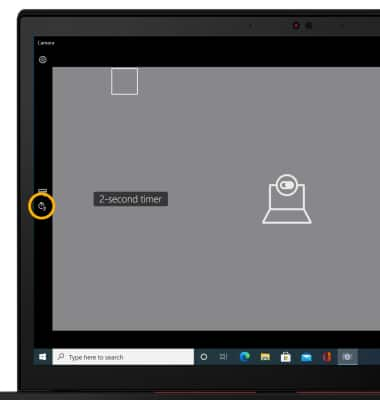
Tips
CHANGE CAMERA MODES: From the Camera app, select the desired icon to access different camera modes.