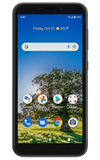

In this tutorial, you will learn how to:
• Set a security lock
• Change lock type
• Change lock screen timeout
• Lock and unlock device
Set a security lock
1. Swipe down from the Notification bar with two fingers, then select the  Settings icon.
2. Select Security.
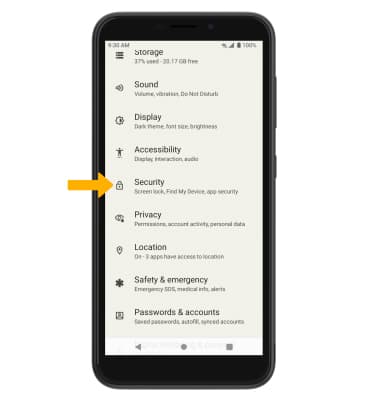
3. Scroll to and select Face unlock.
Note: To set up a screen lock other than face unlock, from the Security screen, select Screen lock then select the desired option. Follow the prompts to complete set up.
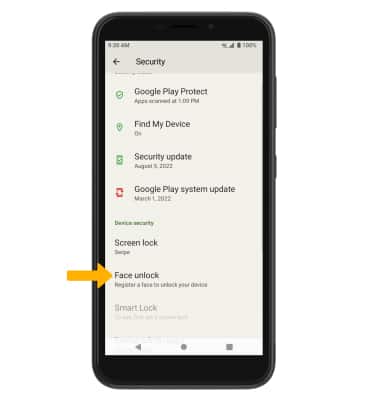
Settings icon. 2. Select Security.
3. Scroll to and select Face unlock.
Note: To set up a screen lock other than face unlock, from the Security screen, select Screen lock then select the desired option. Follow the prompts to complete set up.
4. Select SET UP. Select the desired backup screen lock method, then follow the prompts to complete set up.
Note: For this demonstration Face unlock + Pattern was selected. If you forget your Pattern lock and did not set up a backup, you will have to reset your device. Visit the Reset Device tutorial for alternate reset instructions.
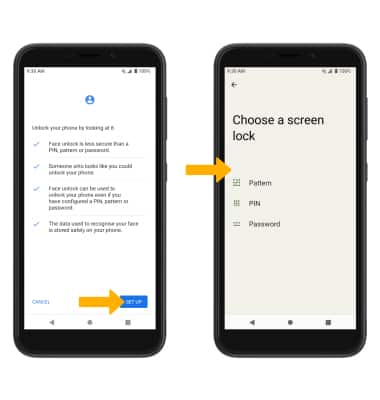
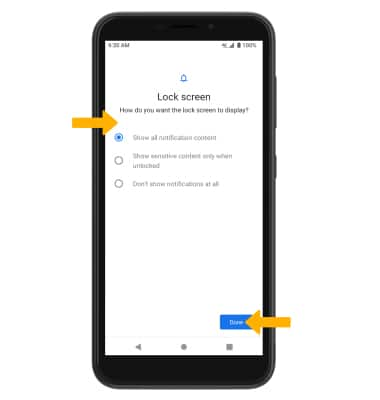
5. Edit Lock screen notification settings as desired, then select Done.
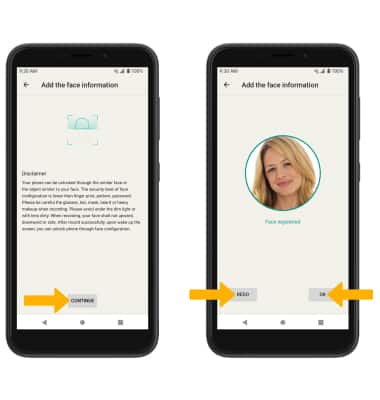
6. Review the Face unlock disclaimer, then select CONTINUE. Follow the prompts to set up face unlock. Select REDO or select OK when finished.
Change lock type
From the Security screen, select Screen lock > enter your current screen lock > select the new desired screen lock type and follow prompts to complete set up.
Change lock screen timeout
1. From the Security screen, select the Settings icon next to Screen lock.
2. Select Lock after screen timeout, then select the desired timeout duration.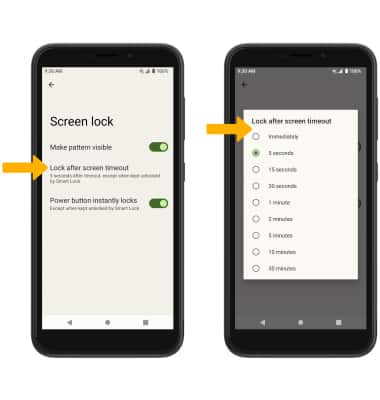
Lock and unlock device
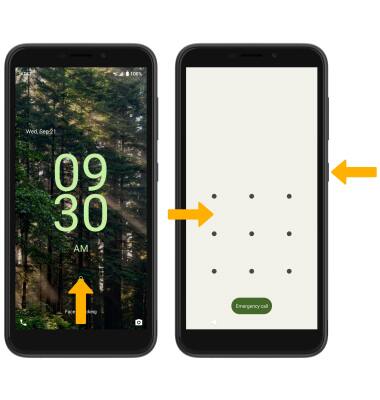
• LOG IN USING THE SECURITY LOCK: To use face recognition, raise your device in front of your face to unlock your device. To use your backup screen lock, swipe up from the bottom of the lock screen, then enter your backup screen lock.
• LOCK DEVICE: Press the Power/Lock button located on the right side of the device.