Learn About U-verse TV Cable Types
Start connecting your U-verse receiver to your TV. Review what type of connection you get with each cable.
Quick tips to make your cables work for you
When connecting your U-verse receiver to your TV, check device connections for your TV. TV screen menus and port configurations vary. Most devices have ports that require one or more of the cables shown here. The manuals for your devices will have specific directions.
Secure cable connections help provide the best picture to your TV. Check for a snug and secure connection of the video cables between your TV, Gateway, and your receiver for each TV with poor picture quality. If you have an older TV that requires the use of coaxial cables, ensure your TV is tuned to Channel 3.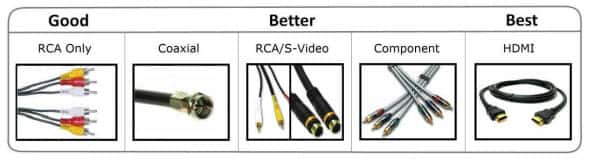
Choose HDMI for the highest quality
To connect your U-verse HD-ready receiver to your HDTV set, the connection is generally HDMI to HDMI (the highest quality video/audio connection). You can also use color-coded component RCA cables (some HDTV sets do not have an HDMI port) that deliver audio/video signals from the receiver and plug into matching audio/video RCA inputs on the back of your HDTV set.
If you've connected your TV input using Composite (yellow connector), S-Video, or Coaxial, you won't get an HD picture. HD is supported only via HDMI or Component (red/green/blue). The same holds true for Dolby(R) Digital 5.1 surround sound, which is available only via HDMI or TOS Link (optical). The Baseband (red and white connectors) delivers sound only in stereo.