Bixby Routine
Learn how to use Bixby Routines to make changes to settings based off your use patterns.
In this tutorial, you will learn how to:
• Access Bixby Routines
• Add a routine
• Disable or re-enable a routine
• Delete a routine
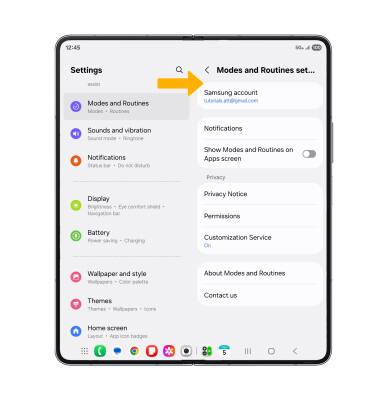
• Access Bixby Routine settings
Access Bixby Routines
1. Swipe down from the upper right corner of the screen, then select the  Settings icon.
2. Select Modes and Routines, then select Routines tab.
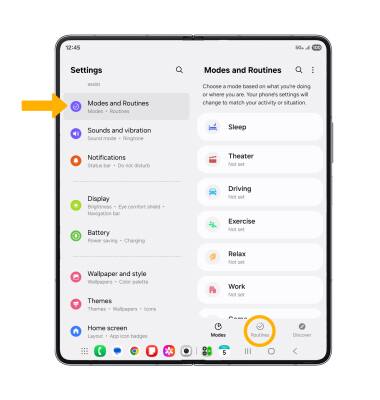
Add a routine
1. Select the  Add icon. Select the Add icon under If to add a trigger to the routine.
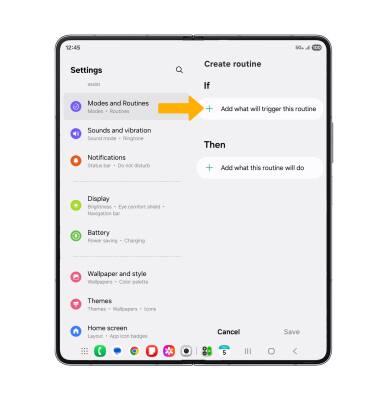
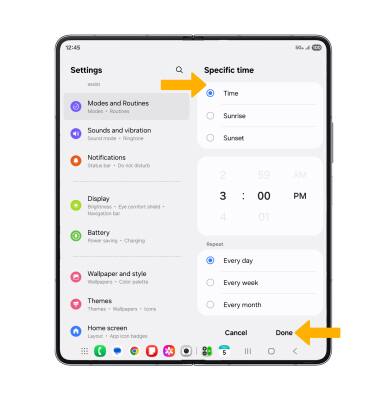
2. Select the desired trigger.
Note: For this tutorial, Specific time was selected.
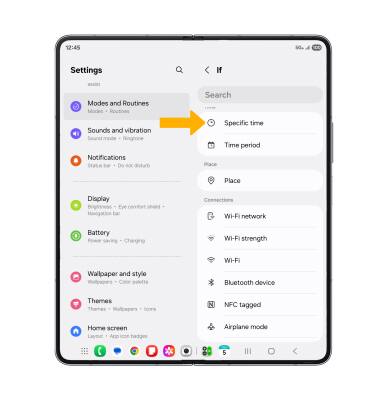
3. Edit settings as desired, then select Done.
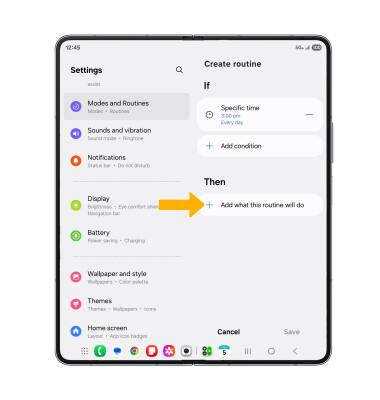
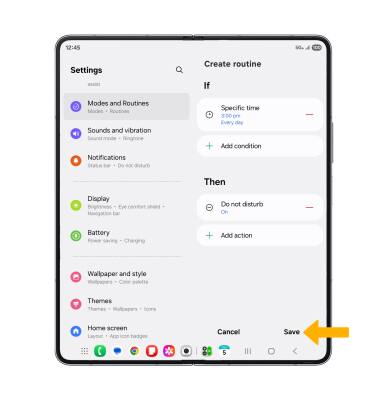
4. Select the Add icon under Then to select what the routine will do.
Note: To add another trigger, select the  Add condition icon under If and follow the prompts. To remove a trigger, select the
  Remove icon.
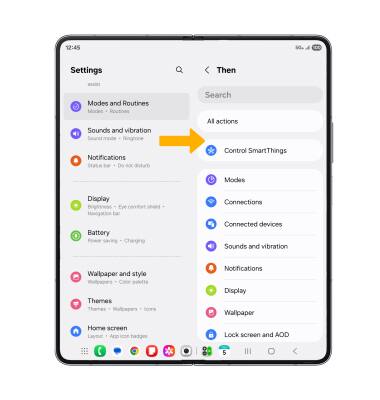
5. Select the desired action.
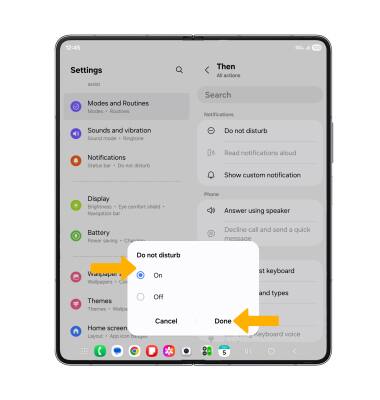
6. Edit settings as desired. Select Done when finished.
7. Select Save.
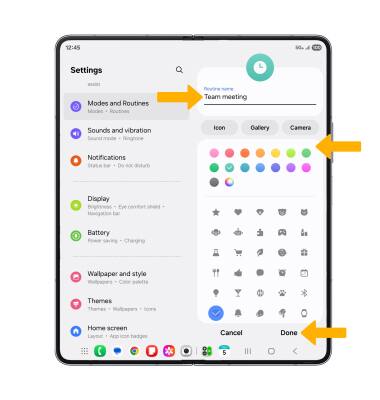
8. Enter the desired Routine name and display settings, then select Done.
Disable or re-enable a routine
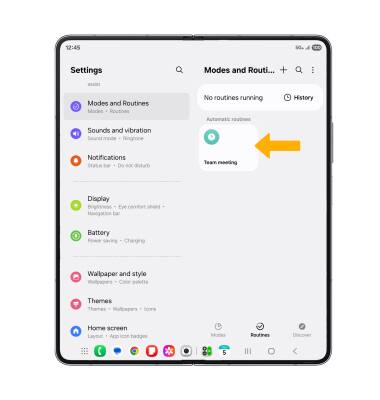
DISABLE A ROUTINE: When a routine is created, it is automatically enabled. To disable a routine, select the desired routine.
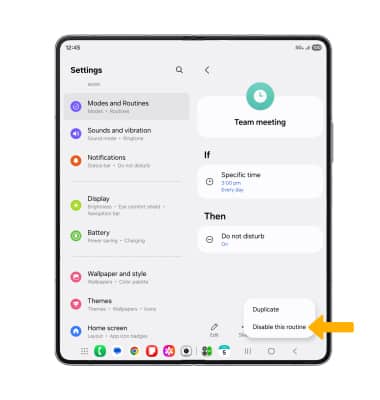
Select the  More icon, then select Disable this routine.
Note: You will be prompted to select Disable to confirm.
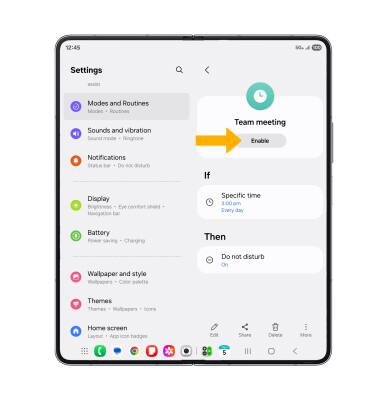
ENABLE A ROUTINE: To re-enable a routine, select the desired disabled routine.
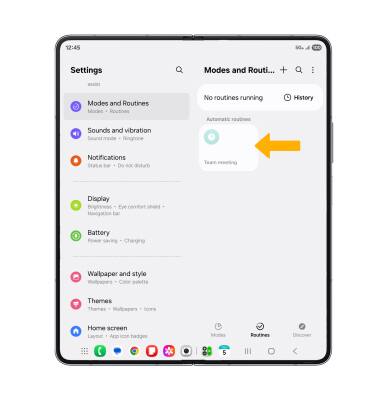
Select Enable.
Delete a routine
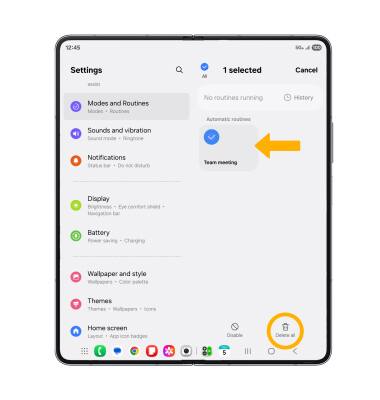
Select and hold the desired routine(s), then select the Delete icon.
Note: Select Delete again to confirm.
Access Bixby Routine settings
1. Select the Menu icon, then select Settings.
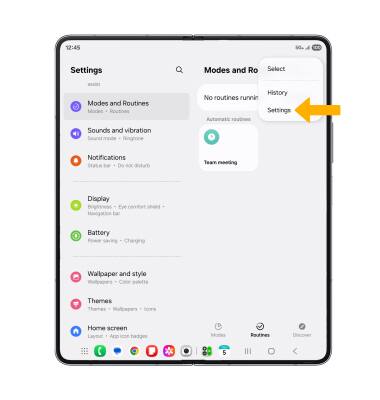
2. Edit settings as desired.