Contacts
Learn how to add, view, delete, customize by adding a picture or ringtone, and back up your contacts.
In this tutorial, you will learn how to:
• Access contacts
• Add a contact
• Add a picture and ringtone to a contact
• Edit a contact
• Delete a contact
• Back up contacts through iCloud
• Customize your Contact Poster
Access contacts
To access contacts select the  Contacts app.
Add a contact
1. From the Contacts screen, select the  Add icon.
2. Enter the desired contact information in the corresponding fields. Select the Checkmark icon when finished. 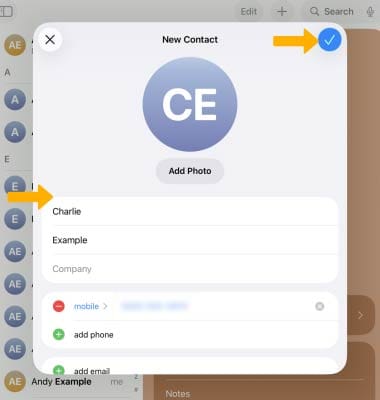
Add a picture and ringtone to a contact
1. From the desired contact, select Edit.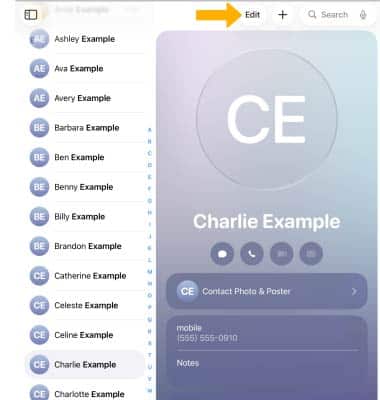
2. To add a picture, select Add Photo then navigate to the desired image and follow the prompts. 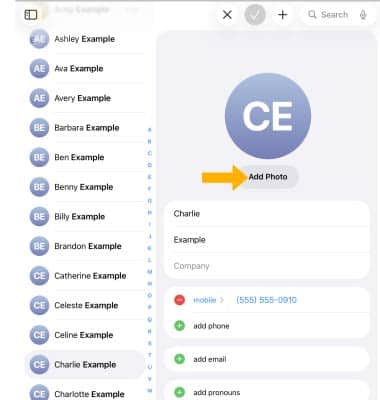
3. To add a ringtone to a contact, select Ringtone. 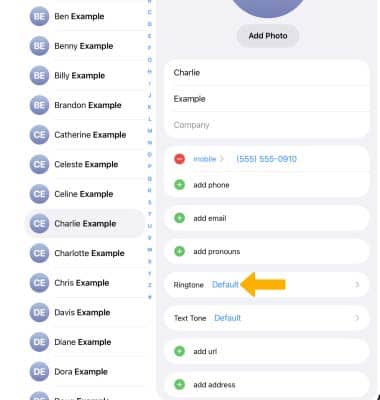
4. Scroll to and select the desired ringtone, then select the Checkmark icon.
Note: When finished, select the Checkmark icon again to save changes.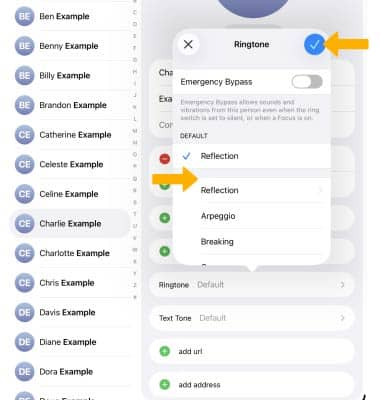
Edit a contact
1. From the desired contact, select Edit. 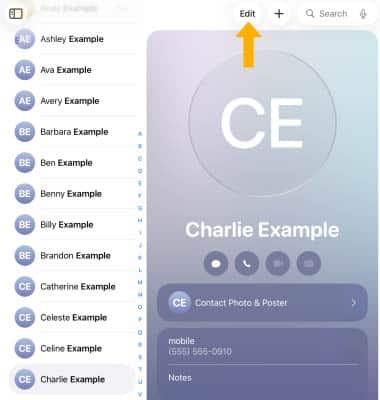
2. Edit the contact as desired, then select the Checkmark icon when finished. 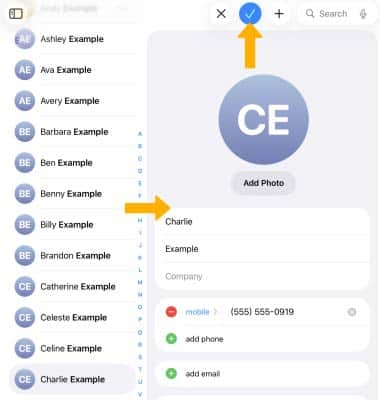
Delete a contact
From the Edit screen, scroll to and select Delete Contact. Select Delete Contact again to confirm. 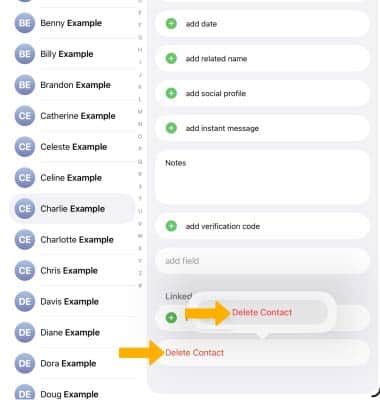
Back up contacts through iCloud
From the home screen, select the  Settings app > select the Apple ID > iCloud > See All >
  Contacts switch.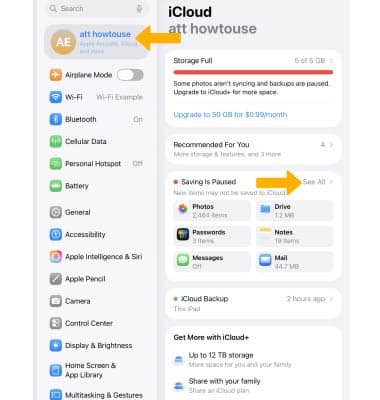
Customize your Contact Poster
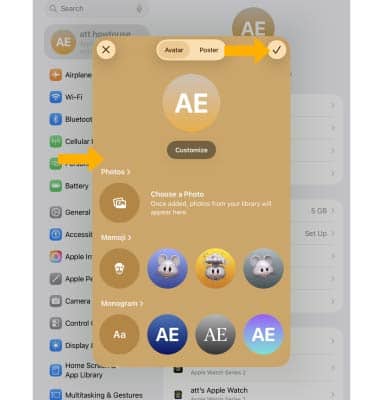
1. Customize how you appear to your contacts when you call, FaceTime, or send them a message. From the home screen, select the Settings app. Select your Apple ID, then select your Contact icon.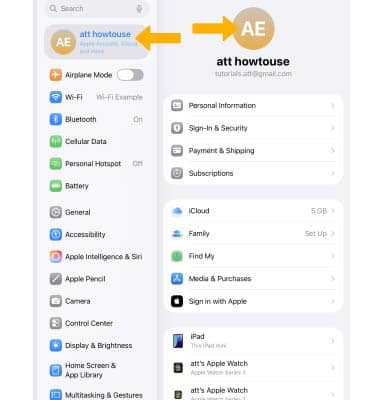
2. Edit your Contact icon as desired, then select the Checkmark icon.