Gestures & Motion
Control your device by making specific movements with your hand.
In this tutorial, you will learn how to:
• Access the apps list
• Open an app
• Access the dock
• View or close a running app
• View notifications
• Access Control Center
• Access and edit Smart Stack
• Access additional motions and gestures
• Use Double Tap
• Use Wrist Flick
• Access Gesture settings
Access the apps list
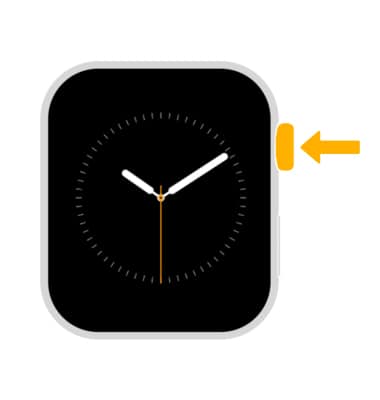
From the clock screen, press the Digital Crown/Home button.
Open an app
From the apps list, select the desired app. 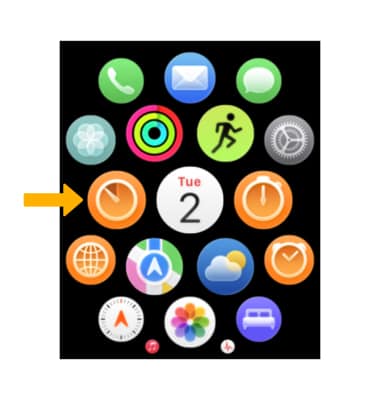
Access the dock
Double press the Digital Crown/Home button. Recently used apps will be displayed.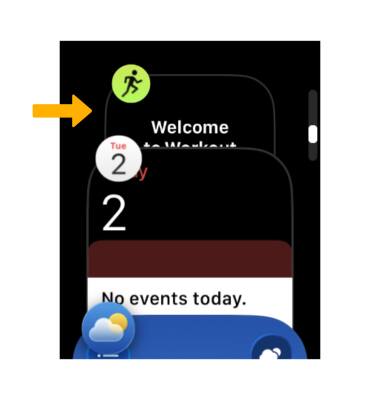
View or close a running app
From the dock, scroll to and select the desired app to open. To close an app, swipe left then select the X icon. 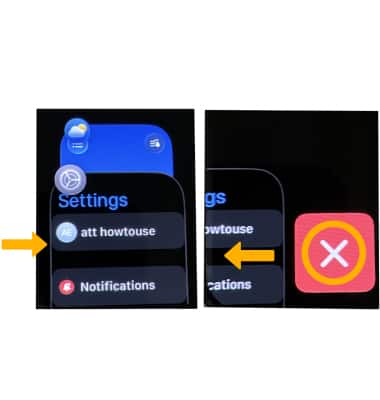
View notifications
From the clock screen, swipe down from the top of the screen. Notifications will be displayed. 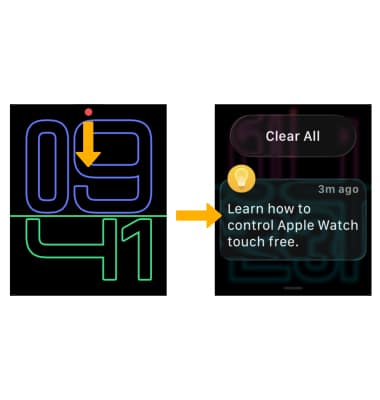
Access Control Center
Press the Side button. The Control Center will be displayed. 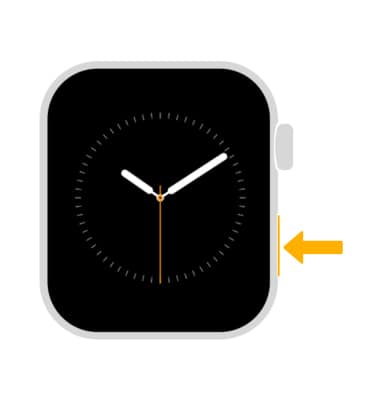
Access and edit Smart Stack
Smart Stack is designed to help users quickly access important information from any watch face. In watchOS 26, the Smart Stack improves its prediction algorithms by incorporating more contextual data, sensor data, and data from a user’s routine to provide Smart Stack hints, a proactive prompt for actionable suggestions that are immediately useful. Smart Stack hints will appear on the display as a gentle visual prompt. For example, a hint for Backtrack may appear when a user is in a remote location with no connectivity, or a hint for a Pilates workout may show up when a user arrives at a studio location at their usual time.
ACCESS SMART STACK: From the Clock screen, rotate the Digital Crown/Home button. Smart Stack widgets will be displayed.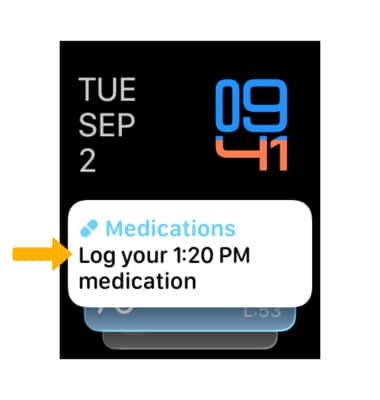
EDIT SMART STACK: 1. From the Smart Stack screen, scroll to and select Edit.
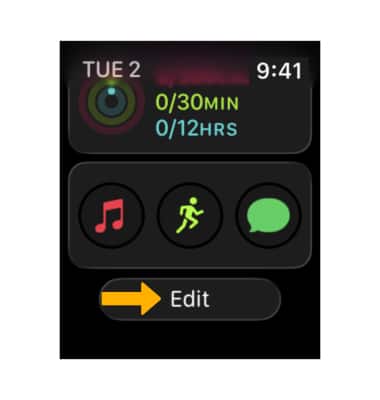
2. Select the desired option, then select Checkmark icon when finished editing.
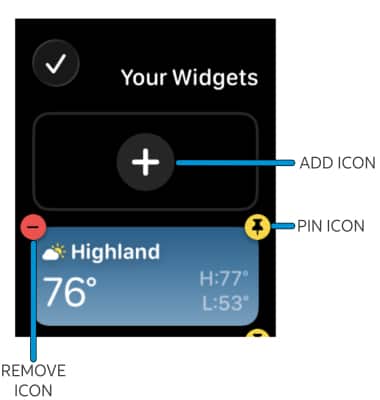
• PIN A WIDGET: Select the Pin icon to pin the desired Widget to the top of the Smart Stack.
• ADD A WIDGET: Select the Add icon. Navigate to and select the desired Widget.
• REMOVE A WIDGET: Select the Remove icon to delete a widget from the Smart Stack.
Access additional motions and gestures
To access Wake screen gestures, from the clock screen, press the Digital Crown/Home button > select the  Settings app > Display & Brightness > scroll to and edit gestures as desired.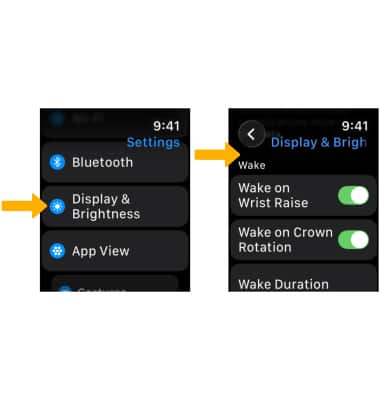
To access Fall Detection settings, from the clock screen, press the Digital Crown/Home button > select the Settings app > SOS > edit Fall Detection settings as desired.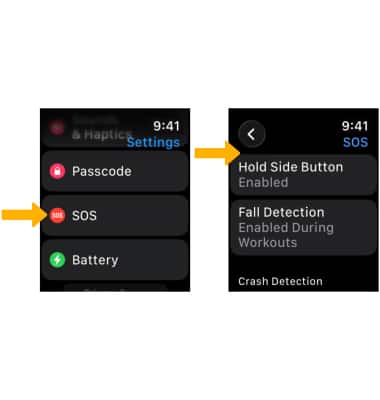
To access Handwashing, from the clock screen, press the Digital Crown/Home button > select the Settings app > Handwashing > select the  Handwashing Timer switch.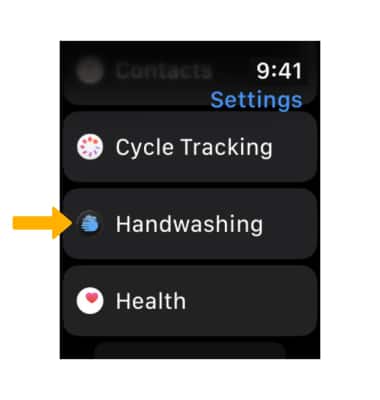
Use Double Tap
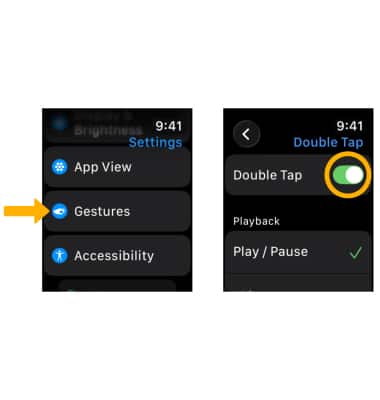
On Apple Watch Series 9, Series 10 & Watch Ultra2 you can use Double Tap to answer a call, reply to a message, see and scroll through your Smart Stack, and more. To use, simply tap your index and thumb together twice. Double Tap is on by default. To disable Double tap, from the clock screen, press the Digital Crown/Home button > select the Settings app > Gestures > Double Tap > Double Tap switch.
Note: The Double Tap gesture isn’t available when Low Power Mode is on, Sleep Focus is active, the display is inactive because your wrist is down, or certain accessibility features are on. Additionally, double tap isn’t available on an Apple Watch you set up for a family member, and works only when your Apple Watch is on your wrist and unlocked. For more information, visit If double tap isn't working on your Apple Watch.
Use Wrist Flick
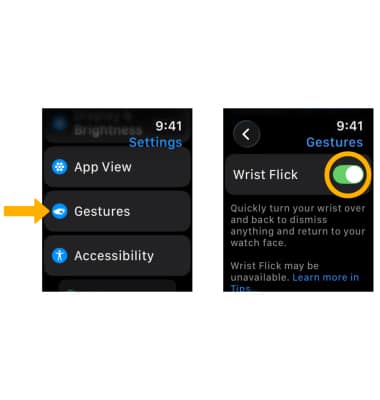
On Apple Watch Series 9, Series 10 & Watch Ultra2 you can use the Wrist flick gesture to dismiss notifications and incoming calls, silence timers and alarms. To use, simply turn your wrist over and back to dismiss anything and return to the watch face. Wrist Flick is on by default. To disable, from the clock screen, press the Digital Crown/Home button > select the Settings app > Gestures > Wrist Flick switch.
Access Gesture settings
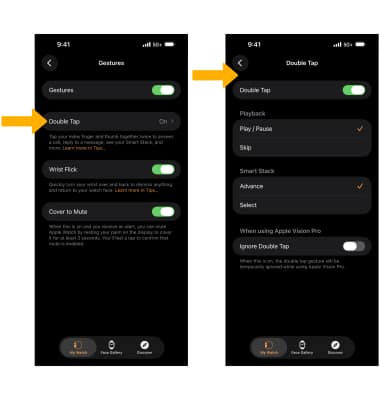
1. To edit Watch gestures, from the  Watch app on your paired iPhone, select Gestures. Edit settings as desired.
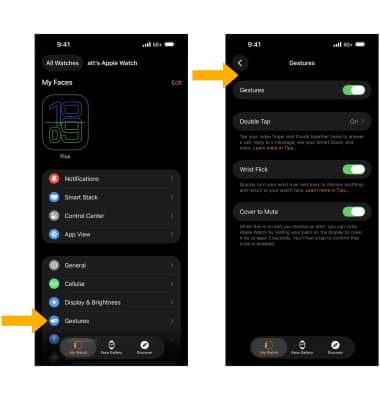
2. To assign Double Tap specific actions when playing media or navigating your Smart Stack, from the Gestures screen, select Double Tap then edit the desired settings.