Bixby Vision
Use Bixby Vision to identify landmarks, translate languages, and show you where to buy an item.
In this tutorial, you will learn how to:
• Access Bixby Vision
• Use Bixby Vision
• Access Bixby Vision settings
Access Bixby Vision
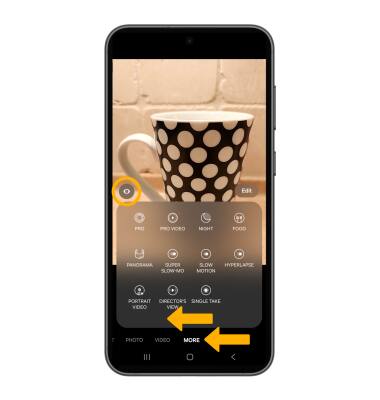
1. From the home screen, select the  Camera app.
2. Swipe left to MORE, then select the Bixby Vision icon.
Note: If this is your first time accessing Bixby vision, you will get a Privacy Notice and Terms and Condition prompt. Select Continue.
Use Bixby Vision
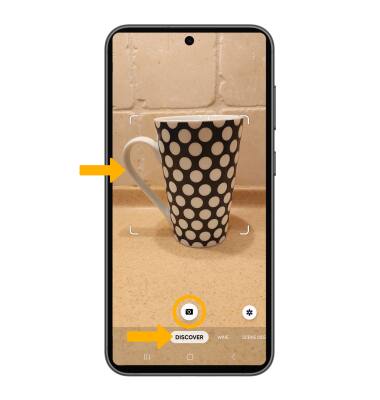
1. Select DISCOVER. Point the device's camera at an object or location. then select the Capture icon. Bixby Vision will identify the object or location.
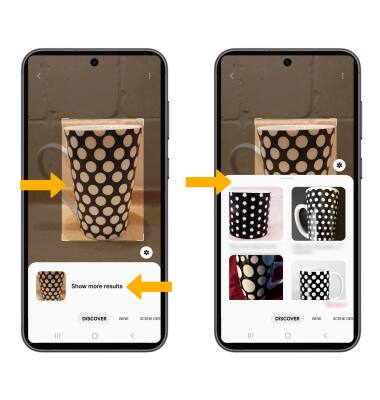
2. Select Show more results, then select the desired search result.
Access Bixby Vision settings
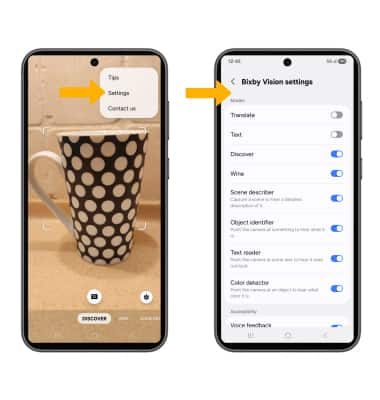
From the Vision screen, select the  Menu icon, then select Settings. Edit settings as desired.